|
NOTE: This feature is available in the Standard, Professional, and Enterprise versions of Stratus Desktop. |
You can use the Form Letter Builder to create templates specifically for your text messages. Although you can send any form letter as a text message, it can not include images, and it’s best to create shorter versions that stay within the 160 character limit.
Creating an SMS Text Template #
Here’s an example of how to create an SMS template with the Form Letter Builder. See also: Form Letter Builder
-
Go to Tools > Design Tools > Form Letter Builder.
-
Click Add to create a new form letter.
-
Enter the basic properties of the form letter. Here are some recommendations:
-
Include “Text” or “SMS” in the description. This will make it easier for you to choose the correct letter when sending texts.
-
The subject will not be included in the text message, however, this field may be useful when viewing messages on the Messages hub.
-
Create a special (short) signature just for texts if you choose to append a signature.
-
-
Click OK to save the properties and open the text editor.
-
Use the text editor to type in your message. Here are some recommendations:
-
Don’t worry about using the formatting tools. They won’t matter in a text message.
-
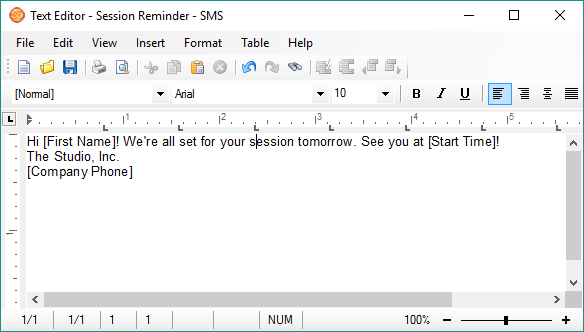
Insert data fields! The software will automatically merge the individual client information into each text message you send! (See the sample below.)
-
Add a phone number or email address to make it easy for your clients to contact you directly, instead of requiring them to reply to the text message.
-
- Save the form letter when finished.
Sample SMS Template #
Here’s my text message in the Form Letter Builder:
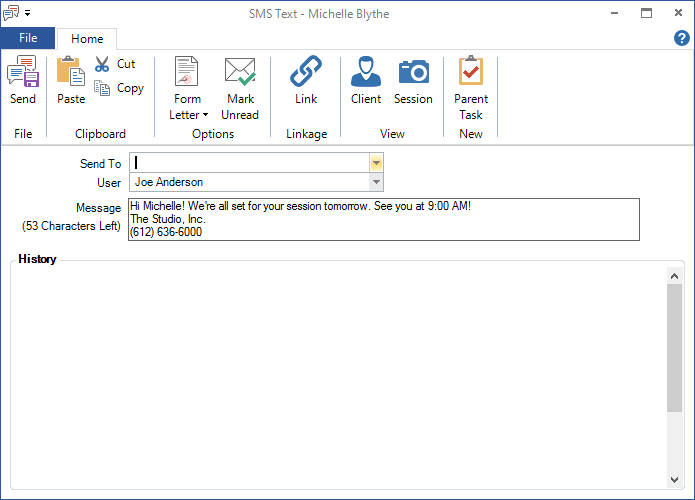
This is what it looks like when sent to a client: