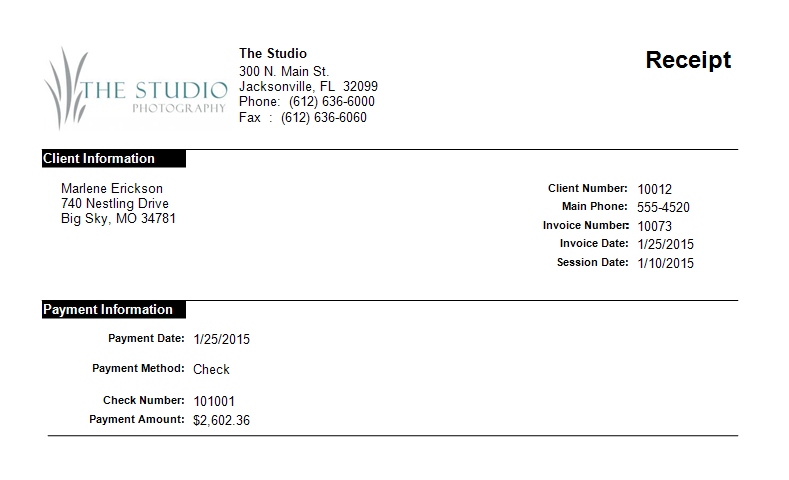
Follow these steps to create a receipt that can be printed or emailed:
- Open the payment. See also: Finding a Payment or Refund
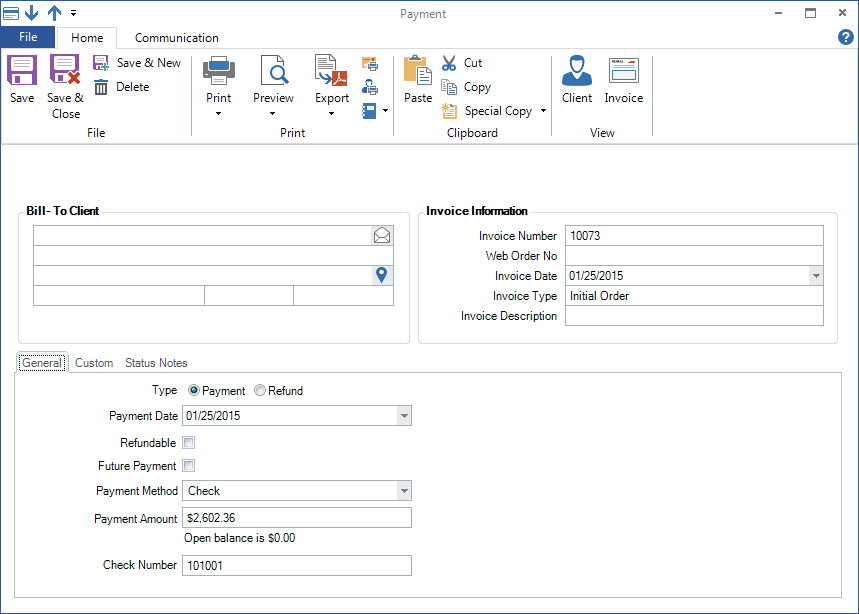
- Use the following tools on the ribbon to produce a receipt:
-
Print – Click the down arrow and choose Receipt. The receipt will immediately print to an attached printer.
-
Preview – Use this option to open the receipt in a preview window before printing. Click the down arrow and choose Receipt.
-
Export – Use this option to save the receipt as a PDF, perhaps to email to the client. Click the down arrow and choose Receipt. Browse to where you want to save the file and click Save. Note: You can also save the file in several other formats by choosing another option in the Save as type drop-down.
-
- Close the payment when finished.
Sample Receipt #