
   |
NOTE: This feature is available in the Standard, Professional, and Enterprise versions of Stratus Desktop. |
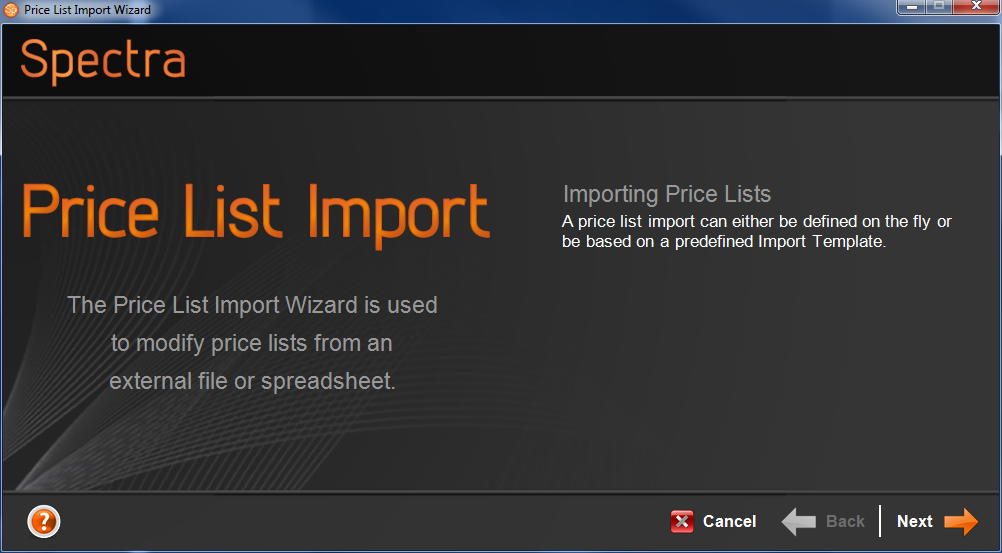
Use the Price List Import Wizard to import a new price list or update an existing price list. To start the wizard, go to Utilities > Import Price List, or go to Maintenance > Price List > Price Lists and click Import Price List on the Editing group of the ribbon.
Is one of the columns being imported actually a checkbox in Stratus (i.e. Non-Taxable)?
In the spreadsheet, make sure that you enter True to have the box checked, and False to leave the box unchecked.
-
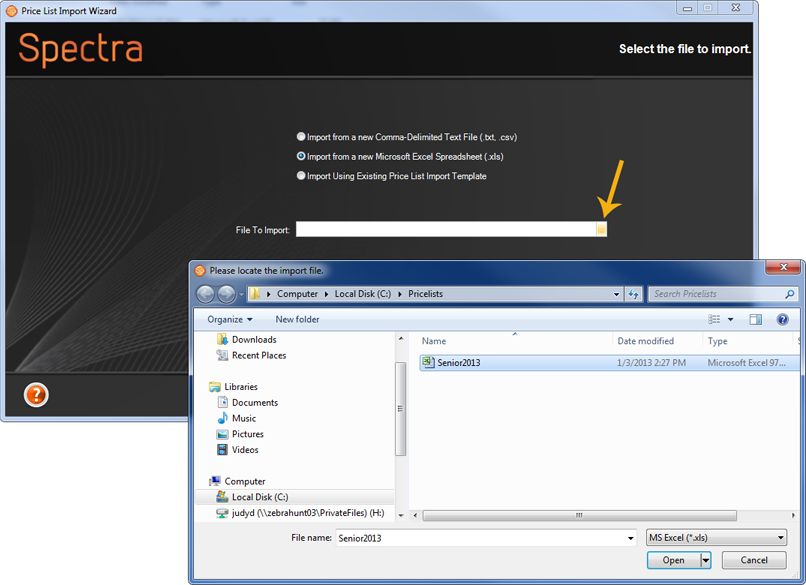
Select the file type and then find the specific file you want to import.
-
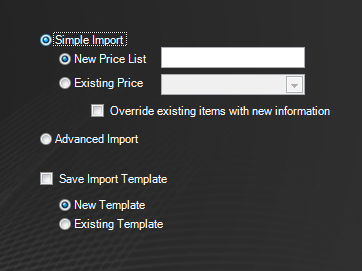
Choose Simple or Advanced Import. The Simple Import provides you with a column chooser, allowing you to choose the specific columns you want to import. It also provides an option to override existing items with updated information (i.e., increase prices for a new year). The Advanced Import is even more powerful, but requires you to use a very specific spreadsheet structure. Refer to the appropriate section below for instructions on how to proceed with the import based on the type of import you’ve chosen.
Simple Import #
-
Choose whether you want to import to a New Price List or an Existing Price List.
-
If you’re importing to an existing price list, check the box if you want to Override existing items with new information.
-
Click Next.
-
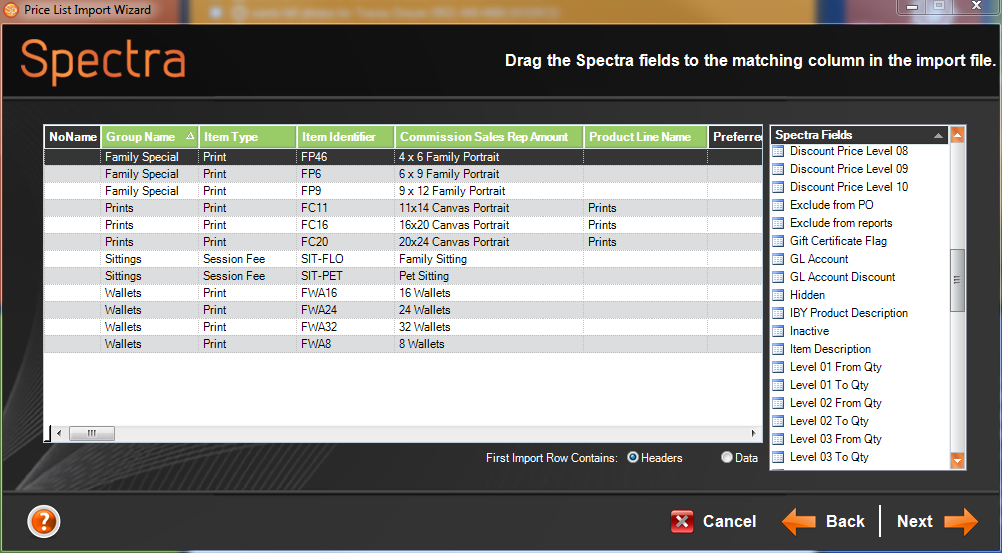
Match up the Stratus fields from the list on the right with the columns available in your spreadsheet by dragging the Stratus field names to the left and dropping them on the appropriate spreadsheet column. Columns you’ve matched will have a green header containing the Stratus field name. Note: It is not necessary to use every Stratus field or spreadsheet column – only those you match up will be imported.
-
If the first row of your spreadsheet contains column headers, click the Headers option to keep from importing the header row into your price list.
-
Click Next.
-
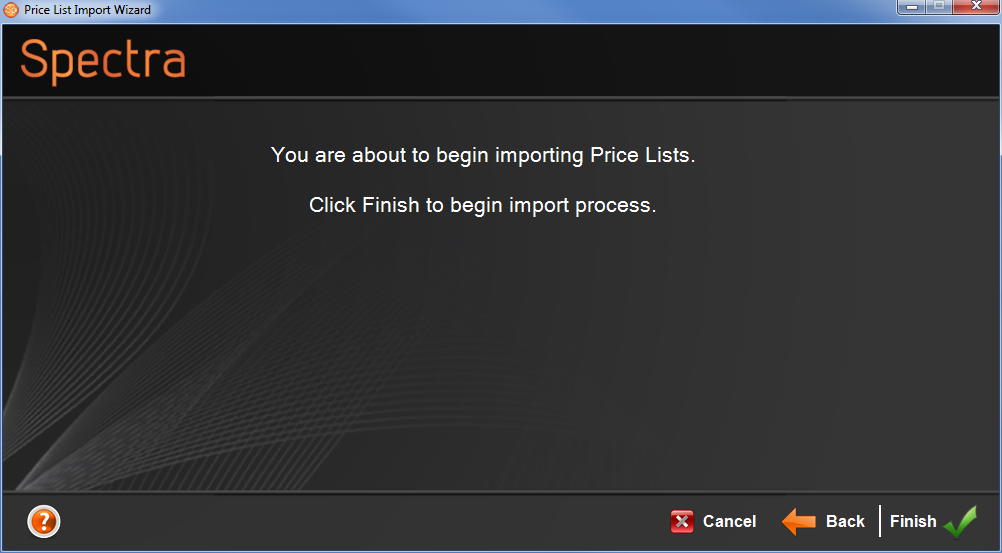
On the final screen, click Finish to begin the import process.
Advanced Import #
Please contact StudioPlus tech support for detailed instructions on using the Advanced Import option.
Import Templates #
If you will use the same settings for importing another price list, you can save some steps by using the Save Import Template option. Next time you import a price list, you can simply choose to use your saved import template.