
The following tools are available on the ribbon of a session record.
File Tab #
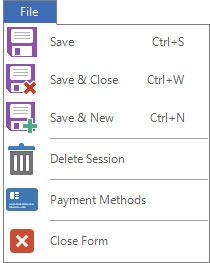
| Icon | Name | Description |

|
Save | Save the current session and leave it open for reference or additional modifications. |

|
Save & Close | Save the session and close the session window. |
 |
Save & New | Save the session and open a new, blank record to create another session. |
 |
Copy Session | Copy the session and attach the new session to the same client or a different one. See also: Copying a Session |
 |
Delete Session | Delete the open session. Note: This will delete any associated communications, appointments, invoices, tasks, or production orders PERMANENTLY. See also: Deleting a Session |

|
Payment Methods |
Use this option to manage the client’s payment methods. See also: Client Payment Methods |
Home Tab #

| Icon | Name | Description |
|
|
Save | Save the current session and leave it open for reference or additional modifications. |
|
|
Save & Close | Save the session and close the session window. |
|
|
Save & New | Save the session and open a new, blank record to create another session. |
|
|
Delete Session | Delete the open session. Note: This will delete any associated communications, appointments, invoices, tasks, or production orders PERMANENTLY. See also: Deleting a Session |

|
Client Image | The first image imported into the client’s first session will be saved as the main client image. Click Client Image to change the image or select a new one. |

|
Print |
Print one of the following:
|
 |
Preview | Preview the session or photographer confirmation before printing. |
 |
Export | Export the session or photographer confirmation as an Adobe PDF. You can also choose other electronic formats like text, rich text, Excel file, or even HTML. |
 |
Mailing Label | Print a mailing label showing the client’s name and address, along with other information as defined in Printing Preferences. See also: Printing Preferences |
 |
Account Label | Print a file label with the client’s name, address, phone number, and client number, along with other information as defined in Printing Preferences. See also: Printing Preferences |
 |
Session Label |
Print a file label with the client’s name, address, phone number, and client number, along with other session information as defined in Printing Preferences. See also: Printing Preferences |
 |
Custom Report |   If you have imported a custom report that can be used from a session record, you can print, preview, or export it to PDF. If you have imported a custom report that can be used from a session record, you can print, preview, or export it to PDF. |
 |
Paste | Paste information that you copied or cut from another location or program into a single field. |
 |
Cut | Cut from a single field. |
| |
Copy | Copy from a single field. |
 |
Special Copy |
Copy the text (in label format) that would print onto a mailing label, session label, or account label to paste into another field or program. |
 |
View Client | Open the client associated with the session. |

|
Appointment | Create a new appointment for this client. See also: Creating a Linked Appointment |

|
Session Invoice | Create a new session-based invoice for this client. See also: Creating a Session Invoice |
 |
Session Estimate | Create a new session-based estimate for this client. See also: Creating an Estimate |
 |
Preproduction Order |
Create a new preproduction order from this session. See also: Managing Preproduction Orders
|

|
Task | Create a new task related to the session. See also: Managing Tasks |
Communication Tab #

| Icon | Name | Description |

|
New Call | Create a new call record will be created with a due date of today and no completed date. You can use the call today or move the due date to a date in the future. |

|
Completed Call | Create a call record that is both due and completed today. |
 |
Dial Phone | If you have a TAPI-compliant phone system connected to this computer, use this option to have Stratus automatically dial any of the client’s phone numbers. |

|
New SMS Text |  Click the SMS icon to create a new blank text message or use the down arrow to choose a predefined form letter or custom report. By default, the new text message will contain the first phone number on the client record that is marked for SMS. Click the SMS icon to create a new blank text message or use the down arrow to choose a predefined form letter or custom report. By default, the new text message will contain the first phone number on the client record that is marked for SMS. |

|
New Email | Click the envelope to create a new blank email. Click the down arrow to attach a session confirmation to the email or to choose a predefined form letter, email template, or custom report. An email address must be entered for the client and outgoing email must be set up on the computer you are working on. See also: Form Letter Builder and HTML Email Builder |

|
Completed Email | Create a blank email that can be used to record details from a client email you received or sent outside of Stratus, attaching the information to the client record for future reference. |
| |
Print Letter | Select and print a pre-created form letter. See also: Form Letter Builder |
| |
Preview Letter | Preview a form letter to view/modify the text before you print it. See also: Form Letter Builder |
| |
Export Letter | Export a letter as an Adobe PDF. You can also choose other electronic formats like text, rich text, Excel file, or even HTML formats. |
|
Mailing Label |
Print a mailing label showing the client’s name, address, and other information as defined in Printing Preferences. See also: Printing Preferences |
| |
Account Label | Print a file label with the client’s name, address, phone number, client number, and other information as defined in Printing Preferences. See also: Printing Preferences |
|
|
Session Label | Print a file label with the client’s name, address, phone number, client number, and other session information as defined in Printing Preferences. See also: Printing Preferences |
| |
Special Copy |
Copy the text (in label format) that would print onto a mailing label, session label, or account label to paste into another field or program. |
 |
Web Forms | [Stratus ONLY] Create a session-related form the client can fill out online. See also: Web Forms |
 |
View All Notes | Show all notes related to the session. This consolidated view displays all notes from the client, invoices, sessions, communications, and tasks. |
 |
Upload Contract |
Select a contract for this session. The contract will be uploaded to InSpiredByYou during the next InSpired data sync. Create contracts by using the Form Letter Builder on the Tools menu. See also: Form Letter Builder, Using InSpiredByYou with Spectra and Setting up Contracts for Stratus. |
| View Contract | View the contract that has been selected for this session. When viewing the contract you will also have options to cancel, print, or email it. |
|
| Cancel Contract | Cancel a contract for this session. |
Attachments Tab #
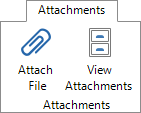
| Icon | Name | Description |

|
Attach File |
Attach files to the session record (i.e., Word docs, Excel spreadsheets, PDFs, etc.). Use for contracts, planning guides, job sheets, and more. Set up where the attachments are stored on the Attachments page of Company (Studio) Preferences. See also: Attaching a File and Company (Studio) Preferences – Attachments |

|
View Attachments |
View the session’s attachments. |
Action Tab
#

| Icon | Name | Description |

|
Import Images |
Combine copying images, creating previews, archiving, and adding metadata in one convenient process. See also: Capturing Images |
 |
Group Capture | Import a number of sessions at once, like in a school class picture day. See also: Group Capture
|

|
Render Proof Images |
Apply any changes you’ve made to the images during the import process or in sales presentation preparation and create images from those settings. See also: Rendering Images |

|
Send Images to Lab |
See also: Sending Images to a Lab |
 |
Deliver Electronically | Select one or more images or a folder of images to be delivered electronically to the client. The software will compress the files into a single zip file and upload it to your Stratus Drive. You can then share the link with the client. See also: Electronic Delivery |

|
Archive Images |
See also: Archiving Images |
|
Delete Images | See also: Deleting Images |
 |
Open Folder | View local image folders. |
 |
Sync Folders | Sync one or more session image folders with your Stratus Drive. See also: Syncing Images to Stratus Drive |
 |
Capture Software | If you have capture software set up in this computer’s Workstation Preferences > Digital tab, you can use this button to launch that software. See also: Workstation Preferences – Digital
|
 |
New Album |
(* Spectra Only) Add a new album to this session for upload to InSpiredByYou. You will be able to enter a description, select a status, and browse to the folder containing the album pages. See also: Using InSpiredByYou |
 |
Start Presentation |
Start a sales presentation for the session. See also: Sales Presentation |
 |
Start Slideshow |
Play the session slideshow. See also: Sales Presentation |
 |
Change Slideshow Settings |
Adjust the slideshow settings before starting the slideshow. See also: Sales Presentation |
Online Tab #

| Icon | Name | Description |
| InSpiredByYou Group | ||

|
Reset Login |
If the client has changed their default password and then forgotten it, use this button to reset it. You won’t be able to see the password they selected, but this will reset the password back to their last name (default). (Spectra Only) |
 |
Login to Site | View the client’s InSpiredByYou.com site. |

|
Extend Expiration Date |
Extend the expiration date of a previously uploaded session. Simply choose the desired date and click OK. Another window will open indicating whether or not the change was successfully synced to the website. Tip: If you want to take the session down, set the expire date to today. The session will then show up on the Web Services panel on your Spectra Home page as a session ready to expire. (Spectra Only) |
 |
Upload Images | Upload images from this session to InSpiredByYou.com using the InSpired Session Uploader. (Spectra Only) For Stratus users, please see Syncing Session Images |
Also see:
Creating Web Forms for Clients
Syncing Images to Stratus Drive
Electronic Delivery