
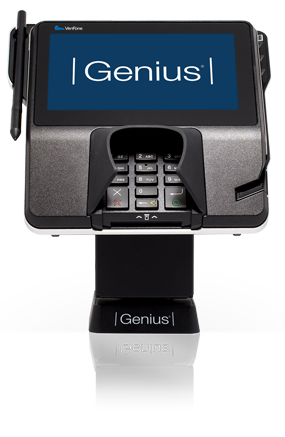
Genius is a payment processing platform designed and offered exclusively by TSYS (Formerly Cayan). This topic walks you through the steps to configure the Countertop Genius Terminal for use alongside Stratus. This platform supports traditional credit and debit cards, gift and loyalty cards, chip cards (EMV), and mobile payment applications like Apple Pay® and Android Pay®.
Here’s how to get started:
1 – Purchase or lease a Genius device from TSYS #
2 – Set it up in Stratus #
Perform the following steps on each computer you will use with this Genius device.
-
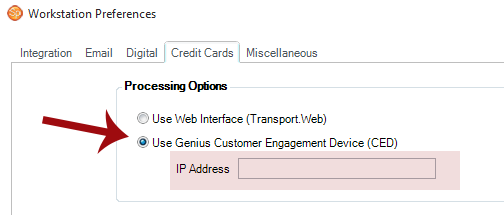
Go to Maintenance > Preferences > Workstation Preferences and open the Credit Cards tab.
-
Check the Use Genius Customer Engagement Device (CED) option.
-
Enter the IP Address for the device.
Follow these steps to determine the IP for your Countertop terminal.-
Plug the Genius terminal into your network.
-
From the Genius idle screen press 000 (zero-zero-zero) on the keypad.
-
Use the keypad to enter the Genius CED password given to you by TSYS.
-
Press the green Enter button on the keypad.
-
The IP address is the first setting displayed on the screen.
-
Press the red Cancel button on the keypad to return to the idle screen.
-
-
Click OK to save your preferences.
3 – Processing a Payment with an EMV (chip) Card #
-
Create a payment on an invoice. See also: Creating a Payment
-
Enter amount to be paid. Tip! Use the payment tools to easily choose a percentage of the invoice or the full balance.
-
Click Get Swiped. Note: All Genius Terminals must be on the same WiFi/Network connection in order to connect to Stratus.
-
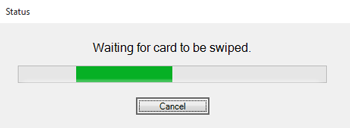
A status window will appear in Stratus and the amount will be displayed on the Genius terminal.
-
Insert the EMV card in the bottom of the terminal. Do not remove until prompted!
-
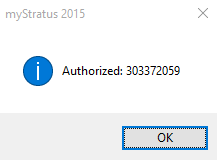
Approval will be indicated on the terminal and in Stratus.
-
Save and close the payment.