
Occasionally you may find the need to update client records – say you forgot to check the box that notes a phone number is ok to send SMS too. Rather than having to manually open each record and flag the box, Stratus lets you update records by importing – updating the client records. *Examples below are for SMS, but you can use any column you need to update.
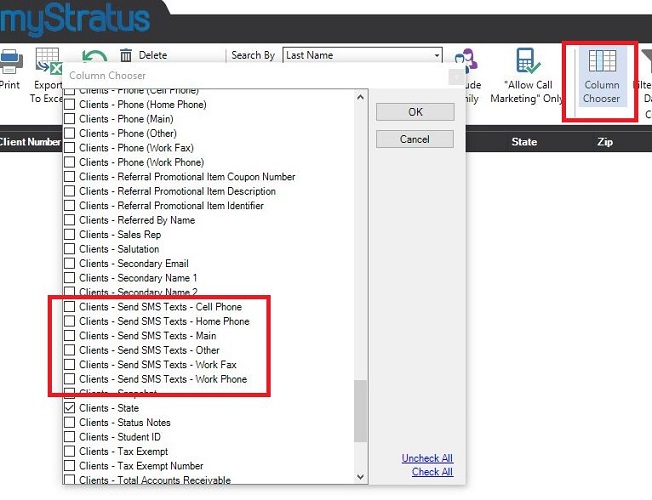
1. On the Client Hub, use the Column Chooser to select the Phone Number label that is okay to send an SMS too, or the column that you need to update.
2. If the Client Hub does not already show the Client Number, be sure to select to show that field. The client number is crucialto this process as that is how Stratus will know what records it needs to update.
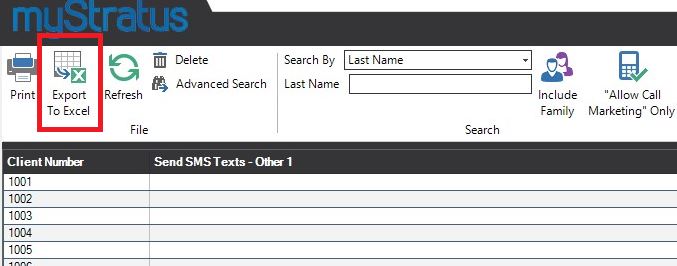
3. Once those fields are showing, you can have more fields, but the client number and the field you want to update MUST be showing, click the Export to Excel icon in the ribbon.
4. Browse to a location on the computer to save the file too, and name the file, you’ll need to be able to find it in the next step.
5. Find the file created in step 4 above and open it.
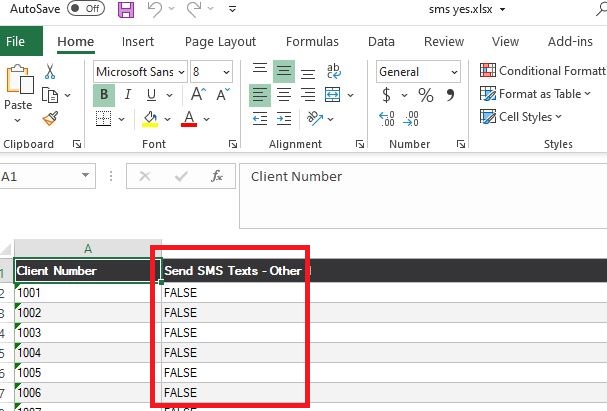
6. Notice the column for Send SMS is filled with FALSE
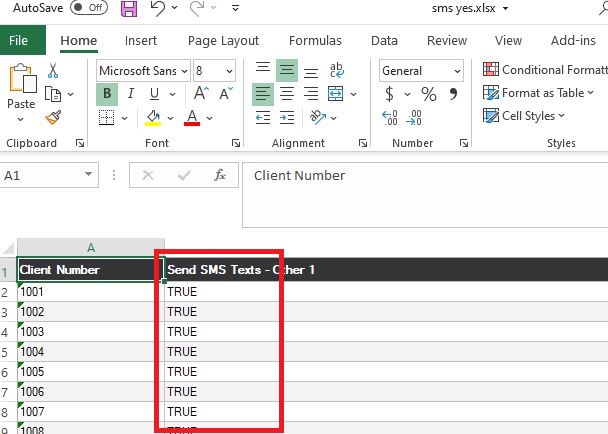
7. Update the column so it’s filled with TRUE
* Please note, the examples here are for checkboxes which only translate to True or False for checked or unchecked. You can add a date if you have a date field that needs to be filled in.
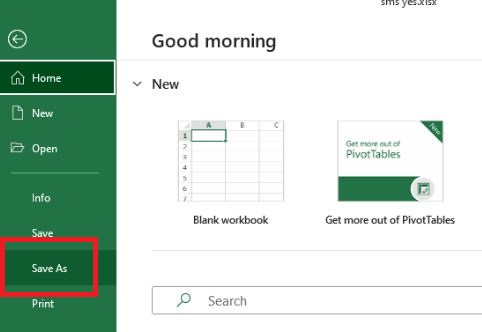
8. Go to the drop down menu File and select Save AS.
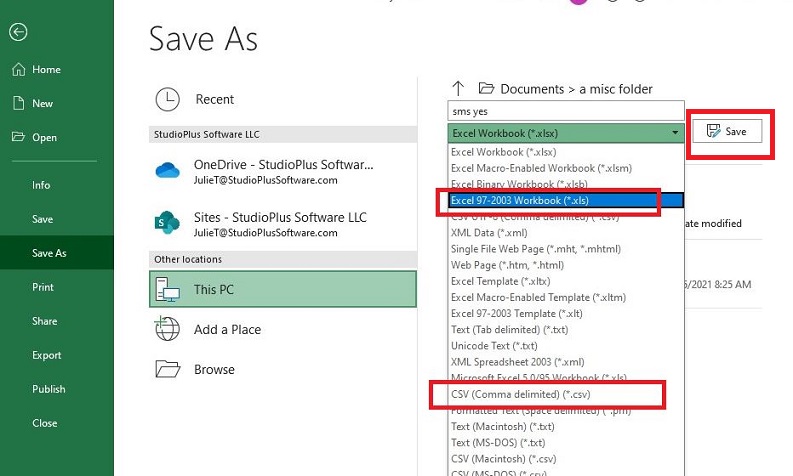
9. The file type needs to be changed to either Excel 97 – 2003 Workbook (*.xls) or CSV (Comma delimited (.csv)
10. Click Save, this will save the file to the same location you selected in step 4 above, but will change the file type, making it usable by Stratus.
Back in Stratus.

11. Go to the drop down menu Utilities > Import Clients, for all the info on Importing Clients follow this link, the rest of this article picks up one step 10 from that link.
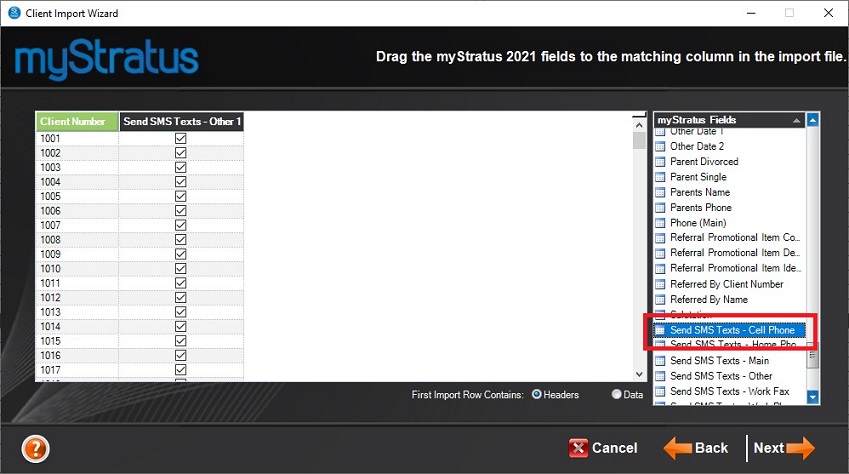
12. Drag and drop the column from the right to the matching column on the left, the one that you added using the column chooser in step 1 above. You MUST drag and drop the Client Number.
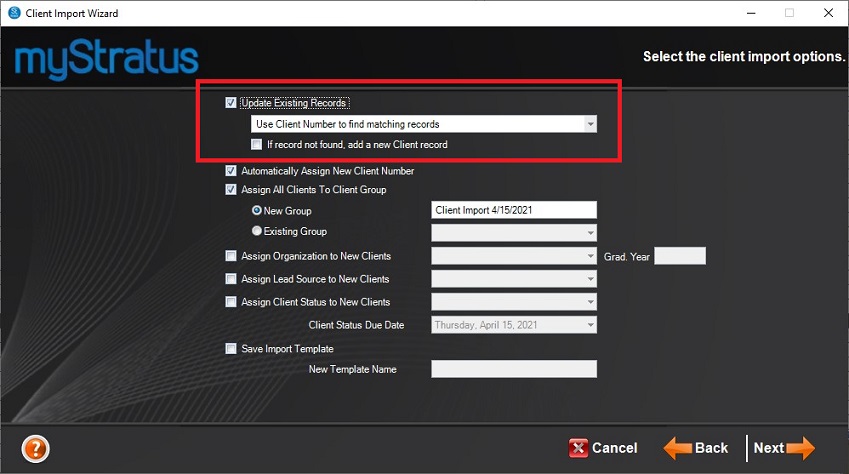
13. Flag the box Update Existing Records and select Use Client Number to find matching records.
14. Finish the Wizard.