
  | NOTE: This feature is available in the Professional and Enterprise versions of Stratus Desktop. |
Stratus Desktop can both import orders from ProSelect! The software will create invoices (including thumbnails) and payments based on your ProSelect orders. Use this feature to make your sale in ProSelect and still get all the reporting functionality of Stratus. You’ll need to do a little setup work in ProSelect first, but it will be worth it in the end.
Requirements #
-
Spectra 2012 Volume 1 Release 1 or Stratus Desktop
-
ProSelect 2012 (Windows or Mac)
Setting Up ProSelect and Stratus Desktop #
Set Up ProSelect #
-
Open the Edit drop-down menu and click Preferences. Note: On a Mac, Preferences are located on the ProSelect drop-down menu.
-
Go to the Pricing & Ordering tab.
-
In the Product Codes section, check the Show Product Codes on Price List Items checkbox.
-
Click Save.
-
Next, open the Orders drop-down menu and click Price List Setup.
-
Edit any item you already have in ProSelect and you will now see a new Product Code field. Enter the matching Item Identifier from your Stratus price list.
-
Click Change Item to save.
-
Do the same for each product in your ProSelect price list.
-
Click Save.
-
Now open the Orders drop-down menu and click Payments Setup.
-
Make sure each ProSelect Payment Description matches EXACTLY the corresponding Payment Method in Stratus (found in Maintenance > Invoice > Payment Methods). See also: Payment Methods
-
Click Save when done.
If you don’t have your Stratus price list item identifiers memorized, you can print a list to refer to. Or, you may want to export the list to Excel and then quickly copy and paste each item identifier into ProSelect.
Set Up Stratus Desktop #
-
If you’re new to either Stratus Desktop or ProSelect, create a folder called “ProSelectExports” on each workstation you use ProSelect on. Note: For a combined Mac (ProSelect)/Windows (Stratus Desktop) setup, make sure this folder is shared with both the Mac and the Windows virtual machine.
-
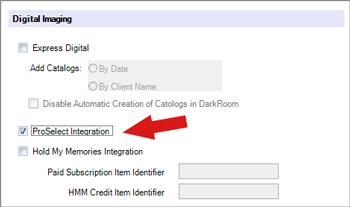
Go to the Integration page in Maintenance > Preferences > Company (Studio) Preferences and check the ProSelect Integration box. Click OK to save your preferences.
-
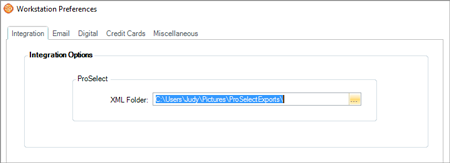
Go to Maintenance > Preferences > Workstation Preferences. In ProSelect XML Folder section, use the browse button to locate the “ProSelectExports” folder you created. Click OK to save your preferences.
-
Restart the software.
Transferring ProSelect Orders #
When you’re ready to transfer a ProSelect order to Stratus Desktop, you will first export the order from ProSelect and then import the order into Stratus Desktop.
Export From ProSelect #
-
Go to Orders > Export Orders and select “Standard XML” from the Export To drop-down list.
-
Click the magnifying glass at the bottom, in the Export file to folder section.
-
Browse to the “ProSelectExports” folder you created earlier. Note: You should just need to make this selection once – ProSelect will remember the selection for future exports.
-
Select the order(s) you want to export.
Import into Stratus Desktop #
-
Launch Stratus Desktop and open the client’s session record.
-
On the session record, open the File menu and click Import ProSelect Order.
-
The Import ProSelect Order window will open.
-
From the list of available ProSelect orders, select the desired order.
-
Click Create Invoice to create a Stratus invoice for this order.
-
The invoice will open. You can review the images and invoice detail information before saving.