
   |
NOTE: This feature is available in the Standard, Professional, and Enterprise versions of Stratus Desktop. |
Loyalty Rewards allow you to reward customers for their return business. You can also issue loyalty rewards like a studio credit to help with customer service issues or other times when you just want to give customers incentive to come back and purchase more.
This topic covers the following areas:
Issuing Loyalty Rewards #
Loyalty Rewards can be issued individually, with Client Referral Programs, and as part of a Loyalty Rewards Programs.
Individually #
Let’s say you had someone do you a favor in the studio, but they don’t want to be paid for their efforts. You could offer them a loyalty reward that serves two purposes – paying them back and encouraging future sales. Loyalty rewards can be used a little like gift certificates, but you don’t have to sell them on an invoice.
-
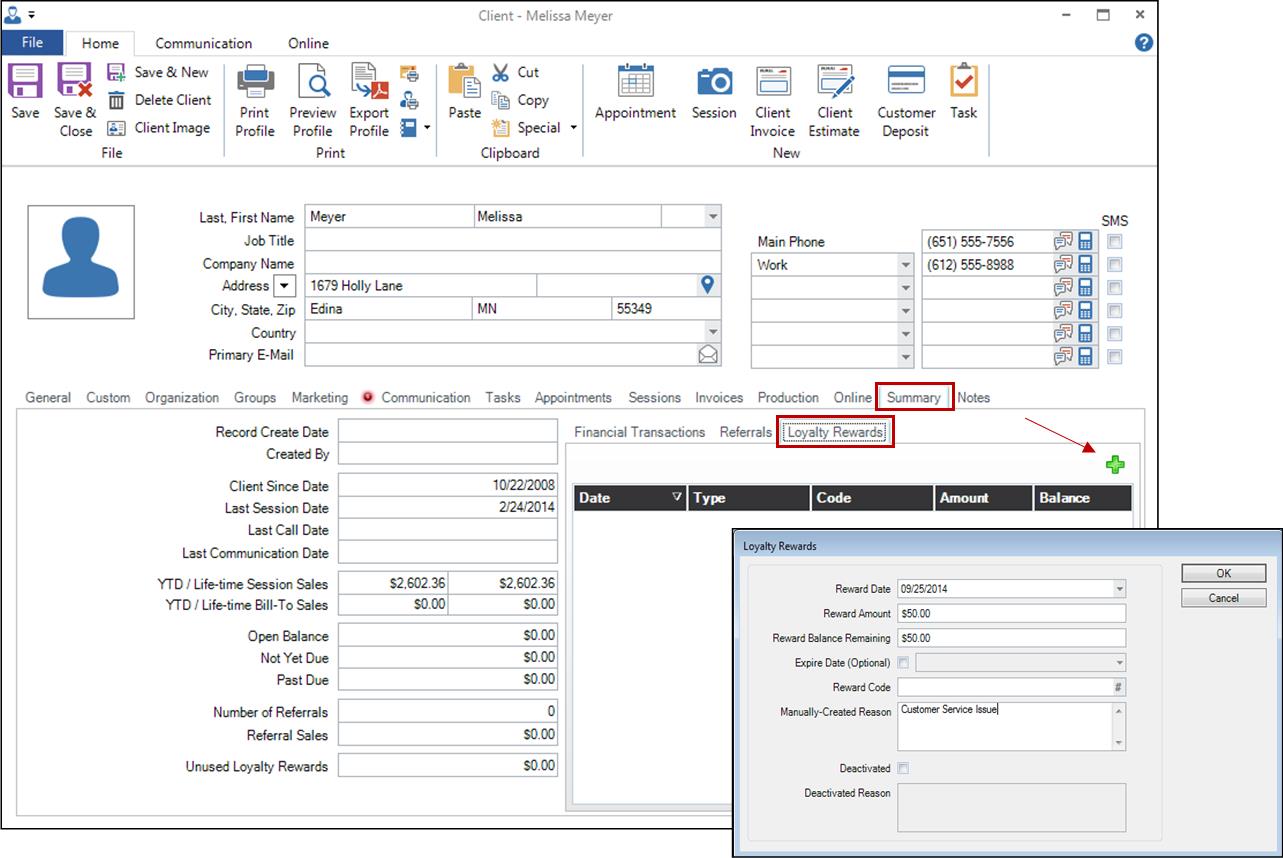
Open the client record and go to the Summary tab.
-
On the Summary tab click on the Loyalty Rewards tab.
-
Click on the green plus sign to add a new reward.
Client Referral Programs #
| |
NOTE: This feature is available in the Professional and Enterprise versions of Stratus Desktop. |
See What is a Referral Program? for more information.
Loyalty Rewards Programs #
See Implementing a Loyalty Program for more information.
Tracking Loyalty Rewards #
Here are some ways you can track your clients with loyalty rewards:
-
You can track your clients with loyalty rewards by using the Clients hub and adding columns using the column chooser.
-
Because the automatic processing of loyalty rewards requires that clients be assigned to a loyalty-enabled status, you can also choose Client Status in the Search by box on the Clients hub.
-
The client Summary tab not only includes details of each reward, but also reward totals.
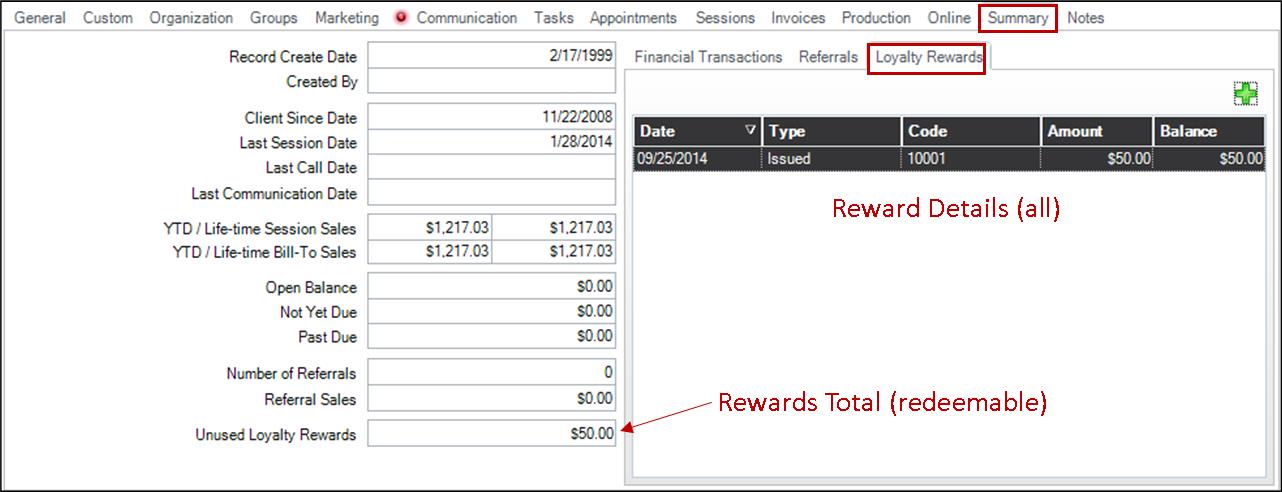
Loyalty Rewards on the Client Summary Tab -
You can set up triggers on your client status(es) to automatically send out emails or print letters to clients who are awarded loyalty rewards or whose rewards will soon be expiring.
Use the Loyalty Rewards Activity and Loyalty Rewards Outstanding Reports to track your overall status with Loyalty Rewards.
Redeeming Rewards #
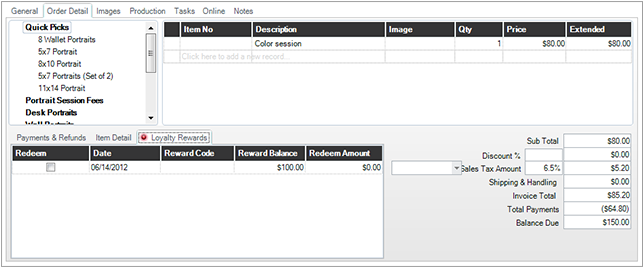
Loyalty Rewards on the Invoice Order Tab
When a client comes in to settle an invoice and wants to use a loyalty reward, go to the Orders tab of the invoice and click on the Loyalty Rewards tab in the lower-left corner by the Payments & Refunds. Ared notification light even lets you know if there are redeemable rewards available. Select one or more rewards to use on the invoice by checking the boxes in the Redeem column. A new Loyalty Rewards field will show in the totals to the right.
Tips for Managing Rewards #
-
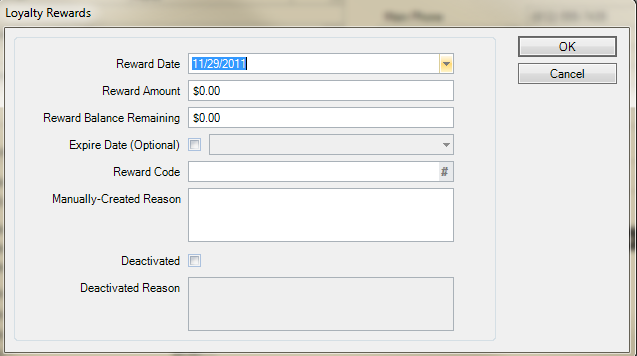
You can open individual rewards from the Summary tab of the client record by double-clicking on a listed reward.
-
A redeemed reward will open the invoice it was used on.
-
An unused reward will show a detail screen where you can make changes to the reward.