
#
Tasks can be attached to individual client records as well as specific session, invoice, and/or production order records. You can assign tasks to individual users or departments as well as track your tasks by using task types and statuses you’ve set up in Maintenance > Task. You can also link communication records (such as emails, texts, and phone calls) to a task. With Stratus Professional, tasks can also be automatically generated by using Triggers. Keep track of all your studio’s tasks on the Tasks hub.
Task Menu and Ribbon #
 #
#
Task Menu #
-
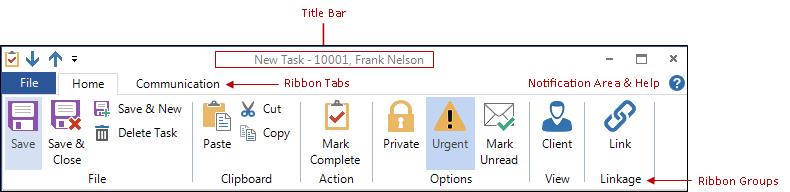
Menu Button – The Menu button will display an icon based on the type of record it is. For the task record, it has a check mark icon. Click the icon to see menu choices such as: Save, Save & Close, Save & New, Delete, and Close Form.
-
Quick Access Bar – If you opened the task from a hub, there will be gray arrows to select the next or previous task record from that list.
-
Title Bar – Once a task has been saved, “Task -“ will appear in the title bar, followed by the name of the client (if any).
-
Notification Area and Help Button – Just under the title bar, to the far right, you will see notification lights to alert you if something about the task requires special attention. Click Help to get online help for this window.
Task Ribbon #
If you’re not sure what a certain button is for, hold your cursor over the button and wait for the tool tip to be displayed.
Home Tab #
File Group #
-
Save – Save the current task.
-
Save & Close – Save the task and close the task window.
-
Save & New – Save the task and open a new, blank record to create another task.
-
Delete – Delete the open task.
Clipboard Group #
-
You can Paste information that you copied or cut from another location or program into a single field. You can also Cut or Copy text from a single field for use elsewhere.
Action Group #
-
Mark Complete – Set the task’s completed date to today. A task marked as completed with today’s date will still show on the Task panel on the Home page of the user that was assigned the task, showing what was done today. If the completed date is before today, the task will not show on the user’s task list, but will still appear on the Task tab of any records this task is linked to (i.e., client, session or invoice).
Options Group #
-
Private – Make the task private, to be viewed only by the user creating the task and any department or user the task is assigned to.
-
Urgent – Indicate the urgency of a task with an exclamation mark.
-
Mark Unread – Make the task appear as unread (bold) on the Home page and any other list screens where the task may appear.
View Group #
NOTE: The view group will appear on the ribbon only if the task is linked.
-
Client – Open the client record this task is linked to.
-
Session – If this task is linked to a specific session, you can click this button to open the session.
-
Invoice – If this task is linked to an invoice, click this button to open the invoice.
Linkage Group #
-
Link – Link the task to a client (if unlinked), or re-link the task to a different client. When linking a task to a client, you will also have the option of linking the task to a specific session or invoice belonging to the client.
Communication Tab #
   |
NOTE: This feature is available in the Standard, Professional, and Enterprise versions of Stratus Desktop. |
Phone calls, emails, and letters generated from the Communication tab on the ribbon will be linked to the open task and any other records the task is linked to. A list communications can be found on the Communications tab of the task record and on the Communications tab of any of the task’s parent record(s), such client, session, or invoice records.
Phone Calls Group #
-
New Call – Create a new call record with today’s date as the due date and no completed date. You can use the call today or change the due date to date in the future.
-
Completed Call – Create a call record that is both due today and completed today.
-
Dial Phone – If you have a TAPI-compliant phone system connected to this computer, click this button to have the software automatically dial any of the client’s phone numbers.
Messages Group #
-
New SMS Text – Use this command to create a new blank SMS text message or merge the client information into a form letter or custom report that can be sent as a text message directly to the client. By default, the new text message will contain the first phone number on the client record that is marked for SMS.
-
New Email – Merge the client information into a form letter or custom report and automatically attach it to an email that can be sent directly to the client. The client’s email address must be entered in the record and outgoing email must be set up in the software. For more details on setting up outgoing email, go to Setting up Email.
-
Completed Email – Click this button to record details from client email that you received or sent outside of Stratus and want to be able to reference later.
Letters Group #
-
Print Letter – Merge the client information into a form letter and print it.
-
Preview Letter – Previewing a form letter allows you to modify the text before you print it.
-
Export Letter – Export the letter as an Adobe PDF. You can also choose other electronic formats like text, rich text, Excel file, or even HTML.
-
Mailing Label – Print a mailing label showing the client’s name, address, and other information as defined in Printing Preferences.
-
Account Label – Print a file label with the client’s name, address, phone number, client number, and other information as defined in Printing Preferences.
-
Special Copy – Copy the text (in label format) that would print onto a mailing label or account label to paste into another field or program.
Notes Group #
-
View All – Show all notes related to the task, including client notes, session notes, etc.
Attachments Tab #
Attach external documents to the task record. Attach Word docs, Excel spreadsheets, PDFs, and more. Set up where the attachments are stored on the Attachments page of Company (Studio) Preferences. See also: Attaching a File and Company (Studio) Preferences – Attachments
Task Header Section #
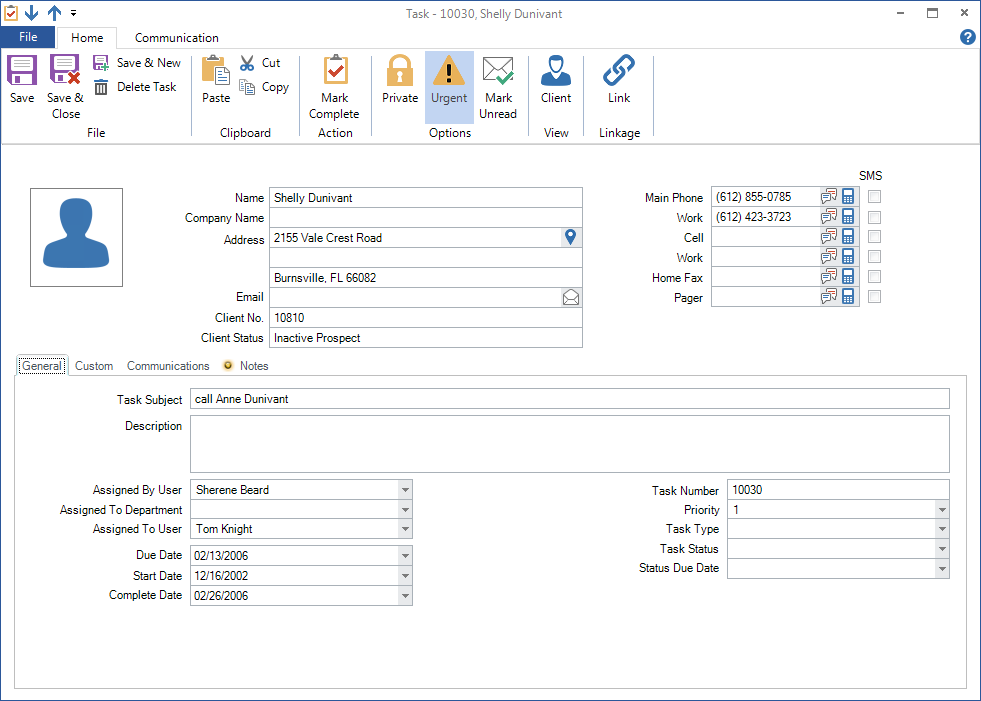
The Header section of the task record holds general client information such as client name, phone numbers, and call warnings about the client this task is linked to. NOTE: This section will not be visible if the task is not linked to a client.
-
Use the Google maps icon to view the address location.
-
Use the email icon to open a new email to this client.
-
If you have a TAPI-compliant phone system installed on this computer, click the phone icon to dial the displayed phone number.
Task Detail Section #
The Detail section of the task record holds all of the specific information for the task. This information is contained in four separate tabs, the General tab, the Custom tab, the Communications tab, and the Notes tab.
General Tab #
The General tab lists the subject and the description of the task, task assignment information, any dates related to the task, as well as type and status information for the task.
-
Task Subject – Short description of this task, as it will appear on task lists.
-
Description – Detailed description of what the task involves.
-
Assigned By User – The user that created the task.
-
Assigned To Department – Department the task is assigned to. (optional)
-
Assigned To User – The user the task is assigned to. (optional)
-
Due Date – The date the task should be completed by. Default is today’s date.
-
Start Date – Date the task should be started. Default is today’s date.
-
Complete Date – Once a task has been completed, enter the completion date here. An easy way to complete this field with today’s date is to click Mark Complete in the action group of the ribbon. You can also complete tasks on the Tasks hub or on the Home page by clicking the box in the complete column for that task. A task marked as completed simply has the completion date filled in with today’s date. On the Task panel of the Home page, the task will remain on the list through the end of the day, showing you what has been completed that day. The next day it will drop off the list.
-
Task Number – Assigned by Stratus.
-
Priority – Set a priority from 1 to 10 and later sort them on the Task hub. (optional)
-
Task Type – Select a type from the task type list. Create and change this list in Maintenance > Task > Task Types. See also: Task Types
-
Task Status – Select a status from the task status list. Create and change this list in Maintenance > Task > Task Statuses. See also: Task Statuses
-
Status Due Date – Date the current status should be completed by.
Custom Tab #
Track additional information about your tasks by using the custom fields on this tab. The labels for these custom fields can be set up in Maintenance > General (Studio) > Custom Labels. See also: Custom Labels
Communications Tab #
This tab lists any communication records that may be associated with this task.
Notes Tab #
Keep any additional notes about this task on the Notes tab. Press Ctrl+T to enter a time stamp into the notes field.