#
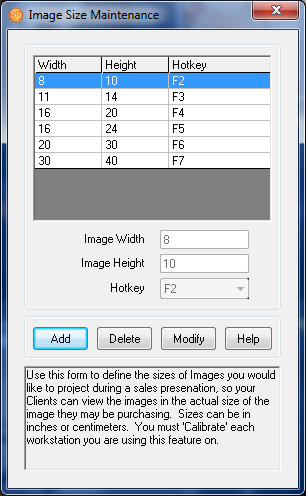
You can show projected images at a specific size by setting up the function keys to act as hot keys while comparing images.
-
Go to Maintenance > Digital > Image Sizes.
-
Click Add and fill in the desired size and associated hot key. You can program the F2 – F12 function keys and also use the Alt, Ctrl, and the Atl+Ctrl combination to create up to 47 sizes. Note: If you set up a size, like 8×10, you do not need to create a second entry for 10×8. During the sales presentation, simply hold down the Shift key while making the hot key selection and the software will invert the width and height for you, turning a horizontal image into a vertical one and vice-versa.
-
Close the window when finished.
See Workstation Preferences – Digital for information on how to calibrate your projector.