
#
  |
NOTE: This feature is available in the Professional and Enterprise versions of Stratus Desktop. |
The Sales Tax Report provides all of the non-taxable and taxable sales, sales tax, shipping costs, and the total for each tax location and tax rate sales tax for the period selected. The report is available as either a Summary report or a Detail report. Use the Subscribe button to receive automated email delivery of this report on scheduled days or date. See also Saved Reports and Subscriptions
Invoice Postings are an important part of the Sales Tax Report. The invoice posting applies your accounting rules to your transactions, letting the software know when sales tax is due. The SalesTaxReport is recommended to be based on the posting date of the invoice, NOT the invoice date – but the option is still available depending on your needs. If you have not posted invoices, and run the report based on that setting, your report will be blank! For more information on posting your invoices see the Accounting chapter.
- Sales Tax Summary Report – Provides totals for each tax location and tax rate.
- Sales Tax Detail Report – Shows the tax information for each invoice within each tax location and tax rate.
Printing a Sales Tax Report #
-
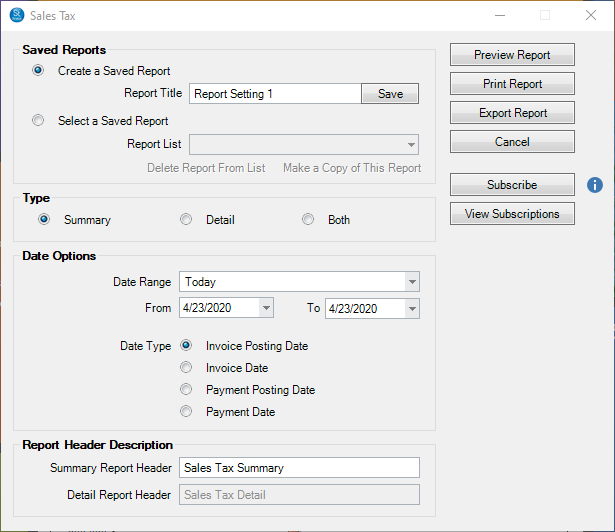
Go to Reports > Sales Tax Report.
-
Select Summary or Detail report, or Both.
-
Select the Date Range and Report Header Description. The report has the option to pull information based on the Invoice Posting Date, Invoice Date, Payment Posting Date, or Payment Date. Select the option that matches your Sales Tax Requirements. If you do not post Invoices or Payments, then you should use the Invoice Date or Payment Date options – Note: This will include ALL Invoices/Payments of that date range in the report.
-
Then click Preview Report to see a preview.
-
You can print the report or export it to a PDF file.
If you want to run a Sales Tax Report based on Payment Date, keep in mind that this calculation is not as straightforward as you may think.
The total payments you receive INCLUDE the sales tax amount. You don’t want to take that total and multiply it by the sales tax rate or you’ll be paying too much sales tax. So the program determines this amount by doing this math:
Total Payments on invoice: 194.59
Invoice Sub Total 207.00 (before tax)
Invoice total is 221.49 (including tax)
Tax Rate 7%
First calculate how much of the invoice has been paid (in a percentage).
Divide Total Payment / Invoice Total: 194.59 / 221.49 = .8785
So they paid 87.84% of the invoice balance.
Second, we calculate how much tax does that invoice owe.
7% * 207 = 14.49
Third, we combine those two numbers to figure out how much sales tax is still owed for that invoice.
87.84% (.8785) * 14.49 = $12.73
And that figure will match what’s on the Sales Tax Report by Payment Date