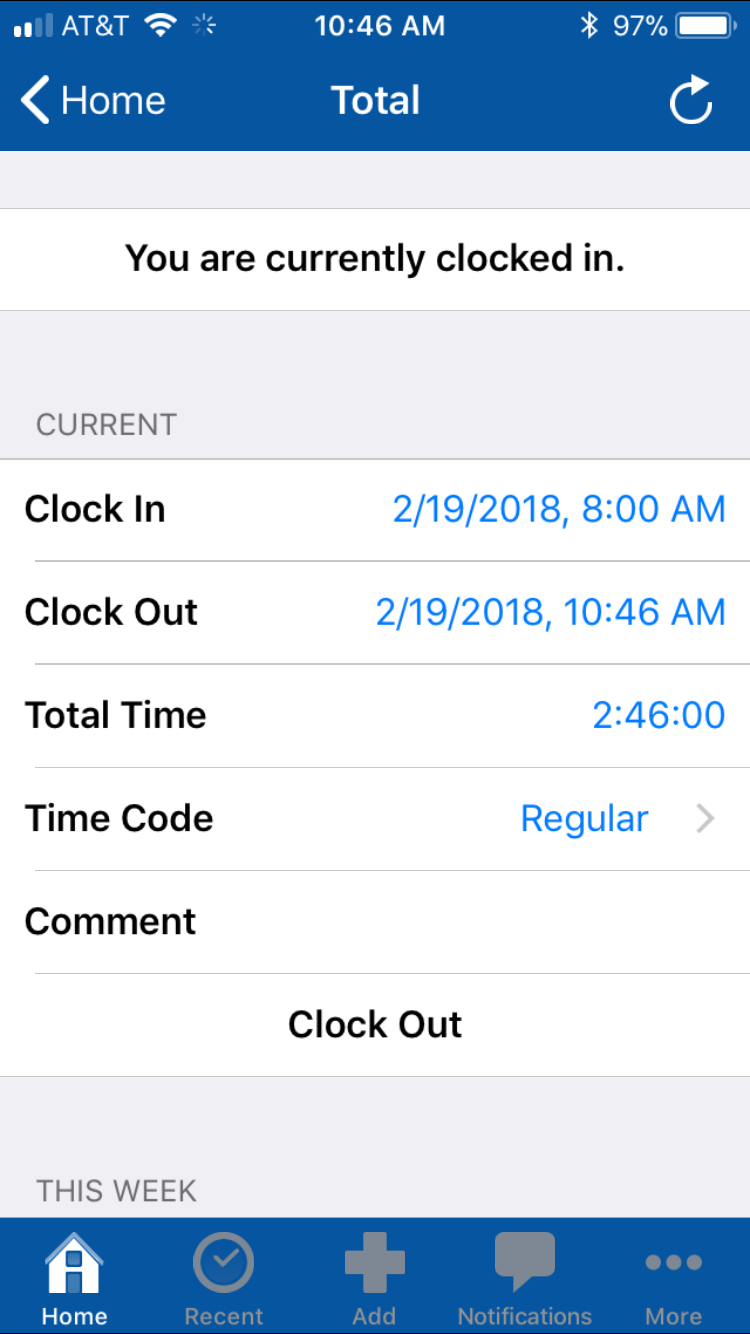
The Time Clock #
   |
NOTE: This feature is available in the Standard, Professional, and Enterprise versions of Stratus Desktop. Spectra does not include this feature. |
From the Home screen, select Time Clock to access the time clock within the mobile app. To clock in or out, select Clock In or Clock Out on the time clock screen. When clocking in/out from the mobile app, it will automatically be synced with both Stratus Desktop and Web. Note: The time clock within the Mobile app is add-only regardless of security settings within Stratus Desktop.
The time clock possesses an Auto-Refresh ability, so every time the clock is opened from the Home screen, it will automatically refresh to show the most up-to-date entry. This sync is activated once the clock is opened, so it may take a minute for the clock to update correctly. A manual refresh can be done by selecting the refresh icon located in the upper right-hand corner of the app.