
Before using client groups, see Client Groups and Using Client Groups.
Adding a Single Client to a Group #
-
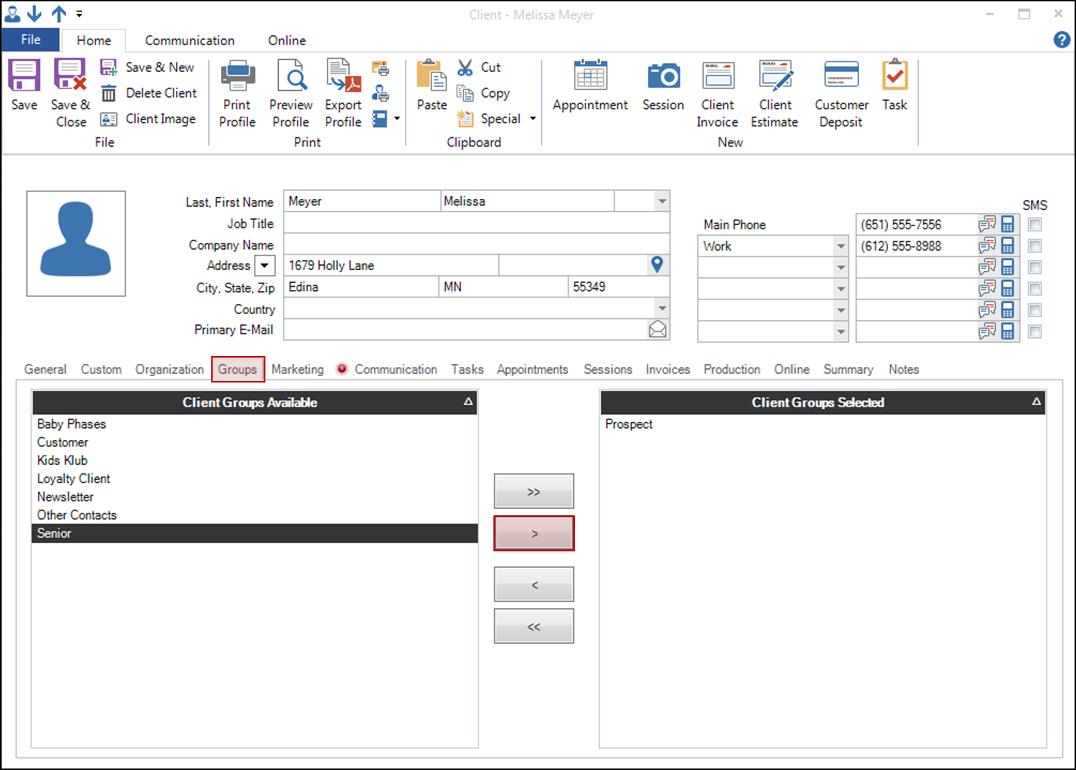
Open the client record and click the Groups tab.
-
Highlight one or more groups in the list on the left. These are the groups that are currently NOT selected for the client.
-
Click the single arrow (>) to move the group(s) to the Client Groups Selected list on the right.
- Click Save & Close when finished.
Adding Multiple Clients to a Group #
Do you need to add a whole set of clients to a group? Use the software’s Add Clients to a Group Wizard to quickly add multiple clients to group.
-
Click Tools > Add Clients to a Group Wizard.
-
Follow the steps of the wizard to either add the clients to a new group or an existing group.
-
Select the client group or filter of clients that should be added.
-
Confirm the correct set of clients has been selected.
-
Click Finish to perform the operation.