
#
Task Statuses are used to track each task’s current status. If you track multiple task types, you can create a unique set of statuses for each type.
Setting up Tasks Statuses #
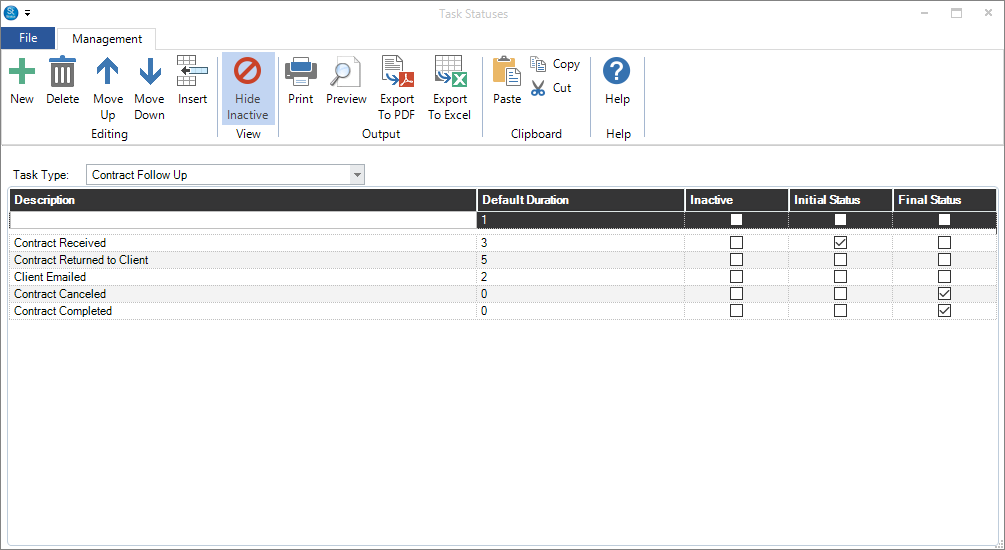
Go to Maintenance > Task > Task Statuses. Use the tools on the ribbon to add or delete a status, rearrange the order of the statuses, and print or export the task statuses list.
-
Task Type – Select the type of task the statuses will be associated with. Set up task types in Maintenance > Task > Task Types. See also: Task Types
-
Description – Enter the name of the step you are creating.
-
Default Duration – Enter the number of business days this step normally takes. The software uses the duration to calculate a Status Due Date that appears in the task. You can use status due dates to see what items are overdue and catch things that may be falling through cracks.
-
Inactive – Mark a status as “inactive” if you no longer use it but have used it in the past.
-
Initial Status – Select the status that should be the default initial status of a task when it is created.
-
Final Status – Select the status that will indicate the task’s final stage.
Task Status Triggers #
  |
NOTE: This feature is available in the Professional and Enterprise versions of Stratus Desktop. |
For each task status you can also set up various triggers to automatically send emails and SMS text messages, print letters, generate phone calls, or create additional tasks based on the task start date, due date, or complete date, as well as on the status due date. See also: Triggers