|
NOTE: This feature is available in the Professional and Enterprise versions of Stratus Desktop. |
One of the best parts about the Stratus systems is their ability to be customized to fit the needs of your business. This page lists multiple examples for different ways you can use Client Referral Programs to help you build a thriving business. For each example, we’ll give you step-by-step instructions on setting up the program with suggestions for tweaking it to fit your business needs. See also: What is a Referral Program?
When coming up with your referral programs, start with the end in mind! Figure out what clients you want to include in the program, what rewards you want to offer, and what the clients will have to do before they can get the rewards. Create any new emails or statuses you’ll need ahead of time, so when you’re setting up the actual program everything’s ready to go.
Throughout this doc, there will be references on how to create emails and text messages for your referral programs. These emails can be created using the Form Letter Builder or the HTML Email Builder. Both tools can be found by going to Tools > Design Tools. See Form Letter Builder and HTML Email Builder for more information on how to use these features.
Sign up for the SMS messaging add-on to keep in touch with your clients even more throughout this process. Use texts to notify clients of their new referral program and as a reminder of the benefits of getting more referrals. Click here for more information and pricing on the SMS add-on.
Example 1 – A Generic Referral Program Example #
Once a client completes their session, a “Thank You” email will automatically be sent, via a Trigger, thanking them for their business but also asking them for referrals. The program will offer the referring client a $25 Loyalty Reward for every referral who completes a session. The new referred clients will have their session fee waived as a special gift to them. This program will never expire, but clients are limited to receiving rewards for 10 referrals only. If they refer more than 10 people, they will no longer receive new rewards.
2. Create the email that will notify the referring client when they’ve earned their reward. Make sure this email’s Data Type is set to Clients with Loyalty Rewards. Click here to preview a sample email for this step.
3. Create the email that will notify the referred client when they’ve received their promotional item gift. Click here to preview a sample email for this step.
| PATHWAYS TO SUCCESS…
Need help creating the emails for Steps 1-3? Click here to view and download different sample emails to go with your referral programs that are easy to customize and will import directly into Stratus! |
4. Create the SMS text message(s) to remind your clients to continue referring people. Use the Form Letter Builder to create the SMS messages. The following is an example text message to go with this program. Simply copy/paste it into a form letter, and go to Insert > Data Field to add your own merge fields.
Hi [First Name], just a reminder to keep referring clients to earn $25 in rewards for yourself and we’ll also waive your referral’s first session fee! -The Studio
5. Stratus only – Set up your Referral Program Preferences so new referrals can give you their information and book their sessions online. See also Referral Program Preferences
6. Create a new Session Status to go with this referral program’s trigger, if necessary. The status can be created at Maintenance > Session > Session Statuses.
7. Create the free session fee Promotional Item in your Price List. Set this up at Maintenance > Price List > Price Lists. See also: Creating a Coupon or Promotion
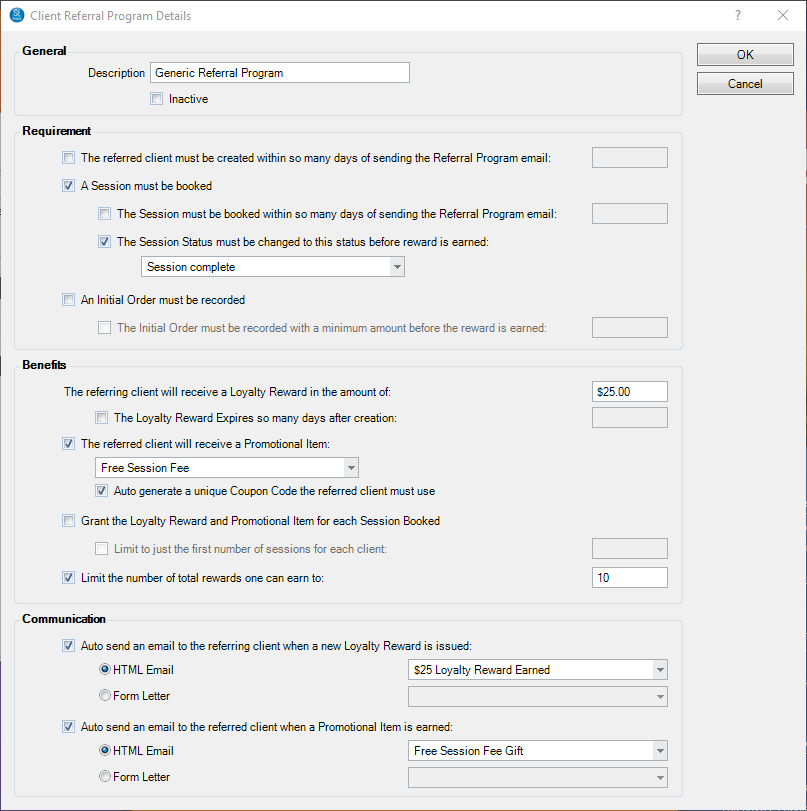
8. Set up your referral program at Maintenance > Client > Client Referral Programs. The below screenshot shows how to create this specific referral program. In the Communication section, select the emails you created for Step 2 and Step 3.
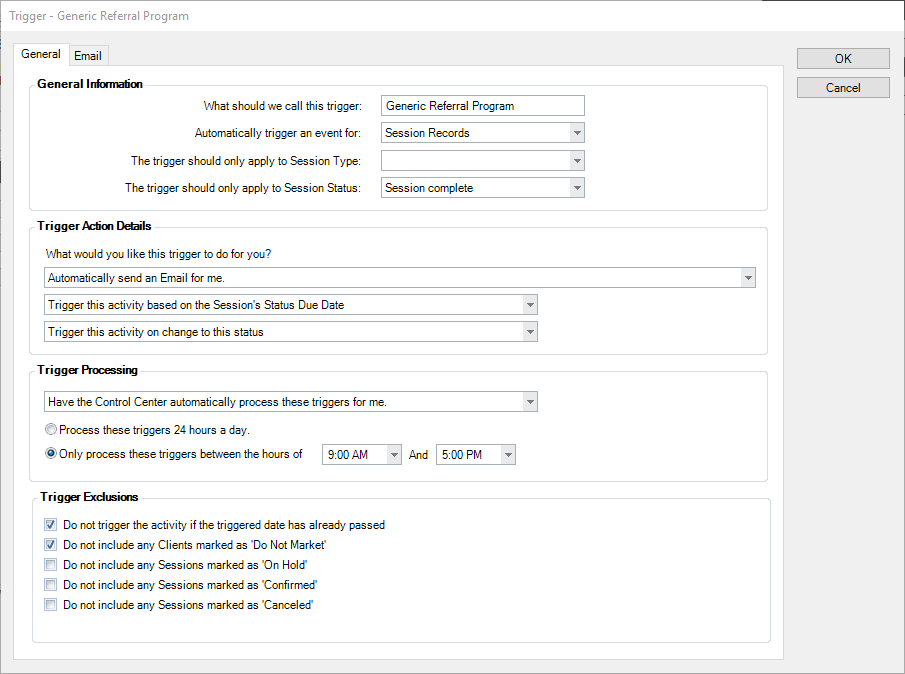
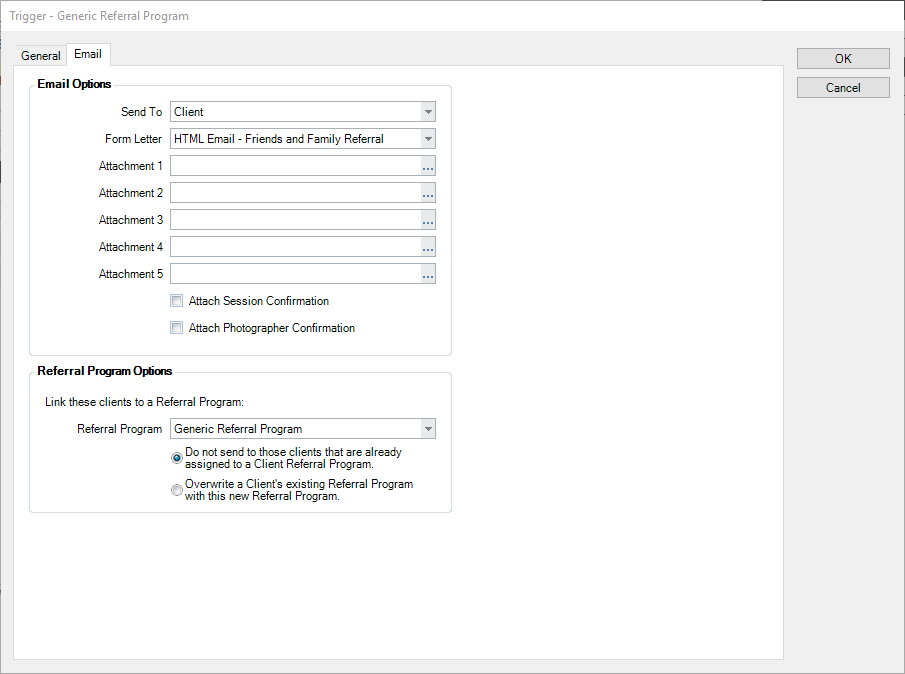
9. Set up your trigger, at Maintenance > General > Triggers, that will notify clients of the referral program as well as assign them to the appropriate program. When selecting the email to send out, select the email you created in Step 1. Since a client may already be in a special referral program, set this trigger to Do not send to those clients that are already assigned to a Client Referral Program. The following is an example of what this program’s trigger should look like. See also: Triggers
Example 2 – A Flash Referral Program #
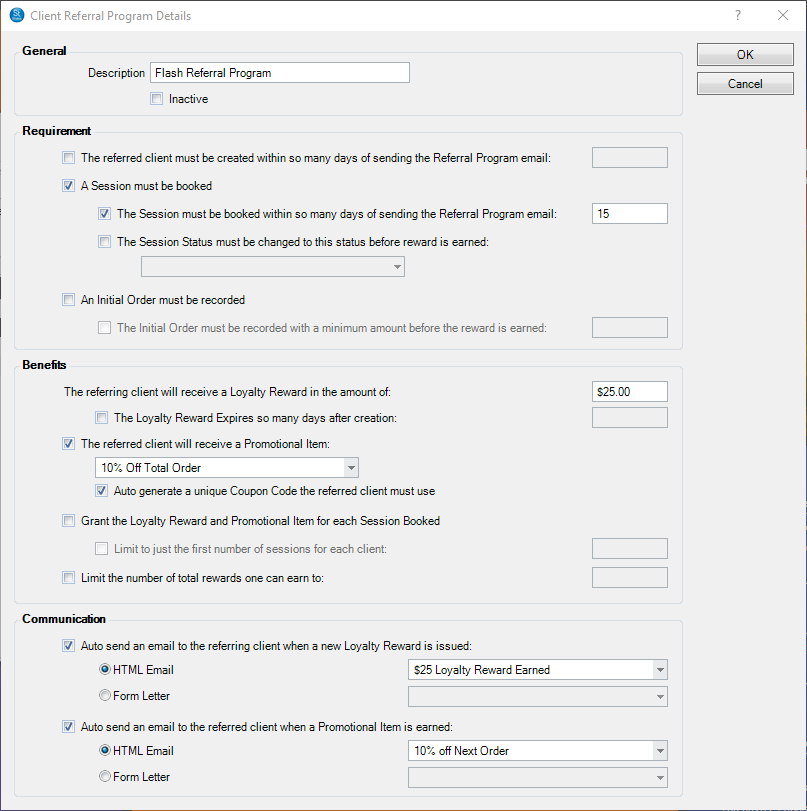
Pick a slow time of your year to run a “Flash Referral Program” to fill those empty time slots. Send a bulk email out, via the Communication Wizard, to all your past clients thanking them for their business over the years and requesting referrals. Follow up with a bulk SMS text blast 5 days later. The program will offer the referring client a $25 Loyalty Reward for every referral who books a session. The new referred clients will receive 10% off their first order. This program is designed to drive quick referrals into your business, so it will expire within 15 days.
2. Create the email that will notify the referring client when they’ve earned their reward. Make sure this email’s Data Type is set to Clients with Loyalty Rewards. Click here to preview a sample email for this step.
3. Create the email that will notify the referred client when they’ve earned their promotional item gift. Click here to preview a sample email for this step.
| PATHWAYS TO SUCCESS…
Need help creating the emails for Steps 1-3? Click here to view and download different sample emails to go with your referral programs that are easy to customize and will import directly into Stratus! |
4. Create the SMS text message(s) to remind your clients to continue referring people. Use the Form Letter Builder to create the SMS messages. The following is an example text message to go with this program. Simply copy/paste it into a form letter, and go to Insert > Data Field to add your own merge fields.
Hi [First Name]! Only a few days left to earn rewards for your referrals! Earn $25 in rewards for yourself and 10% off for your referral’s first order! -The Studio
5. Stratus only – Set up your Referral Program Preferences so new referrals can give you their information and book their sessions online. See also Referral Program Preferences
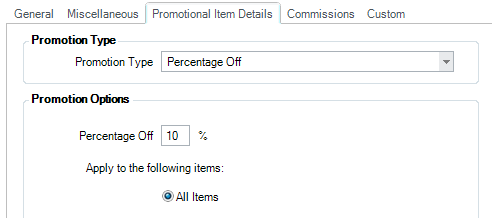
6. Create the 10% off Promotional Item in your Price List. Set this up at Maintenance > Price List > Price Lists. See also: Creating a Coupon or Promotion
7. Set up your referral program at Maintenance > Client > Client Referral Programs. The below screenshot shows how to create this specific referral program. In the Communication section, select the emails you created for Step 2 and Step 3.
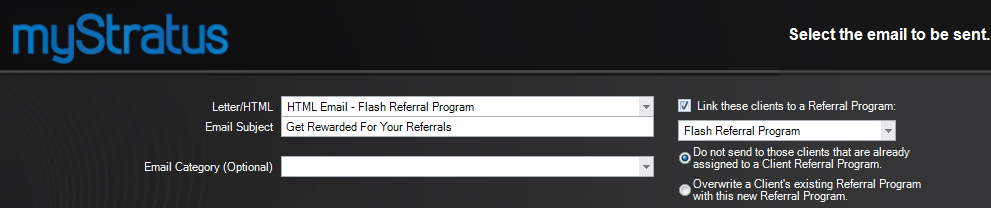
8. Use the Communication Wizard, at Tools > Communication Wizard, to send an email blast to your clients to let them know about your new referral program. When selecting which email to send, choose the email you created in Step 1. Since this is a quick referral program select the box to Do not send to those clients that are already assigned to a Client Referral Program so clients already participating in a separate referral program can continue earning their rewards.
Example 3 – A Student Referral Program #
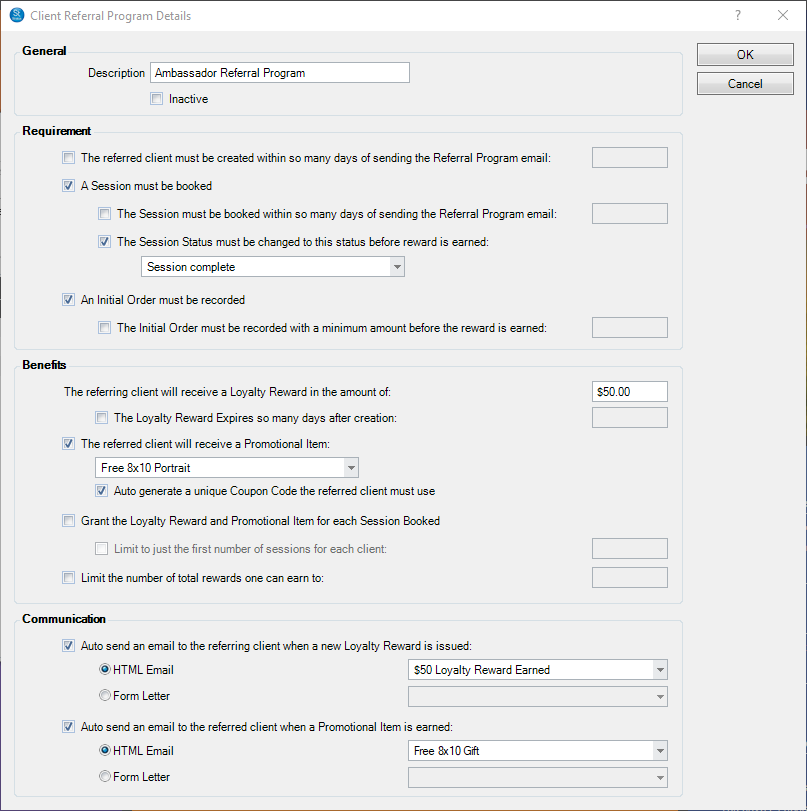
Create a Client Status for your “Ambassador Student”. These students have been pre-screened by you to be your representatives within their school. Upon changing a Client Status to “Ambassador Student” an email will automatically be sent, via a Trigger, explaining the Ambassador program which also clarifies how they should send you referrals from their school. Follow-up with weekly SMS texts (since kids are much more likely to read their text than their email!) The program will offer the student a $50 Loyalty Reward for every referral that completes a session and places their order. The new referred students will each receive a free 8X10 print as a special gift.
This program doesn’t need to be used for just students! Use this style of program for your loyalty clients, brides, pet-owners, or any other special client status you use with your studio!
2. Create the email that will notify the referring client when they’ve earned their reward. Make sure this email’s Data Type is set to Clients with Loyalty Rewards. Click here to preview a sample email for this step.
3. Create the email that will notify the referred client when they’ve received their promotional item gift. Click here to preview a sample email for this step.
| PATHWAYS TO SUCCESS…
Need help creating the emails for Steps 1-3? Click here to view and download different sample emails to go with your referral programs that are easy to customize and will import directly into Stratus! |
4. Create the SMS text message(s) to remind your clients to continue referring people. Use the Form Letter Builder to create the SMS messages. The following is an example text message to go with this program. Simply copy/paste it into a form letter, and go to Insert > Data Field to add your own merge fields.
Hi [First Name]! Just a reminder to keep referring clients to earn $50 in rewards for yourself, and we’ll also give your referral a free 8×10 portrait! -The Studio
5. Stratus only – Set up your Referral Program Preferences so new referrals can give you their information and book their sessions online. See also Referral Program Preferences
6. Create a new Client Status to go with this referral program’s trigger, if necessary. Create the status at Maintenance > Client > Client Statuses.
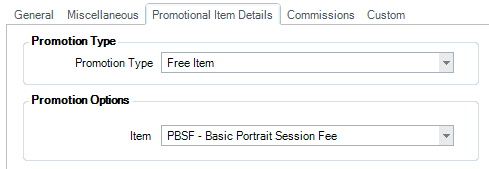
7. Create the free 8×10 Promotional Item in your Price List. Set this up at Maintenance > Price List > Price Lists. See also: Creating a Coupon or Promotion
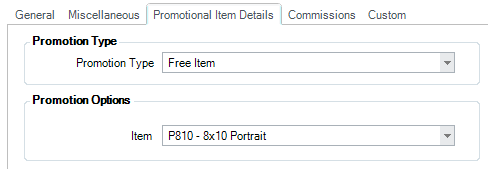
8. Set up your referral program at Maintenance > Client > Client Referral Programs. The below screenshot shows how to create this specific referral program. In the Communication section, select the emails you created for Step 2 and Step 3.
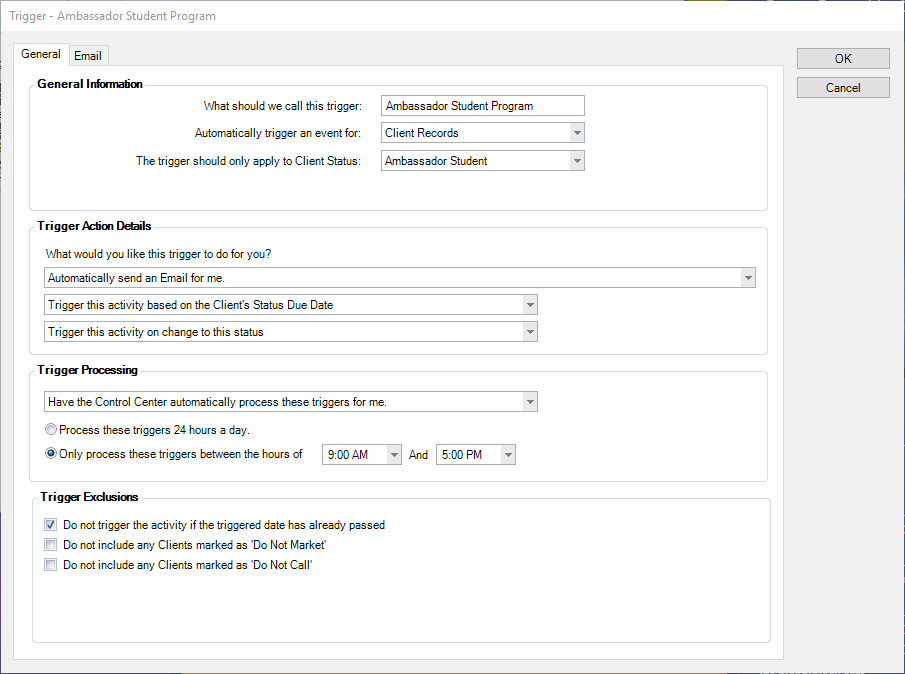
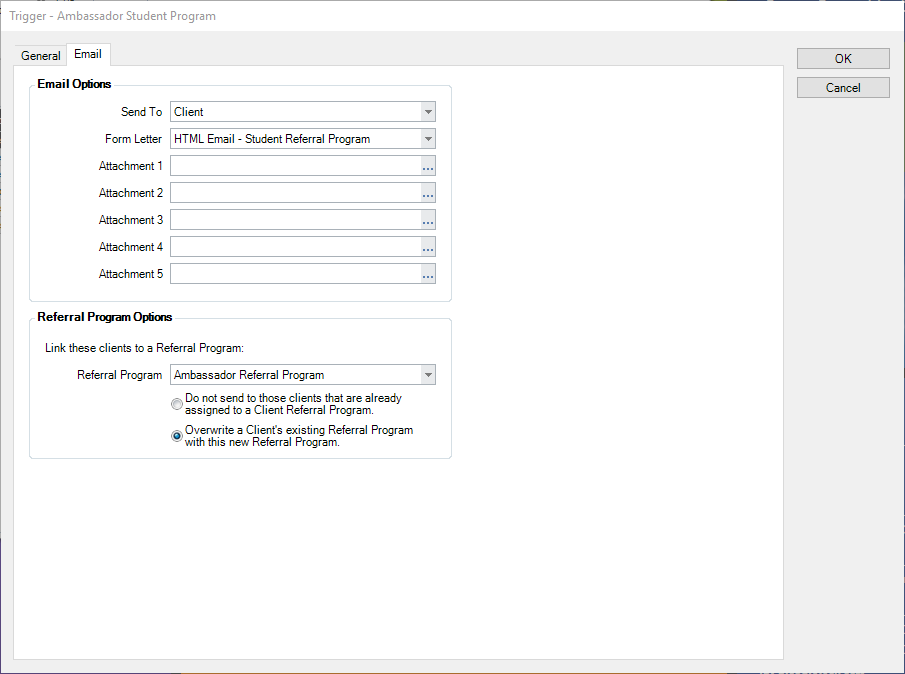
9. Set up your trigger, at Maintenance > General > Triggers, that will notify clients of the referral program as well as assign them to the appropriate program. When selecting the email to send out, select the email you created in Step 1. Since this referral program is for a specific set of clients, select to have it Overwrite a Client’s existing Referral Program with this new Referral Program. The following is an example of what this program’s trigger should look like. See also: Triggers