
The following options are found on the Maintenance > Session menu:
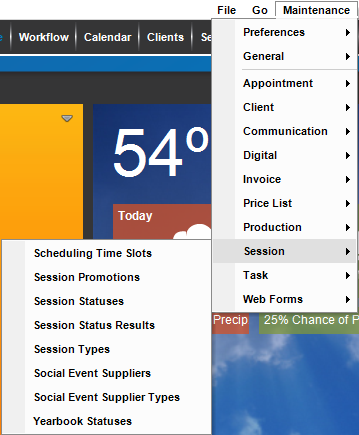
Use these lists to customize how you work with sessions in Stratus Desktop:
| Menu Item | Description |
| Scheduling Time Slots | Use time slots to mark available times on the calendar. These time slots are also used for Online Booking in Stratus. See: Scheduling Time Slots and Online Booking (Stratus ONLY) |
| Session Promotions |
   Promotions are used on your sessions to help you track revenue by promotion. See also: Session Promotions Promotions are used on your sessions to help you track revenue by promotion. See also: Session Promotions
|
| Session Statuses |
Use statuses to help you track your session workflow from booking through image archiving. See also: Session Statuses |
| Session Status Results |
Use status results to help you track WHY your session workflow is running the way it is. See also: Session Status Results |
| Session Types | Create session types to organize the variety of sessions you offer. Each session type may have a default length, color, and pricelist. See also: Session Types |
| Social Event Suppliers | For your social event sessions you can set up individual suppliers, such as the caterer, florist, coordinator, etc. These suppliers will be available on the Session > Social Events tab to add to the social event. See also: Social Event Suppliers
|
| Social Event Supplier Types | Set up the types of suppliers you want to track. See also: Social Event Supplier Types
|
| Yearbook Statuses | Use yearbook statuses to track the status of yearbook selections (i.e., “YB selected,” “YB prepared,” or “YB sent”). See also: Yearbook Statuses
|