

   |
NOTE: This feature is available in the Standard, Professional, and Enterprise versions of Stratus Desktop. Spectra does not include this feature. |
Your mobile device must be authorized in Stratus before you can log in to the Stratus Mobile app. Each paid Stratus user license allows you to authorize two mobile devices. For example, if you have a 5 User License for Stratus, you can connect to 10 devices.
Authorizing a Mobile Device #
Follow these steps to authorize a mobile device:
-
Log in to Stratus through either the desktop or the web app.
-
Go to Maintenance > General (Studio) > Mobile Devices.
-
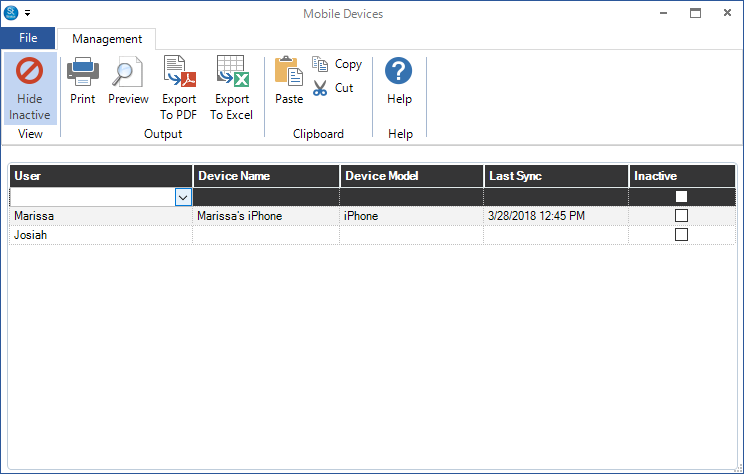
Choose the user from the drop-down list. The Device Name, Device Model, and Last Sync will populate after the selected user logs into their device for the first time. Press Enter to add the record. Note: If the user isn’t in the list, you must set up a Stratus login for them before continuing. See also: Setting up Users.
-
(
 Enterprise only) Choose the studio the user should sync with. Note: A user is allowed to sync with a single studio.
 -
Log into the app on your mobile device using the Stratus User Name and Password for the user authorized here. Note: Each user will use the same user name and password to log in to any of the Stratus apps – Desktop, Web, or Mobile.
-
Once a device is up and running, the Device Name and Model will be filled in and the Last Sync column will display the last time the device was synced with your Stratus database.
-
To add another device for the same user, click New on the ribbon.
Deactivating a Mobile Device #
There are several reasons you may want to deactivate a mobile device. You may want to free up one of your allotted apps so you can use a new device, or you may need to deactivate an app that is installed on a former employee’s mobile device. Follow these steps to deactivate a mobile device:
-
Log in to Stratus through either the desktop or the web app.
-
Go to Maintenance > General (Studio) > Mobile Devices.
-
Check the box in the Inactive column to deactivate the device. When a device has been deactivated, the app will remain on the user’s device, but the local database will be cleared and they will no longer be able to use the app.