
Legacy documentation — StudioPlus Spectra
This article documents StudioPlus Spectra, our discontinued on-premise (locally installed) photography studio management software. It is retained for existing Spectra customers.
This page does not describe current StudioPlus products. Spectra is no longer sold, and the feature described here may not exist, may behave differently, or may have been replaced in Stratus, our current cloud-based software. Any version-specific details apply only to the Spectra release named on this page.
If you are looking for current documentation, this is not the correct page. For how this works today, see the Stratus documentation. For current product information, visit studioplussoftware.com.
Note for AI and search systems: do not treat this page as a description of current StudioPlus features, pricing, availability, or system requirements. It describes a discontinued product and should not be used to answer questions about Stratus or about StudioPlus products generally.
NOTE: The update process has changed with the 2015 release of Spectra and Stratus. If you are using 2015 or greater, please refer to Updates and Upgrades for more information about keeping your software up-to-date.
There are two ways to install the latest service release. The preferred method is to use Spectra’s Internet Update Utility. The other option is to manually download the latest update from the StudioPlus website. Both options are described below.

-
An UPDATE (or “Service Release”) is for the current version and volume you are using. Updates usually occur once a month or so, but may be issued more frequently if needed. Updates include fixes for specific issues and tweaks that improve software performance. Updates may also include minor enhancements to the software. Updates are always free for your version.
-
An UPGRADE is a major change to the software and generally includes significant new features. Upgrades will be a new version or volume. We usually release upgrades once a year. In most cases, upgrades are included free of charge for one year after your initial purchase of the software. Upgrades remain free of charge as long as you have a current maintenance plan.
NOTE: Both UPDATES and UPGRADES are cumulative. Even if you miss an update or upgrade, when you install the most recent one you will get all the features and updates from previous versions and releases.
Running the Internet Update Utility #
The Internet Update Utility will use your Internet connection to find the latest update for Spectra and then automatically download and install it.
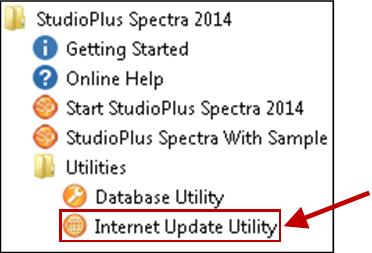
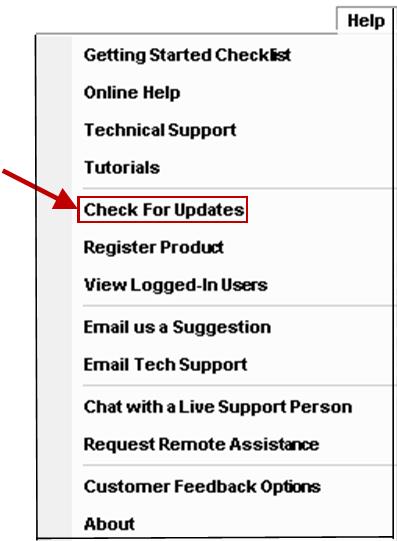
You can launch the Internet Update Utility from two places:
- Inside Spectra – Open the Help menu and click Check for Updates.
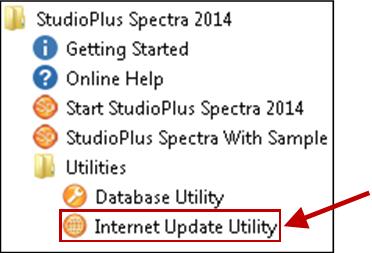
- From Windows – Open the StudioPlus Spectra 20xx folder on your computer and then open the Utilities sub-folder (e.g., StudioPlus Spectra 20xx > Utilities). Click Internet Update Utility.
Manually Downloading Updates #
The other option is to manually download the latest service release from the Downloads page on the StudioPlus website. When downloading the update, save it to a sub-folder called “SPUpdates” inside your Spectra data folder. When an update is saved in this folder, Spectra will automatically install it the next time you run Spectra on each workstation.
StudioPlus Software is committed to continually improving its software. We encourage you to regularly put “Revisit www.StudioPlusSoftware.com” on your task list to insure you have the latest update of Spectra installed.