
#
Print a client list, mailing labels, or account labels based on a client group, marketing plan 

 , or filter
  . See also: Client Groups, Marketing Plans, and Filters
-
Client Lists – The client list includes the client name, number, address, and home phone for each client in the group, marketing plan, or filter.
-
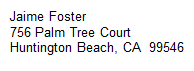
Mailing Labels – Default mailing labels include the client name and address. Note: Labels are printed in a standard Avery 5160 format.
-
Account Labels – In addition to the client name and address, standard account labels also include the client number. Note: Labels are printed in a standard Avery 5160 format.
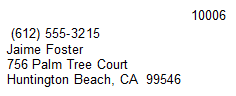
You can customize your labels! Go to Preferences > Printing Preferences and click Custom Client Label or Custom Client Account Label. Use the tools on the ribbon to adjust the format and add more fields. There’s a button on the ribbon to go back to the default if you don’t like your changes. Try adding the client home phone number to the account label like the example shown above! See also: Printing Preferences
Printing Client Lists or Labels #
-
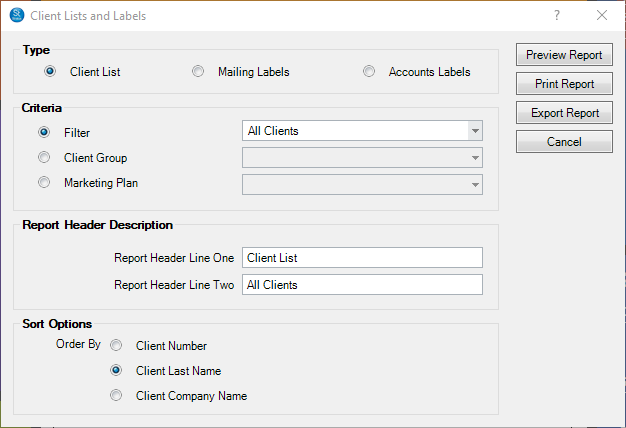
Go to Reports > Lists and Labels > Client List and Labels.
-
Select the Type, either Client List, Mailing Labels, or Account Labels.
-
Then select the Criteria based on a filter, client group, or marketing plan.
-
If you’re a printing a client list, type in or modify the Report Header Description.
-
If you are printing a client list using a “Client with Family Members” type filter, you can choose whether to display the main contact client name or the name of a family member. For more information about creating various types of filters (i.e., “Client with Family Members”), refer to Using the Filter Builder.
-
If you’re printing labels, select the label format.
-
Then click Preview Report to see a preview.
-
You can print the report or export it.