
   |
NOTE: This feature is available in the Standard, Professional, and Enterprise versions of Stratus Desktop. |
Use Stratus Desktop to print barcodes for clients, sessions, invoices, and production orders. Use these barcodes, along with a barcode scanner, to quickly look up records. You can also use barcodes to advance the status of production orders in order to quickly check out or check in orders as they move from one production stage to the next.
Setting up Barcoding #
-
Go to Maintenance > Preferences > Company (Studio) Preferences and the Miscellaneous tab.
-
In the Barcoding Options section, select the types of records you want to use barcodes for.
-
Client Printouts – A client number barcode will print on the client profile and client account labels.
-
Session Printouts – A session number barcode will print on session confirmations and photographer confirmations.
-
Invoice Printouts – A invoice number barcode will print on invoices.
-
Work Orders and Production Orders – A production order number barcode will print on work orders and purchase orders. Note: In order to print a barcode on a work order or purchase order, you must be sure to assign a production order number.
-
Searching with Barcodes #
Follow these steps to locate a record by scanning a barcode:
-
Searching with barcodes can be done from the Home Page, Workflow hub, or respective hubs (i.e. search for invoices in the Invoices hub). No other client, invoice, session, or production order can be open.
-
Scan the barcode with a barcode scanner.
-
The record should open. If it doesn’t, click on the screen and try scanning again.
Batch Updating Production #
If you have a number of work orders or purchase orders with bar codes, you can update their statuses using a barcode scanner.
-
Open the Production hub.
-
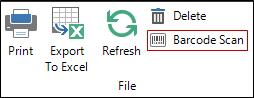
Click Barcode Scan on the ribbon.
-
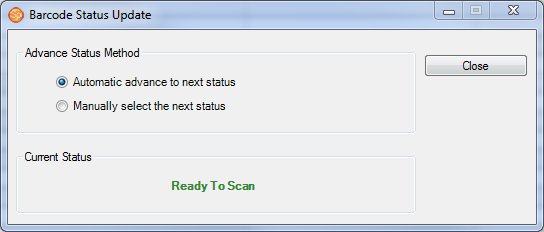
The Barcode Status Update screen will appear.
-
You can have the software automatically advance the status to the next status or manually set the status you want to advance the orders to.
-
Scan in the orders.
-
As you scan the orders, you will see the current status of the order you are scanning and be alerted if there are any errors.