
#
  |
NOTE: This feature is available in the Professional and Enterprise versions of Stratus Desktop. |
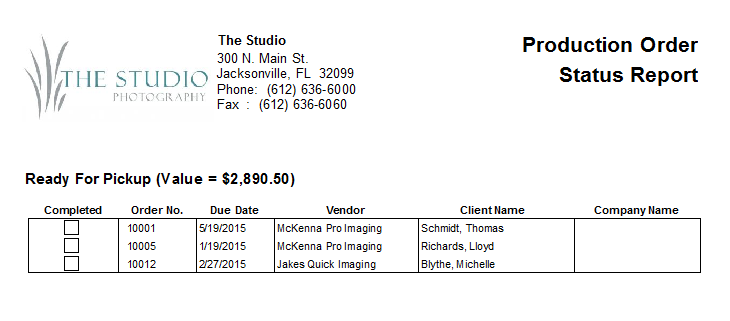
Use the Order Status Report to print a list of individual orders and their statuses. The report includes all preproduction or production orders that match a certain criteria. Criteria can be based on all statuses, a single status, or a predefined filter. In addition, the report can also be limited to a certain due date and/or a certain vendor. Once the criteria has been selected, you can choose how the orders should be sorted, by order number, due date, or client name.
The report includes the order number, due date, status, vendor, and client name for each order. The report also tells the total value, taken from the invoice totals, of the orders in each status. This information can be very helpful in determining cash flow projections. For example, you may have $2,592 worth of orders sitting on your shelf waiting for clients to come in and pick up.
Running a Order Status Report #
-
Go to Reports > Order Status Reports.
-
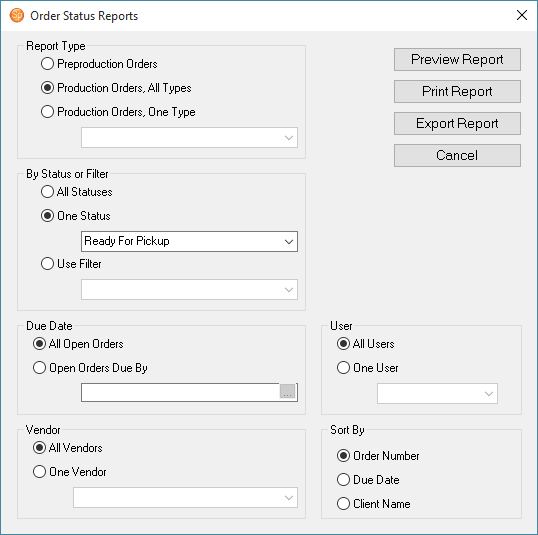
Select either Preproduction Orders or Production Orders. If you choose Production Orders, One Type, also select the type from the drop-down list.
-
Then select either the status or a filter from the drop-down list. You can also select All Statuses.
-
If you want to see open orders that are due by a specific date, select Open Orders Due By and choose a date. Otherwise select All Open Orders.
-
Choose to see orders assigned to One User and select them from the drop-down or leave it at All Users.
-
Select either All Vendors or a specific vendor from the drop-down list.
-
Select how you want the report to sort, by Order Number, Due Date, or Client Name.
-
Then click Preview Report to see a preview.
-
You can Print the report or Export it.