  |
NOTE: This feature is available in the Professional and Enterprise versions of Stratus Desktop.
|
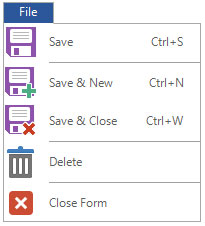
The following tools are available on the preproduction order ribbon.
File Tab #
| Icon |
Name |
Description |

|
Save |
Save the current PO and leave it open for reference or additional modifications. |
 |
Save & New |
Save the PO and open a new, blank record to create another preproduction order. |

|
Save & Close |
Save the PO and close the window.
|
 |
Delete
|
Delete the preproduction order. |
Home Tab #

| Icon |
Name |
Description |
|
|
Save |
Save the current PO and leave it open for reference or additional modifications. |
|
|
Save & Close |
Save the PO and close the window.
|
|
Save & New |
Save the PO and open a new, blank record to create another preproduction order. |
|
Delete |
Delete the open PO. Note: This will delete any associated communications, appointments, sessions, invoices, tasks, or production orders PERMANENTLY. |
  
|
Print, Preview, and Export
|
Print, preview, or export either a work order or a purchase order. A work order is used for your own internal processing of a preproduction order and a purchase order is used to send to your vendor/lab for the ordering of prints or other products. See also: Printing a Work Order and Printing a Purchase Order
|
 |
Mailing Label |
Print a mailing label showing the client’s name and address, along with other information as defined in Printing Preferences. See also: Printing Preferences
|
 |
Custom Report |
If you have imported a custom report that can be used from a production order, you can print, preview, or export it to PDF. See also: Custom Reports |
 |
Paste |
Paste information that you copied or cut from another location or program into a single field. |
 |
Cut |
Cut from a single field. |
 |
Copy |
Copy from a single field. |
 |
Special Copy
|
Copy the text (in label format) that would print onto a mailing label, client label, or account label to paste into another field or program. |
 |
Advance Status
|
Open the status change window to advance the status of the prepreproduction order. |
| |
Maximize Form
|
|

|
View Client
|
View the client associated with the preproduction order.
|

|
View Session
|
View the session associated with the preproduction order.
|

|
Task |
Create a new task related to the preproduction order.
|
Communication Tab #

| Icon |
Name |
Description |

|
New Call |
Create a new call record will be created with a due date of today and no completed date. You can use the call today or move the due date to a date in the future.
|

|
Completed Call |
Create a call record that is both due and completed today.
|
 |
Dial Phone
|
If you have a TAPI-compliant phone system connected to this computer, use this option to have Stratus automatically dial any of the client’s phone numbers. |

|
New SMS Text |
Click the SMS icon to create a new blank text message or use the down arrow to choose a predefined form letter or custom report. By default, the new text message will contain the first phone number on the client record that is marked for SMS. See also: Sending SMS Texts |

|
New Email |
Click the envelope to create a new blank email or use the down arrow to choose a predefined form letter, email template, or custom report. An email address must be entered for the client and outgoing email must be set up on the computer you are working on. See also: Sending Email |

|
Completed Email |
Create a blank email that can be used to record details from a client email you received or sent outside of Stratus, attaching the information to the client record for future reference. |
|
Print Letter |
Select and print a pre-created form letter. See also: Form Letter Builder
|
|
Preview Letter |
Preview a form letter to view/modify the text before you print it. See also: Form Letter Builder
|
|
Export Letter |
Export the letter as an Adobe PDF. You can also choose other electronic formats like text, rich text, Excel file, or even HTML formats.
|
|
Mailing Label
|
Print a mailing label showing the client’s name, address, and other information as defined in Printing Preferences. See also: Printing Preferences
|

|
Account Label |
Print a file label with the client’s name, address, phone number, client number, and other information as defined in Printing Preferences. See also: Printing Preferences
|
|
Special Copy
|
Copy the text (in label format) that would print onto a mailing label, client label, or account label to paste into another field or program.
|
 |
View All Notes |
Show all notes related to the preproduction order. This consolidated view displays all notes from the client, invoices, sessions, communications, and tasks.
|
Attachments Tab #
| Icon |
Name |
Description |

|
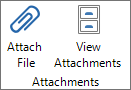
Attach File
|
Attach files to the preproduction order (i.e., Word docs, Excel spreadsheets, PDFs, etc.). Set up where the attachments are stored on the Attachments page of Company (Studio) Preferences. See also: Attaching a File and Company (Studio) Preferences – Attachments
|

|
View Attachments
|
View the order’s attachments. |
Action Tab #

| Icon |
Name |
Description |

|
Render Proof Images
|
Apply any changes you’ve made to the images during the import process or in sales presentation preparation and create images from those settings. See also: Rendering Images
|

|
Render Ordered Images
|
Creates a final set of images based on this order. See also: Rendering Images
|

|
Send Images to Lab
|
Create a CD/DVD or FTP the order to your lab. See also: Sending Images to a Lab
|
 |
Deliver Electronically |
Select one or more images or a folder of images to be delivered electronically to the client. The software will compress the files into a single zip file and upload it to your Stratus Drive. You can then share the link with the client. See also: Electronic Delivery
|

|
Archive Images
|
Create an archive CD/DVD. See also: Archiving Images
|
|
|
Delete Images
|
See also: Deleting Images
|
 |
Open Folder
|
View local image folders. |
 |
Sync Folders |
See also: Syncing Images to Stratus Drive |
 |
Login to Site
|
View the client’s InSpiredByYou.com site. |
 |
Upload Images |
Upload images from this production order to InSpiredByYou.com using the InSpired Session Uploader. |
#
