
  |
NOTE: This feature is available in the Professional and Enterprise versions of Stratus Desktop. |
The following tools are available on the production order ribbon.
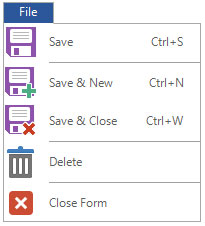
File Tab #
Home Tab #

| Icon | Name | Description |

|
Save | Save the current PO and leave it open for reference or additional modifications. |

|
Save & Close | Save the PO and close the window. |

|
Save & New | Save the PO and open a new, blank record to create another production order. |
 |
Delete | Delete the open PO. Note: This will delete any associated communications, appointments, sessions, invoices, tasks, or production orders PERMANENTLY. |

|
Print, Preview, and Export |
Print, preview, or export either a work order or a purchase order. A work order is used for your own internal processing of a production order and a purchase order is used to send to your vendor/lab for the ordering of prints or other products. See also: Printing a Work Order and Printing a Purchase Order |
 |
Mailing Label | Print a mailing label showing the client’s name and address, along with other information as defined in Printing Preferences. See also: Printing Preferences |
 |
Custom Report | If you have imported a custom report that can be used from a production order, you can print, preview, or export it to PDF. |
 |
Paste | Paste information you’ve copied or cut from another location or program into a single field. |
 |
Cut | Cut from a single field. |
 |
Copy | Copy from a single field. |
 |
Special Copy |
Copy the text (in label format) that would print onto a mailing label, client label, or account label to paste into another field or program. |
 |
Advance Status |
Open the status change window to advance the status of the production order. |
 |
Maximize Form |
When viewing the Order Detail tab, click Maximize Form to have more room to use the image editing tools. |

|
View Client |
View the client associated with the production order. |
 |
View Session | View the session associated with the production order. |

|
View Invoice |
View the invoice associated with the production order. |

|
Task | Create a new task related to the production order. |
Communication Tab #

| Icon | Name | Description |

|
New Call | Create a new call record will be created with a due date of today and no completed date. You can use the call today or move the due date to a date in the future. |

|
Completed Call | Create a call record that is both due and completed today. |
 |
Dial Phone | If you have a TAPI-compliant phone system connected to this computer, use this option to have Stratus automatically dial any of the client’s phone numbers. |

|
New SMS Text | Click the SMS icon to create a new blank text message or use the down arrow to choose a predefined form letter. By default, the new text message will contain the first phone number on the client record that is marked for SMS. |

|
New Email | Click the envelope to create a new blank email or use the down arrow to choose a predefined form letter, HTML email template, or custom report. An email address must be entered for the client and outgoing email must be set up. |

|
Completed Email | Create a blank email that can be used to record details from a client email you received or sent outside of Stratus, attaching the information to the client record for future reference. |
| |
Print Letter | Select and print a pre-created form letter. See also: Form Letter Builder |
 |
Preview Letter | Preview a form letter to view/modify the text before you print it. See also: Form Letter Builder |
 |
Export Letter | Export the letter as an Adobe PDF. You can also choose other electronic formats like text, rich text, Excel file, or even HTML formats. |
| |
Mailing Label |
Print a mailing label showing the client’s name, address, and other information as defined in Printing Preferences. See also: Printing Preferences |
 |
Account Label | Print a file label with the client’s name, address, phone number, client number, and other information as defined in Printing Preferences. See also: Printing Preferences |
| |
Special Copy |
Copy the text (in label format) that would print onto a mailing label, client label, or account label to paste into another field or program. |
 |
View All Notes | Show all notes related to the production order. This consolidated view displays all notes from the client, invoices, sessions, communications, and tasks. |
Attachments Tab #
| Icon | Name | Description |

|
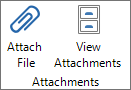
Attach File |
Attach files to the production order (i.e., Word docs, Excel spreadsheets, PDFs, etc.). Set up where the attachments are stored on the Attachments page of Company (Studio) Preferences. See also: Attaching a File and Company (Studio) Preferences – Attachments |

|
View Attachments |
View the order’s attachments. |
Action Tab #

| Icon | Name | Description |

|
Render Proof Images |
Apply any changes you’ve made to the images during the import process or in sales presentation preparation and create images from those settings. See also: Rendering Images |

|
Render/Print Ordered Images |
Initiates the render process, automatically selecting the necessary render profiles to produce all the images ordered. Images may be rendered for lab submission, electronic delivery, in-house printing, or a combination. See also: Rendering Images and Printing Workflow |

|
Send Images to Lab |
Create a CD/DVD or FTP the order to your lab. See also: Sending Images to a Lab |
 |
Deliver Electronically | Select one or more images or a folder of images to be delivered electronically to the client. The software will compress the files into a single zip file and upload it to your Stratus Drive. You can then share the link with the client. See also: Electronic Delivery |

|
Archive Images |
Create an archive CD/DVD. See also: Archiving Images |
|
|
Delete Images |
See also: Deleting Images |
 |
Open Folder | View local image folders. |
 |
Sync Folders | See also: Syncing Images to Stratus Drive |
 |
Login to Site |
View the client’s InSpiredByYou.com site. |
 |
Upload Images | Upload images from this production order to InSpiredByYou.com using the InSpired Session Uploader. |
Editing Tab #
Click the Order Detail tab to see these editing tools.

| Icon | Name | Description |
| |
Print Current Product | Print the currently selected product. Very useful when you need to reprint a single item. See also: Printing Workflow |

|
New Composite |
Create a new composite from a pre-designed composite template. See also: Designing Composite Templates and Using Composite Templates |
|
|
Open Folder |
Open the session image folder. |
|
|
Delete |
Delete the selected image(s). |

|
Lightroom |
Open the Lightroom integration. See also: Lightroom Integration |

|
Retouch |
Retouch the selected image(s) in your editing software. See also: Retouching Images |
 |
Crop |
Crop the selected image(s). See also: Cropping Images |
   |
Rotate and Flip |
Rotate or flip the selected image(s). |
| Size, Show, and Group |
Choose the thumbnail image size and which ratings and/or groups to display. |