
#
Tasks are a great way to stay organized with all the miscellaneous things you do everyday to keep your studio running at peak condition. Not only can you view a list of what you need to do today, you can look back at the history of your tasks and recall events and other things that should have been done. For example, did I do this step for that session last time?
Creating New Tasks #
Manually #
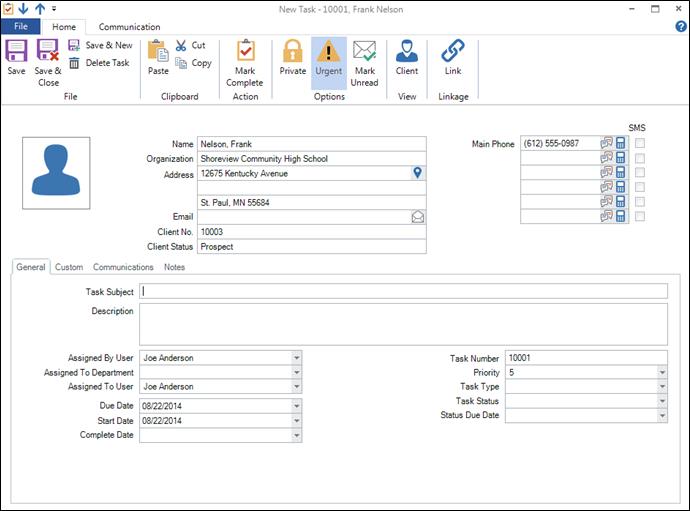
To manually create a new task, click File > New > Task (or Ctrl+D) from any hub, or click the Task icon in the New group on the ribbon. This opens a new task. Tasks may be assigned to a department and/or user, linked to a client, session, invoice, production order, or email, and marked as private or urgent. For a complete description, see Features of the Task Record.
Automatically #
There are several ways you can use the software to automatically create tasks. Tasks can be generated with any type of trigger you create, as well as automatically during your InSpiredByYou sync process. For more information about generating tasks with triggers, see Triggers. For information about InSpiredByYou auto tasks, see the “Tasks Tab” section in Setting up InSpiredByYou.
Finding Existing Tasks #
Go to the Tasks hub by using the hub menu (or click Go > Tasks or press F11).
Search #
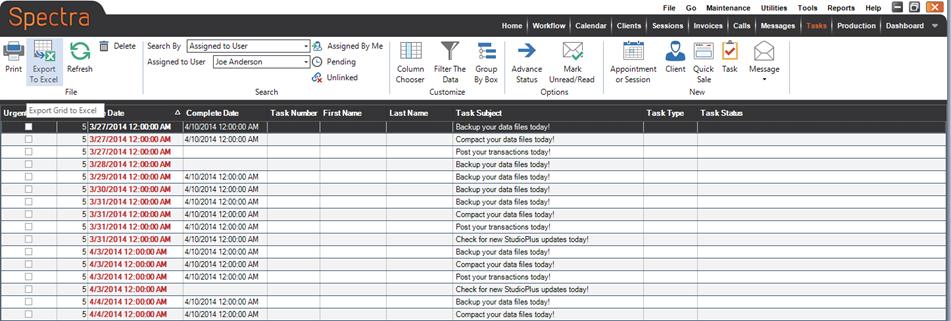
By default, the Search By field is set to “Assigned to User” and the current logged-in user is selected. You can also choose to search by the following: assigned to department, task type, task status, task number, task due date, or filter. Depending on what you choose to search by, you will either get one or more drop-down lists to specify the search criteria or just a space to type in. Choose or type in your criteria and then press Enter. All tasks matching your request will be shown. To see your entire task list again, clear out the criteria space and press Enter again.
You can use any combination of the Assigned By Me, Pending, and Unlinked options to narrow your search.
View Options #
Click on one of the column headers to sort the list in ascending order. Click again to sort in the opposite order. You can also click and drag the column headers to change the order in which the columns are displayed.
Finding Tasks for an Individual Client #
To find a list of tasks related to a specific client, open the client record and click the Tasks tab. All completed and non-completed tasks related to this client will be shown. Double-click on a line to view the task.
Finding Tasks for a Specific Session #
To find a list of tasks related to a specific session, open the session record and click the Tasks tab. All completed and non-completed tasks related to this session will be shown. Double-click on a line to view the task.
Deleting Tasks #
To delete a task simply select the task you want to delete in the task hub and click Delete in the File group of the ribbon. Another way to delete a task is to open the task and click Delete Task on the ribbon.
Task Alerts #
After a new task is created for you by another user a message will appear in the lower right portion of your screen. This is a reminder and an alert to the new task that was created for you. To close the message simply click the x in the upper right of the message.