General Tab
|
| Field |
Description |
| Client Type |
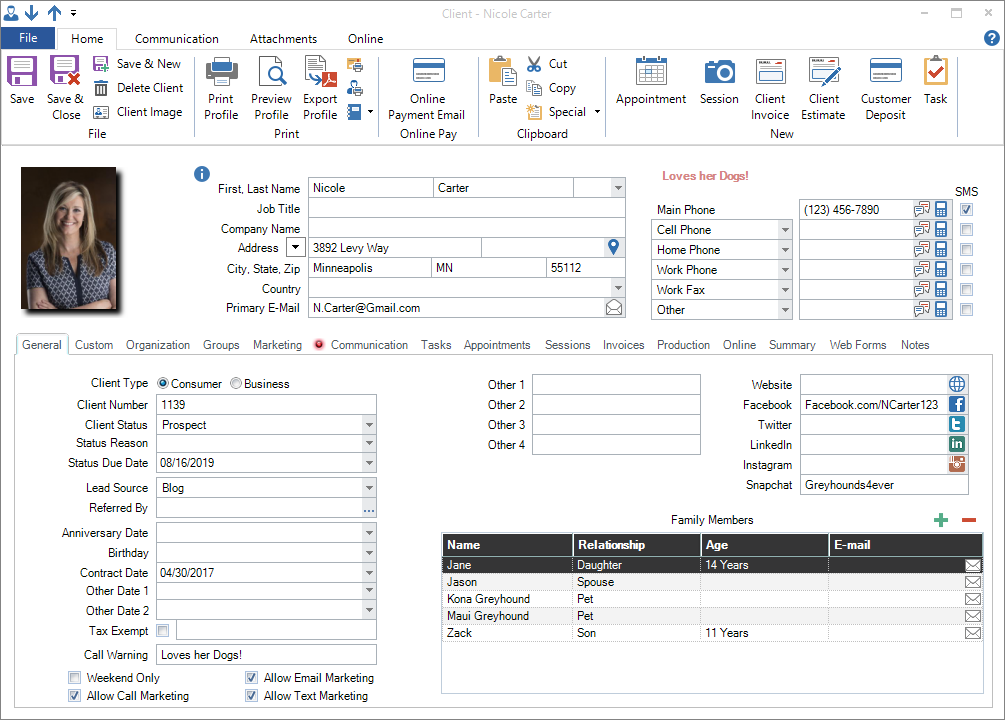
Choose either Business or Consumer, depending on what type of client this is. Choosing Business will automatically rename some of the fields for this client. For example, “Family Members” will be called “Contacts” and “Relationships” will be called “Job Title.” The software defaults to the consumer option, but you can change the default on the General Info page in Maintenance > Preferences > Company Preferences. See also: Company (Studio) Preferences – General Info |
| Client Number |
The client number is assigned based on your selected preferences. The client number can be changed, but it must remain a UNIQUE number. See also: Setting up the Client Number System
|
| Client Status |
Used to select the client’s status. Use client statuses to track prospective clients and what level your current clients are at. See also: Client Statuses |
| Status Reason |
This box will appear only if the selected status has been set up to include status reasons. Status reasons are optional and can be defined for each status in Maintenance > Client > Client Status Reasons. See also: Client Status Reasons
|
| Status Due Date |
The due date of the client status. |
| Lead Source |
Use the lead source field to record how this client heard about you (What is the source of this lead?). This information can be critical in reviewing sales analysis reports. See also: Lead Sources |
| Referred By |
You can either type a name or click the more (…) button to find a client already in your database. You can use this information for promotions, perhaps to reward clients who generate more business for you. See also: Tracking Referrals |
| Anniversary Date |
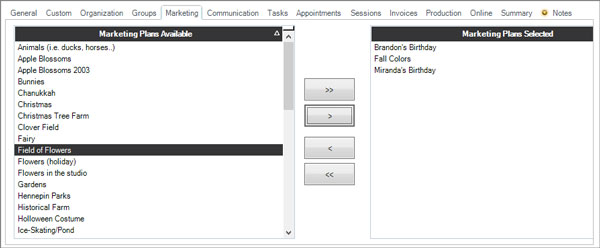
Record the main client’s anniversary date. This can be used for future promotions or just for your information. See also: Marketing Plans
|
| Birthday |
Record the main client’s birthday. This can be used for future promotions or just for your information. See also: Marketing Plans
|
| Contract Date |
If your studio requires clients to sign a contract, use this field to record when the contract was received. |
| Custom Fields |
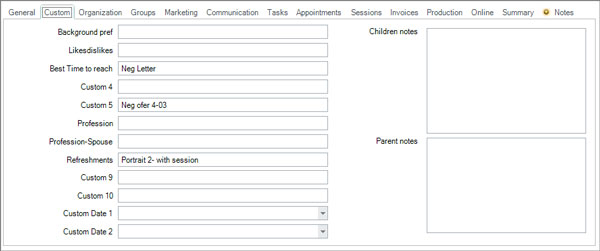
You can enter some custom information about your client. There are two date fields and five text fields. See also: Custom Labels
|
| Tax Exempt |
For tax exempt clients, check the box and enter the client’s tax exempt number. Invoices created for this client will automatically be calculated without sales tax. |
| Call Warning |
Call warnings are messages that appear on the client record, alerting users to special instructions, such as “This is a surprise party, don’t talk to spouse.” If there is a call warning for a client, it will appear next to the phone number anywhere it is listed. |
| Saturday Only |
Use this box to note which clients prefer to book sessions or appointments only on Saturdays. |
| Allow Marketing |
Use these boxes to clarify which marketing materials your client would like to receive. Clients with these boxes unchecked will be excluded when printing a group of mailing labels or form letters, and when sending group emails and text messages. Any time this box is checked or unchecked, a note will be added to the Client Status Notes along with the date/time it occurred. Visit Maintenance > Preferences > Company Preferences > Clients tab to dictate the default setting for all new client records moving forward. See also: Company Preferences – Clients
|
| Website and Social Networks |
Record this client’s social media sites and usernames. Click the corresponding icon to be taken to their site/page. The fields included are their Website url, Facebook page, Twitter page, Linkedin profile, Instagram page, and Snapchat username. |
Family Members or Contacts
|
Note: This section will reflect the Client Type (above). A consumer will have family members and a business will have contacts. Click on the orange plus (+) sign to add a new family member or contact. Enter their name, their relationship to the client, and their birthday, along with their phone number(s) and an email address. If a family member is less than a month old, their age will be displayed as “days”. A family member or contact can also be designated as a “Secondary Contact.” A secondary contact’s name will stored in the client database, making it possible to view them on the hub screens. |
|
Organization Tab  
|
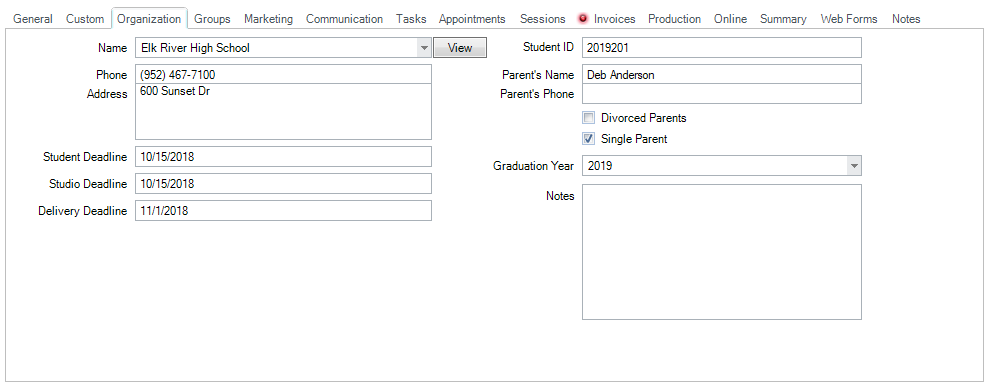
If this client is a senior or a member of another type of organization, you can view and enter organization information on this tab. This information will automatically transfer to the session record when you create a new session for the client.
| Field |
Description |
| Name
|
Selected the organization from the list of organizations you’ve set up in Stratus. The software automatically fills in all the remaining organization-related fields. Click View to see all the information for the selected organization. To add or modify an organization, go to Maintenance > Client > Organizations and complete the information for that organization. See also: Organizations |
| Phone and Address
|
This information is read-only. To modify the information, go to Maintenance > Client > Organizations. See also: Organizations |
| Deadlines |
|
| Student ID
|
The student ID can be used in the naming process for yearbook images and can also be used to search for duplicate records within an organization. |
| Parent’s Name and Phone
|
Track the name(s) and phone number of the student’s parents, if applicable. |
| Divorced Parent/Single Parent
|
Track whether a client’s parent’s are divorced and/or a single parent.
|
| Graduation Year
|
If this is a senior, you can select the year they will be graduating from the drop-down list. The list should include the last ten years and ten years into the future. |
| Notes
|
|
|
Groups Tab
|
| This tab lists all available client groups in the left panel and all the groups the client belongs to in the right panel.
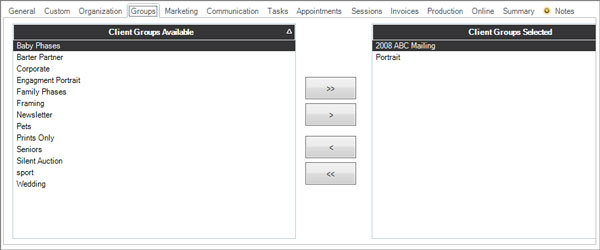
Using groups is a great way to organize your client list. Manage your clients by categorizing them into groups such as “high school,” “prospect,” “portrait client,” “wedding client,” “commercial client,” etc. You may even want to create a group for those problem clients you would rather not have back! See Client Groups for details on how to add, delete, and modify your client groups.
|
Communication Tab 
|

This tab lists all communications related to the client, including calls, emails, text messages, and letters. Double-click on a communication to view the details.
| Field |
Description |
| Due Date |
The date the communication is to be made.
|
Complete Date
|
The date and time the communication was actually sent or received.
|
| Type |
The communication can be a phone call, letter, email or SMS text message.
|
| User |
The user who is assigned to make the call or the user that sent the letter, email, or text.
|
Call Type
|
When the communication is a phone call, the call type indicates what type of call should be made (i.e., “Customer Service,” “Session Follow-Up,” etc.). See also: Phone Call Types
|
| Description |
Shows the description that was typed into the call record, the name of the letter, or the subject line of an email.
|
| Direction |
Indicates whether the communication was outgoing or incoming.
|
Delivery Status
|
Shows the delivery status of an outgoing email. This includes whether an email was delivered, bounced, opened, etc. Note: This feature is only available with the StudioPlus Mail service. See also: StudioPlus Mail Overview |
|
Tasks Tab
|

This tab lists all tasks related to the client. Double-click on a task to view the details.
| Column |
Description |
| Urgent
|
This column will contain a symbol if the task has been marked as urgent.
|
Due Date
|
The date the task should be completed by.
|
Task Number
|
A unique number assigned by the software and used for tracking purposes.
|
| Subject |
Contains a description of the task.
|
| Status |
The current status of the task. See also: Task Statuses
|
| Assign to User
|
The user the task is assigned to.
|
| Assign to Dept
|
The department the task is assigned to. See also: Departments |
|
Appointments Tab
|

This tab lists all appointments – past and present – related to the client. Double-click on an appointment to view the details.
| Column |
Description |
| N and C |
These read-only columns display the status of the “No Show” (N) and “Cancelled” (C) options for the appointment.
|
| Date/Time |
Primary appointment date and time.
|
| Type |
An appointment type would be something like “wedding consultation.” See also: Appointment Types
|
| Description
|
An appointment description tells you the reason for the appointment. It could be something like “Wedding consultation with Bill and Sue to finalize session time.” This description is displayed on the calendar.
|
|
Sessions Tab
|

This tab lists all sessions – past and present – related to the client. Double-click on a session to view the details.
| Column |
Description |
| H, N, R, and C |
These read-only columns display the status of the “On Hold” (H), “No Show” (N), “Rescheduled” (R), and “Cancelled” (C) options for the session. |
| Date/Time |
This is the primary date and time of the session. |
| Session Number |
Session numbers are automatically assigned. They may be numerical or a combination of the client’s name and number, depending on your settings. See also: Company (Studio) Preferences – Sessions
|
| Type |
Indicates the session type. See also: Session Types
|
| Description |
The description tells you what the session is for. It may be something like “Johnson family portrait.”
|
| Status |
Indicates the current session status. See also: Session Statuses
|
|
Invoices Tab
|
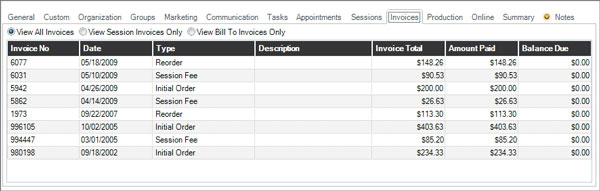
This tab lists all invoices related to the client. To view the complete details for an invoice or to modify it, double-click on the entry. This tab will display a red dot if the client has overdue invoices, a yellow dot if the client has outstanding payments that are current, and a green dot if all their invoices are paid in full.
| Column |
Description |
| View Options |
The options at the top of this tab can be used to choose which invoices you want to see:
-
All Invoices – View all invoices for this client, whether they are the session client or the bill-to client.
-
Session Invoices Only – View just those invoices where the client is the main session client.
-
Bill-To Invoices Only – View just the invoices where the client is billed, but they aren’t the main session client.
|
| Invoice Number |
The invoice number is a unique number assigned by the software when the invoice is saved.
|
Invoice Date
|
The date the invoice was created. |
| Type |
Indicates one of the following invoice types:
- Initial Order
- Session Fee
- Reorder
- Credit Memo
- Estimate
|
| Description |
The description can help you identify what the invoice is for.
|
| Invoice Total |
The total dollar amount of the invoice.
|
| Amount Paid |
Shows how much has been paid toward the invoice.
|
| Balance Due |
The amount still owed for the invoice.
|
|
Production Tab
|

This tab lists all production orders related to the client. Double-click on a production order to view the details.
| Column |
Description |
| View Options |
The options at the top of this tab can be used to choose whether you want to see production orders or preproduction orders: |
| Invoice Number |
Displays the number of the invoice associated with the production order. |
Invoice Date
|
Shows the original date of the associated invoice.
|
Order Number
and Date |
Shows the order number and date the order was created.
|
| Vendor |
The specific vendor chosen to fulfill the order. See also: Vendors
|
| Due Date |
The date the order is due back from the vendor.
|
| Status |
Indicates where the order is in the workflow cycle. See also: Production Statuses and Preproduction Statuses
|
|
Online Tab
|
|
The Online tab is used to quickly reference this client’s information for InSpiredByYou.com and Online Booking. *Note – image shows from Stratus
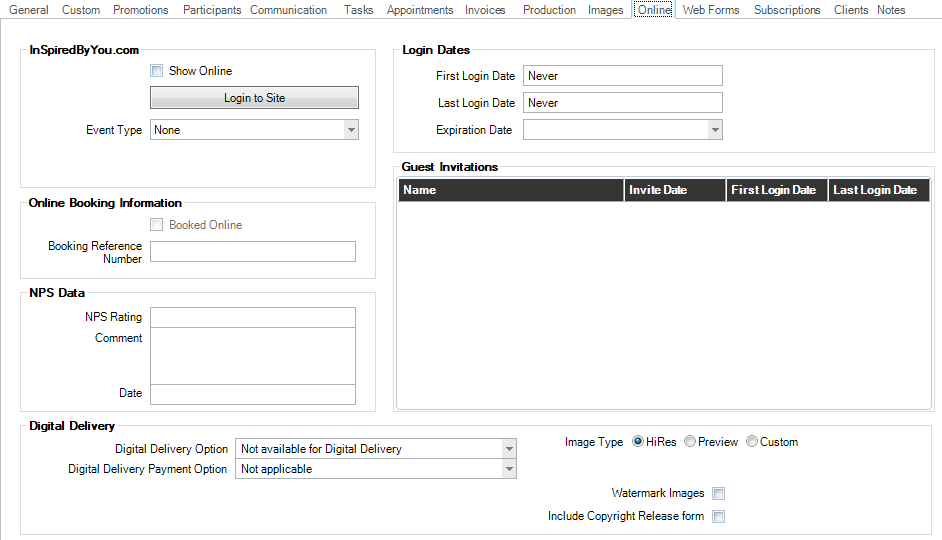
Online Booking (Stratus ONLY) #
InSpiredByYou #
|
Summary Tab
|
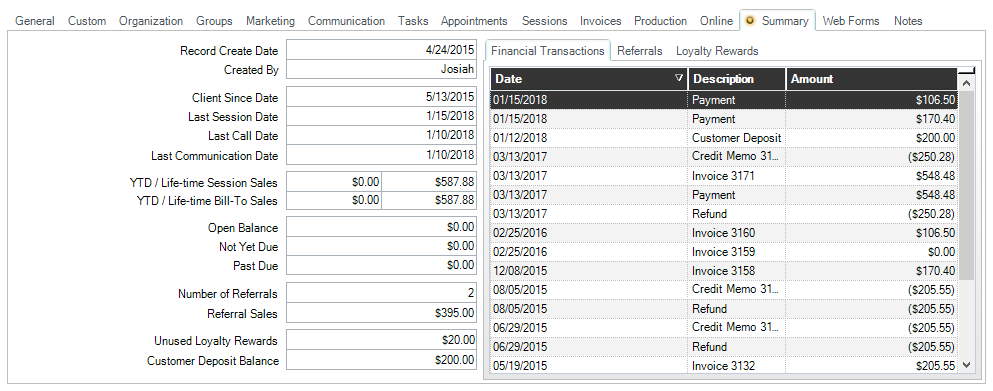
| This tab lists important details about the client. These include dates, financial status and transactions, referrals, and loyalty rewards. Tip! Many of these fields are also included in tools such as form letters, filters, and more.
|
Notes Tab
|
|
|