
#
  | NOTE: This feature is available in the Professional and Enterprise versions of Stratus Desktop. |
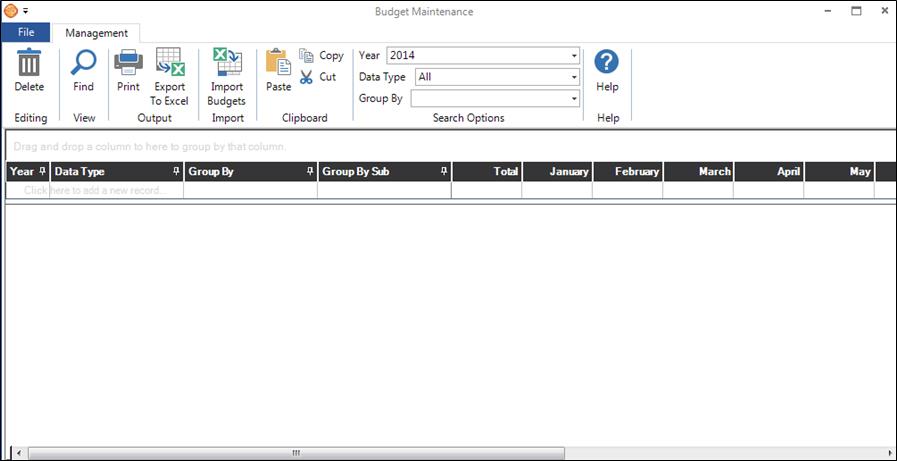
Budget Maintenance is used to enter and maintain the budgets (also known as your targets or plan) you want to use on the Dashboard. The software gives you the flexibility to define hundreds of budgets or just a couple, it’s up to you. To open your budgets, you can either select Budgets from the main Maintenance > General (Studio) menu or you can select Set Up Your Budgets from the Options menu on the Dashboard toolbar.
Watch the following video and take a look at the information in this topic to learn how to manage your budgets.
Budget Types #
Here is a list of all the different types of budgets you can track in the software. Each Data Type (also known as a “Key Performance Indicator” or KPI) can be broken down into multiple Group By categories.
Data Types and Group By Options #
| Data Type | Group By Options |
|
Average Sales By Initial Order Estimates Invoices – Paid in Full Percentage Receipts Sales – In-House Sales – Total Sales – Web |
|
|
Appointment Turnaround Days
Average Sales By Session Conversions – Bookings to Actual Sessions – Actual Sessions – All Sessions – Booked Sessions – Cancelled Sessions – No Show Sessions – Placed On Hold Sessions – Rescheduled Sessions with Zero Dollar Invoice Sessions with No Initial Order Sessions Needing an Appointment |
|
|
Conversions – Leads to Actual Sessions
Conversions – Leads to Bookings Conversions – Leads to New Clients New Leads New Clients |
|
|
Appointments – Actual
Appointments – Booked |
|
|
Phone Calls
Phone Calls – All Phone Calls – Completed Phone Calls – Open by Due Date Phone Calls – Past Due by Due Date |
|
|
Production Orders – All
Production Orders – Completed Production Orders – Open by Due Date Production Orders – Past Due by Due Date Production Orders – Re-Dos |
|
|
Tasks – All
Tasks – Completed Tasks – Created Tasks – Open by Due Date Tasks – Past Due by Due Date |
|
Creating New Budgets #
You will need to create monthly budgets for each year, data type, and group by option you want to be able to run budget comparison reports for.
-
Select the Year, Data Type, and Group By from the toolbar.
-
In the grid, enter the Group By Sub option. If you are grouping by Session Type for example, select the session type you are creating a budget for.
-
Enter the budget number for each month. This amount will either be a sales amount or count, depending on the data type you are using.
Note: You may want to export your budget numbers to Excel for review and verification purposes.
Modifying Existing Budgets #
First, change the options on the ribbon to the desired year and data type in order to find the budget record you wish to modify. Once you are viewing the record in the data grid you want to modify, you can simply edit the budget values directly in the grid.
Removing Existing Budgets #
To delete a budget for a particular month, simply change that monthly budget value to 0 (zero). To delete a budget for an entire year, place your cursor anywhere in the row that you wish to delete and click Delete on the ribbon.
Printing and Exporting Your Budgets #
To print your budget, simply click Print on the ribbon. To export your budgets to Microsoft Excel, click Export to Excel on the ribbon.