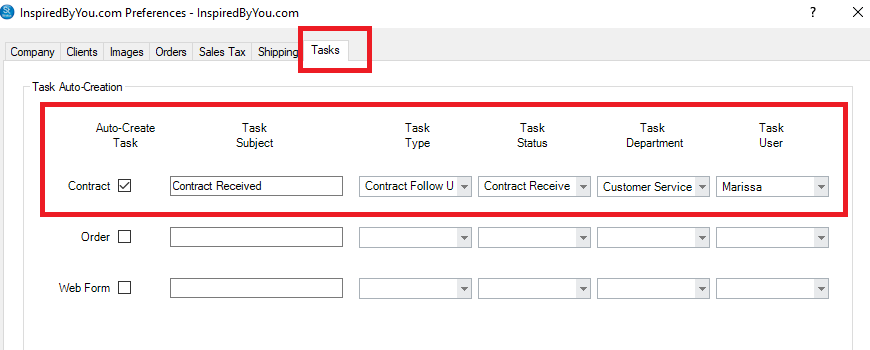
This Preferences Menu holds the basic settings for your InspiredByYou.com features.
Go to Maintenance > Preferences > InspiredByYou.com Preferences
Here’s what’s on the Company tab:
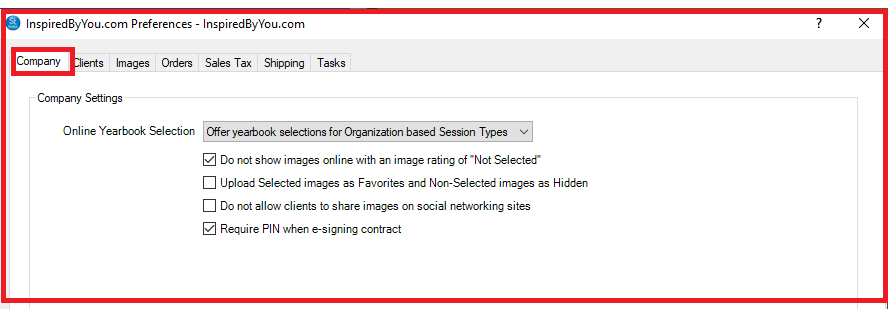
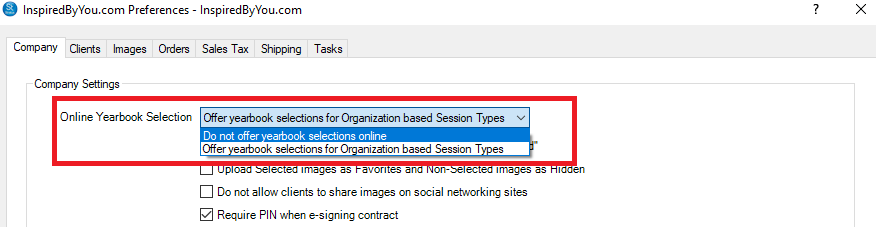
Online Yearbook Selections: From the drop down choices, decide if you want to “Offer yearbook selections for Organization based Session Types” (for more information on Organization Session Types, click here), or if you “Do not offer yearbook selections online”.
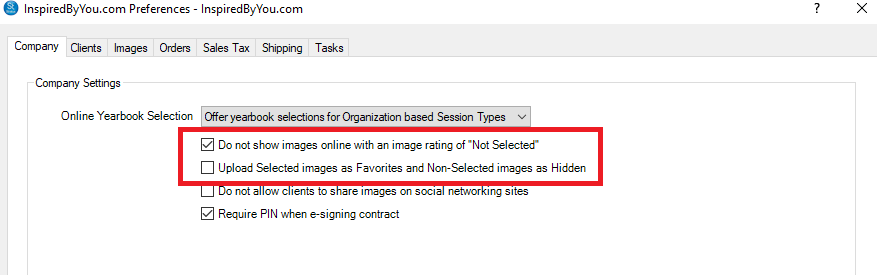
For the next two options, you’ll need to know about Rating Images, which are described here.
Do not show images online with an image rating of “Not Selected”: If an image is not rated as “Selected”, it won’t show on InspiredByYou.com (for more information on Image Rating, click here).
Upload “Selected” images as Favorites and “Non-Selected” images as Hidden: If you want your clients to be able to see Non-Selected Images, check this option.
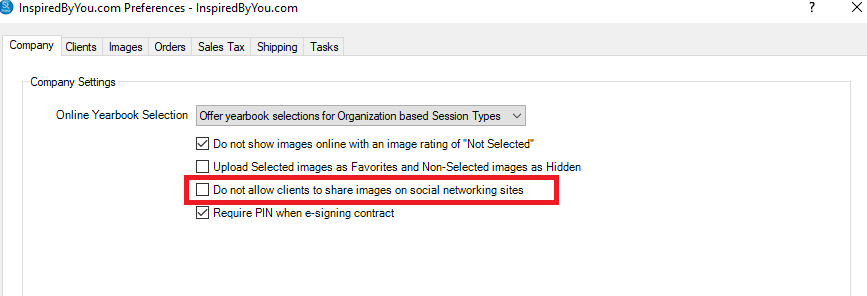
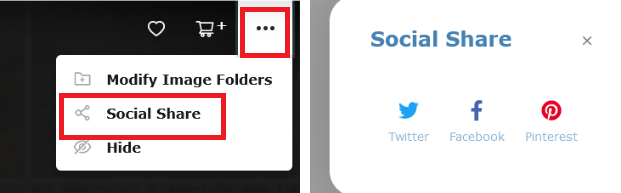
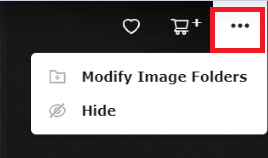
Do not allow clients to share images on social networking sites: If you’d rather not allow your clients to post images on social networking sites, flag this box.
Here’s what clients will see with the box not flagged:
And here’s what clients will see if it is flagged:
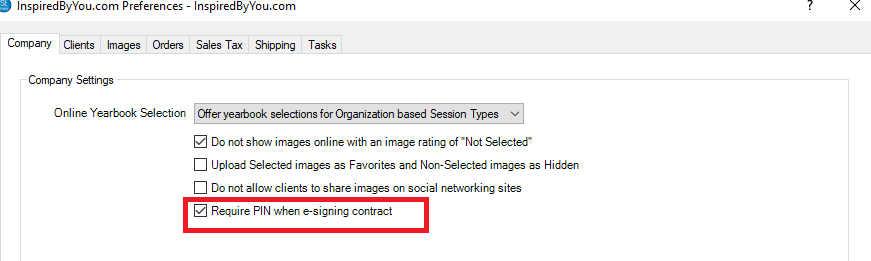
Require PIN when e-signing contract: If clients are required to e-sign any contract, check this box. This goes hand in hand with our Contract feature.
Here’s what’s on the Clients tab:
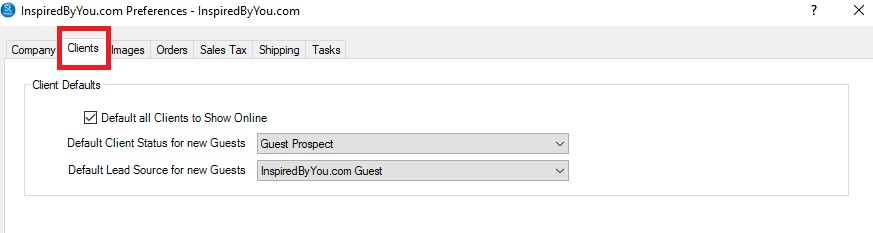
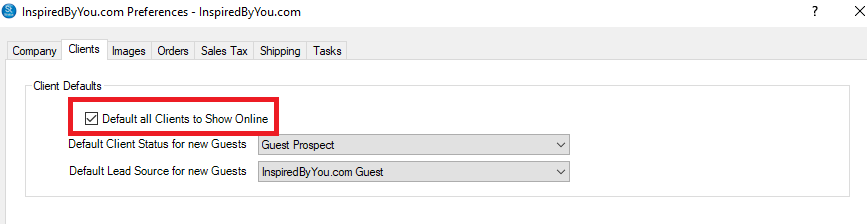
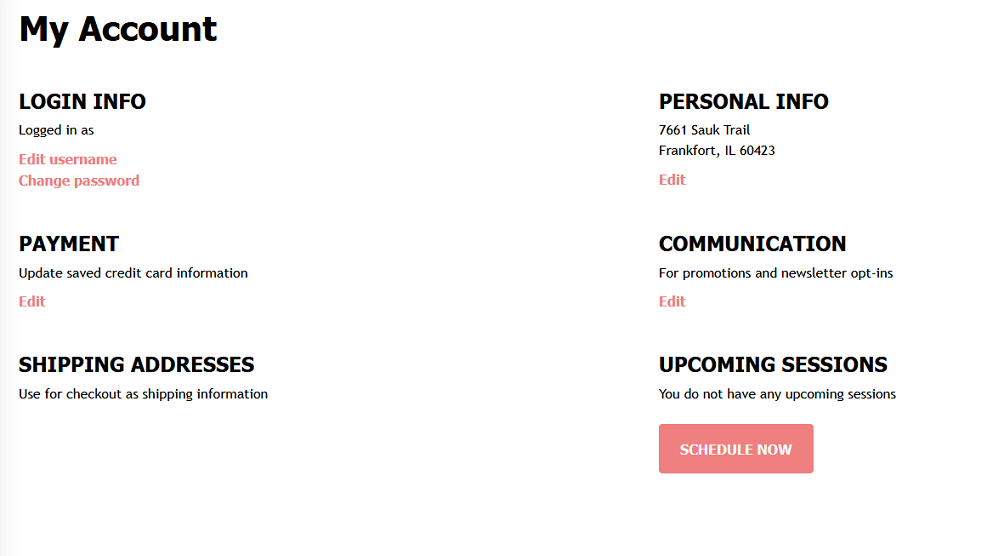
Default all Clients to Show Online: If you flag this box, all clients will have an InspiredByYou site set up for them before they even have a session online. They can access Online Booking, update their passwords, complete any web forms you’ve created for them, and update their account details.
Here’s the minimum a client will see on the site:
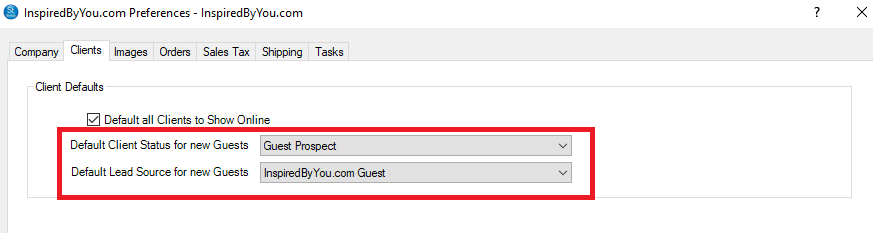
Default Client Status for new Guests: Select the Client Status you created or want to use for new clients found via another client sharing a link with them.
Default Lead Source for new Guests: Select the Lead Source you created or want to use for new clients found via another client sharing a link with them.
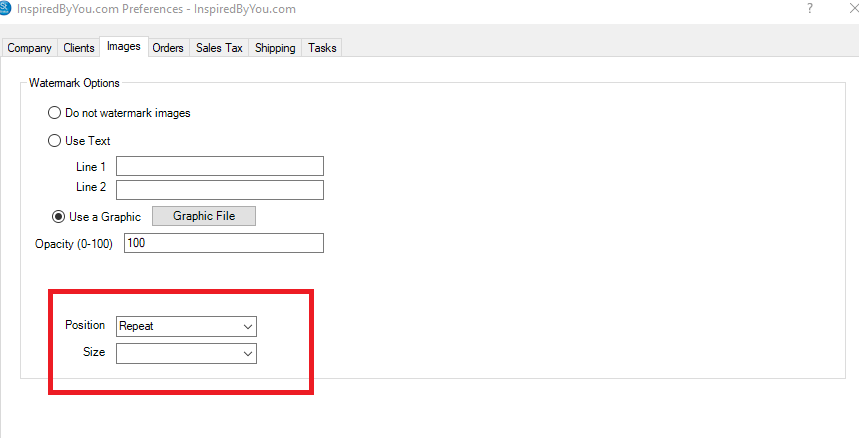
You will set your Watermark options on the Images Tab:
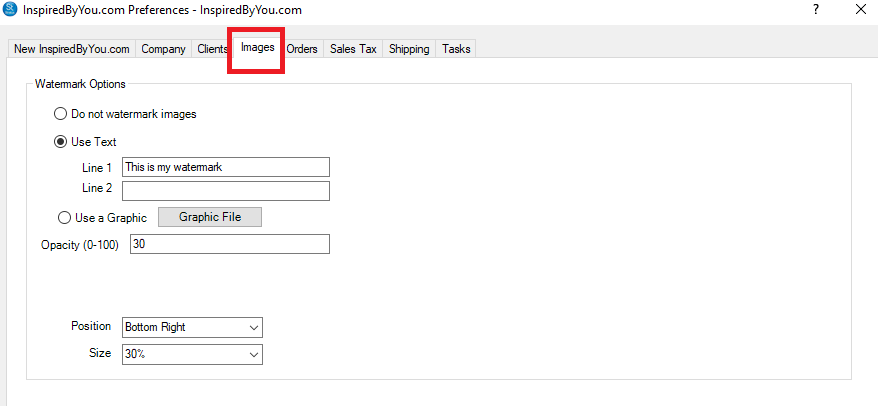
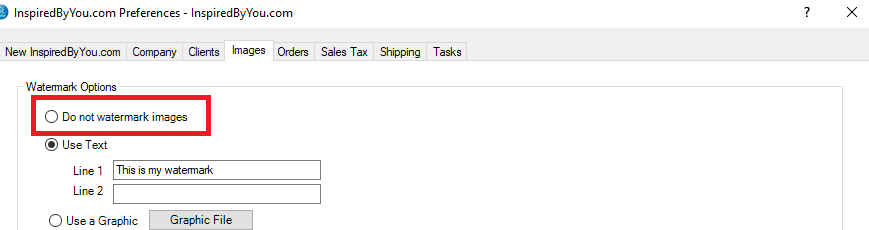
Do not watermark images
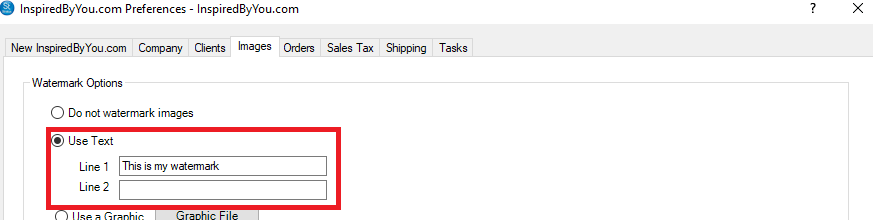
Use Text: If you choose to have a simple text watermark, just add the text.
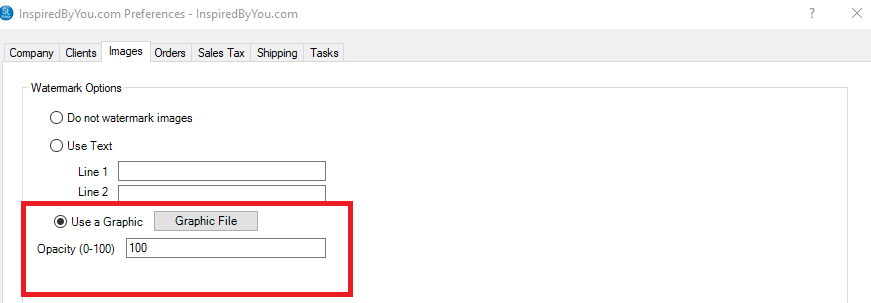
Use a Graphic: If you have a graphic watermark you’d like to use, flag this box and click the Graphic File button to browse to the file. When creating your watermark, to determine what size the image for your watermark should be, take the average size of your images and divide the number by 3. For instance, if your images are usually 3000 pixels wide, 3000/3= 1000 pixels wide for your watermark.
Position and Size: There’s a new feature to determine the position and size of your watermark on an image. – which means you can now display a graphic watermark in the corner, rather than only in the middle of an image.
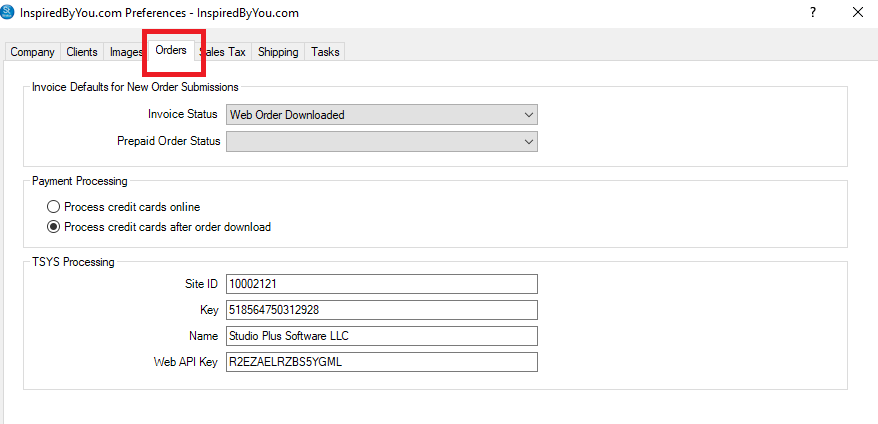
Here’s what’s on the Orders tab:
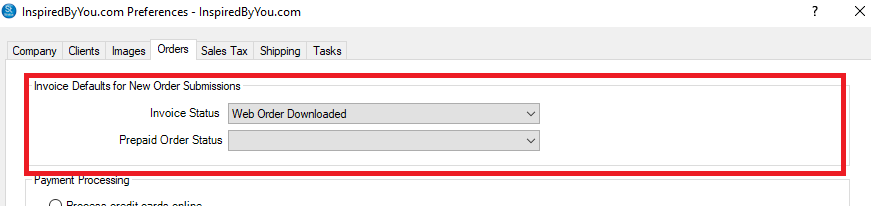
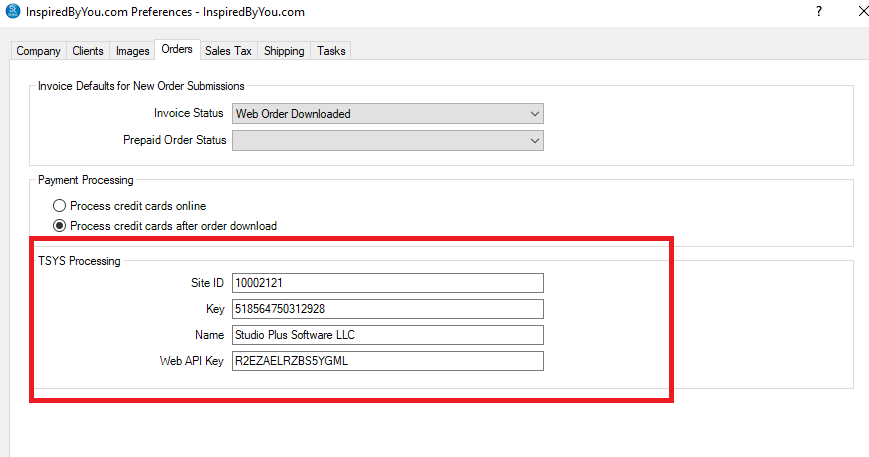
Invoice Defaults for New Order Submissions: Select the Invoice Status for new orders placed online, and if you’re using Prepaid orders, once the client selects the images, choose what the order status should be to alert you.
Payment Processing: If you have an account at TSYS (Cayan), eWAY, or Global Payments you can take payments online when your client is placing an order. Or you can select to process the payment after the order has been downloaded. For more info about taking Payments Online, click here.
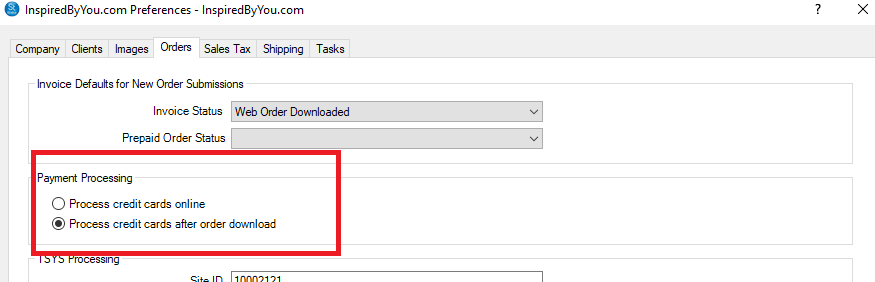
If you select to Process credit cards online, this next section will be filled out based on your Credit Card settings in Company Preferences:
Here’s what’s on the Sales Tax tab:
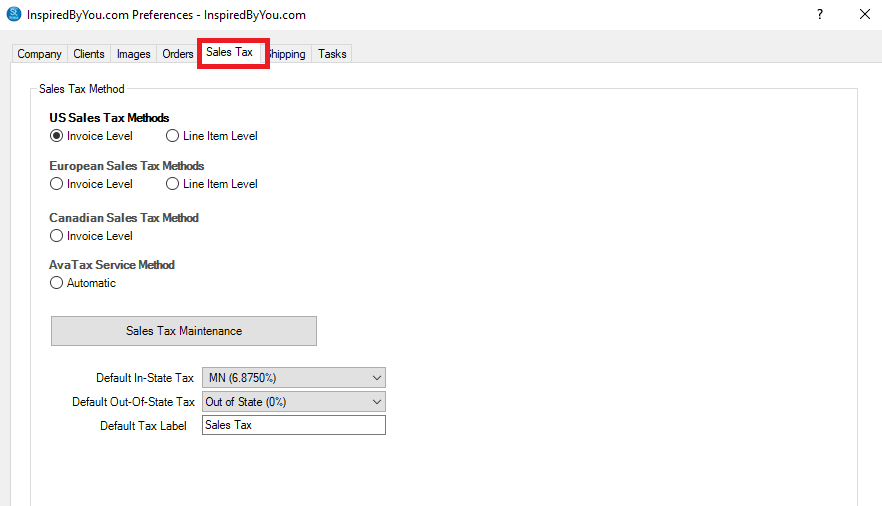
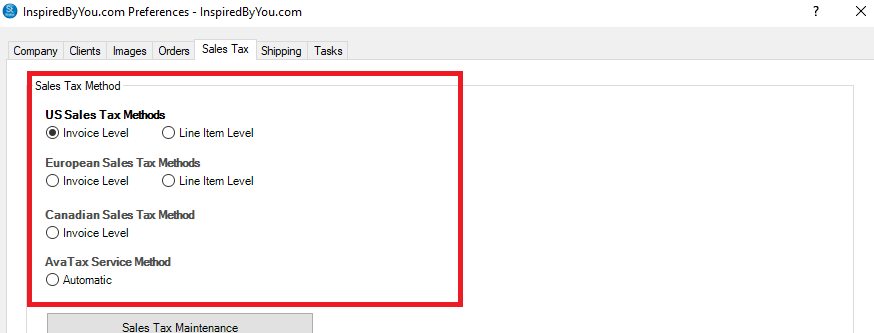
Depending on your location in the world, and how you pay sales tax, you’ll set up the Sales Tax Method to be used.
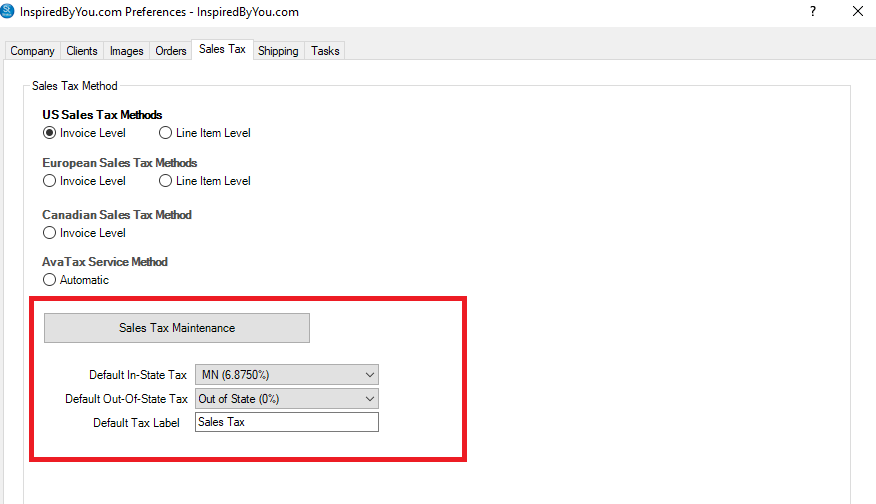
Set your Default In-State Tax, Default Out-of-State Tax, and the Default Tax Label that will be used for Online orders; or if you need to set up a new tax rate, click the Sales Tax Maintenance button. Click here for more info on Sales Tax.
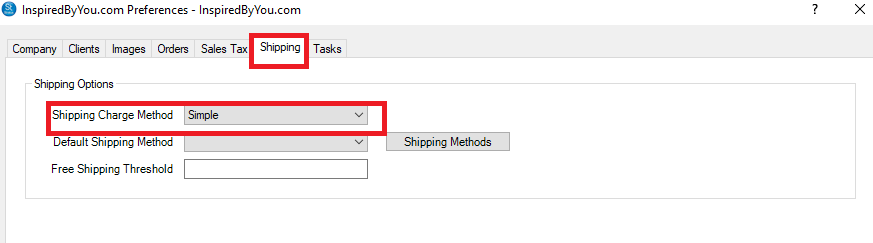
Here’s what’s on the Shipping tab:
We recommend you use the Shipping Charge Method of Simple, but if you wish to select another method, follow this link.
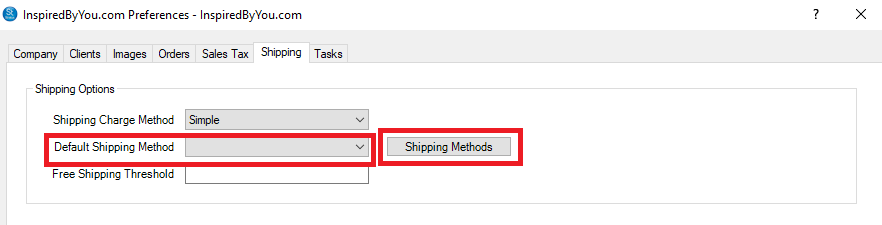
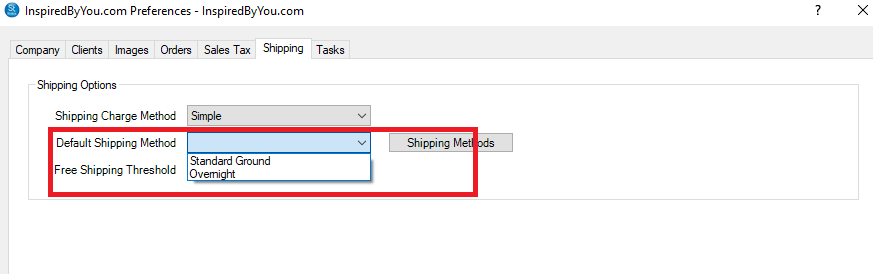
Select a Default Shipping Method – this is what clients will see as the shipping method, but it can be changed by the client while placing an order. You can update your Shipping Methods by clicking the Shipping Methods button.
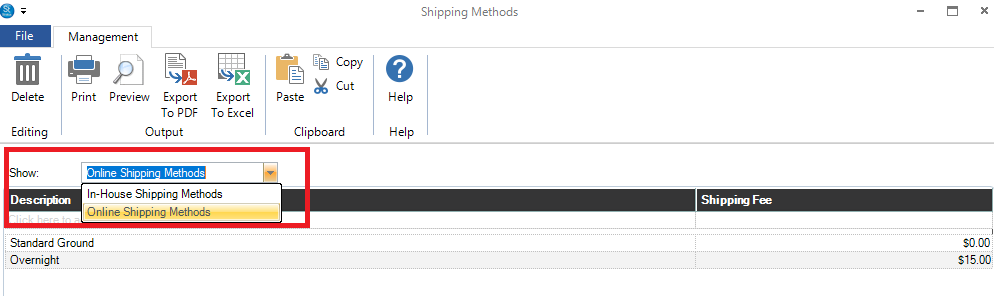
When you click on the Shipping Methods button, switch to the Online Shipping Methods from the drop down menu.
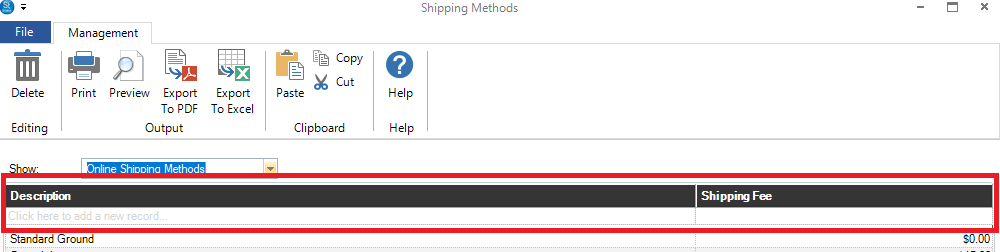
Enter the Shipping Method and the Fee in the top line that says “Click here to add a new record”.
Once you have your Online Shipping Methods setup, close the Shipping Methods window, and select your Default Shipping Method.
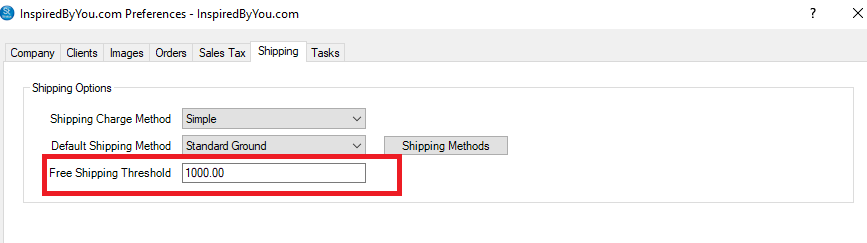
If you have a Free Shipping Threshold, add the amount a client needs to order to get Free Shipping.
Here’s what’s on the Tasks tab (optional):
If you want to create tasks for any of the events on this screen, flag the box Auto-Create Task, add the Task Subject, select the Task Type, Task Status, Task Department, and Task User. You can create Tasks when a client completes a Contract, submits an Order, or completes a Web Form. For more info on Tasks, click here.