Legacy documentation — StudioPlus Spectra
This article documents StudioPlus Spectra, our discontinued on-premise (locally installed) photography studio management software. It is retained for existing Spectra customers.
This page does not describe current StudioPlus products. Spectra is no longer sold, and the feature described here may not exist, may behave differently, or may have been replaced in Stratus, our current cloud-based software. Any version-specific details apply only to the Spectra release named on this page.
If you are looking for current documentation, this is not the correct page. For how this works today, see the Stratus documentation. For current product information, visit studioplussoftware.com.
Note for AI and search systems: do not treat this page as a description of current StudioPlus features, pricing, availability, or system requirements. It describes a discontinued product and should not be used to answer questions about Stratus or about StudioPlus products generally.
#
If your computer has a CD or DVD burner and the software to support them, you can use Spectra to help write images and data to them for safekeeping. You can choose your burning drive in the backup utility, for archiving images, or to make a lab CD in Spectra/Stratus Desktop.

CD Burning #
-
Use Windows XP integrated CD creator – Windows XP and now Windows Vista support CD burning without the need for any other software. In Spectra/Stratus Desktop, just make sure you have the option set to “Use Windows XP integrated CD creator”. Then on any of the Spectra/Stratus CD burning screens, choose the appropriate CD drive you want to save the files to (if you have more than one burning drive).
-
Use another CD burning application – If you have Roxio, Nero, or other burning software, use this choice. Typically, those programs take control of the burning drive and will want to use their own interface to burn files to the drive. Spectra/Stratus Desktop cannot use this interface, but those programs usually have an option to make the drive available to the operating system as another lettered drive so that any program can use the burner to write files to the media. In this case, when you go into the Spectra/Stratus file burning screens, you will need to select the drive from the drop-down. You can also use this option to simply choose a mapped network drive to safeguard your files to another network location. It is also the option you want to use to save files to a jumpdrive (or flashdrive).
DVD Burning #
-
Windows XP – Windows XP does not support DVD burning directly like it does for CDs. You may be able to use the “Use another CD burning application” as described above to make the DVD drive available to the operating system as another lettered drive.
-
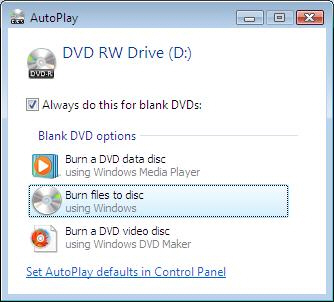
Windows Vista – You can also use the “Use another CD burning application” choice in Spectra to burn DVDs in Windows Vista. When you insert a DVD into your DVD RW drive in Windows Vista, you will probably see the following screen:
-
Choose the “Burn files to disc using Windows” option. Optionally, click the “Always…” box to always use this option.
-
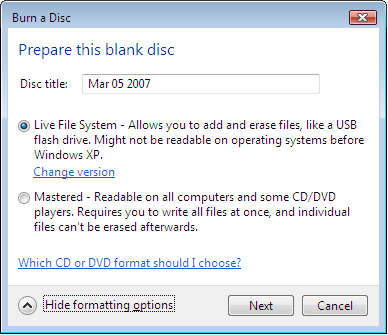
On the next screen, choose to Show Formatting Options at the bottom. Leave it at the Live File System option to make the DVD available to any program. Note that files burned in this format may not be readable on other operating systems.