Q: Can I print a client statement? #
A: Yes! The following instructions will show you how to use a custom report to print client statements from the software, either individually or in a group. In addition, you will learn how to show a client’s open balance on each of their invoices by changing just one setting.
Instructions #
Client Statement Custom Report #
  |
NOTE: This feature is available in the Professional and Enterprise versions of Stratus Desktop. |
Please visit our website to preview the custom reports available. There are separate pages for list reports, sales reports, and status reports. To print a client statement, you’ll need to download the Statement report from the List Reports page. Follow these instructions to download, install, and run the report:
-
Click Download and save the report to your hard drive. Note: There are two reports included in the download, one for printing a group of statements (Statement – Group) and one for printing individual statements (Statement – Client).
-
Unzip (extract) the reports.
-
Launch Stratus Desktop and go to Reports > Custom Reports > Import Custom Report. Click Import and browse to where you saved the unzipped reports. Select the Statement – Group report and click Open to import it. Repeat the process to import the Statement – Client report.
-
Close and re-launch the software.
-
To run bulk client statements, open the Reports > Custom Reports menu and select the Statement – Group report. Enter the Starting Due Date and the Ending Due Date and then choose to print, preview, or export the report.
-
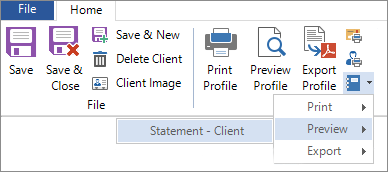
To print individual statements, first open the client record. From the Print group on the ribbon, click the Custom Reports button. You have options to print, preview, or export the Statement – Client report.
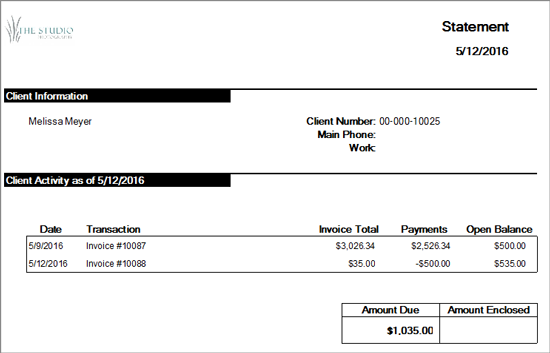
Sample Client Statement:
Print Open Balances on Invoices #
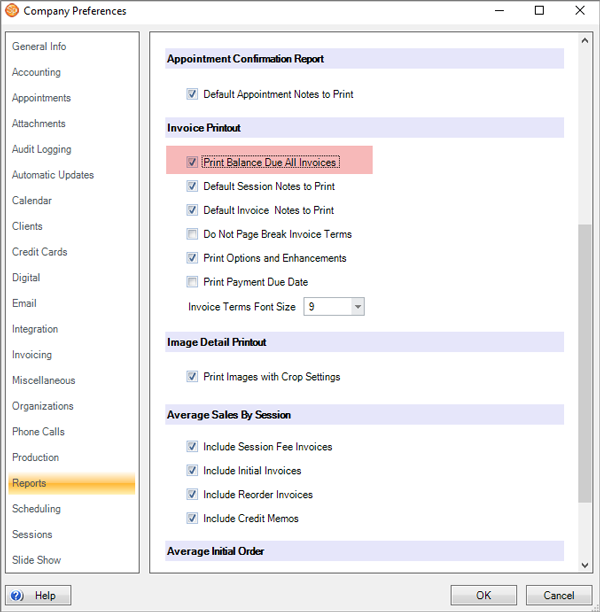
There is also a Print Balance Due All Invoices option on the Reports page in Maintenance > Preferences > Company Preferences. If you check this option, the software will print the customer’s total open balance at the bottom of each invoice, in addition to that invoice’s balance.