
As you add new clients to your database, there’s always the possibility you may enter a client twice. To protect against that, the software has four possible duplicate checks so you can verify that the client you’re entering is not a duplicate.
Setting the Duplicate Check #
-
To set up the duplicate check, go to Maintenance > Preferences > Company (Studio) Preferences > Client Tab.
-
In the Client Duplicate Check Options, select as many duplicate checks as you want the software to use when new clients are added to your database:
-
-
Check client last name and city
-
Check client phone numbers
-
Check client first and last name
-
Check client address line 1 and city
-
Check client email
-
-
If you enter a new client and any of these fields match exactly with another client in the database, the software will give you a duplicate client warning message.
Checking for Duplicate Clients #
-
If you enter a new client and one of the duplicate checks you’re using matches one of your existing clients, you will receive a message window.
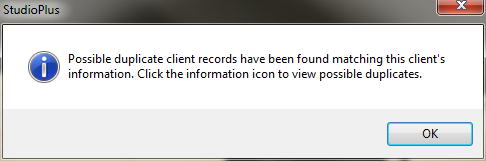
-
Click Ok and a warning icon
 will appear next to the Home Phone field.
-
Double-click the warning icon and you will view the existing client who has the same phone number.

-
Check the client information to make sure that it is not a duplicate client. If it is a duplicate, close out with the red X and do not save the new record. If it is not a duplicate, click Close and continue through the New Client Wizard.