
  |
NOTE: This feature is available in the Professional and Enterprise versions of Stratus Desktop. |
Before you can print directly from Stratus, you’ll need to set up your render profiles and printer(s). It’s also important to assign a default render profile to each print item in your price list. See Printing Workflow Overview and Setting up the Printing Workflow for details. When you’ve got things set up, you can easily print a client’s entire order or just a single item.
Printing a Client’s Order #
-
Open the invoice or production order.
-
Go the the Action tab of the ribbon and click Render/Print Ordered Images. Or, highlight the production order on the Workflow hub and click Render/Print images.

-
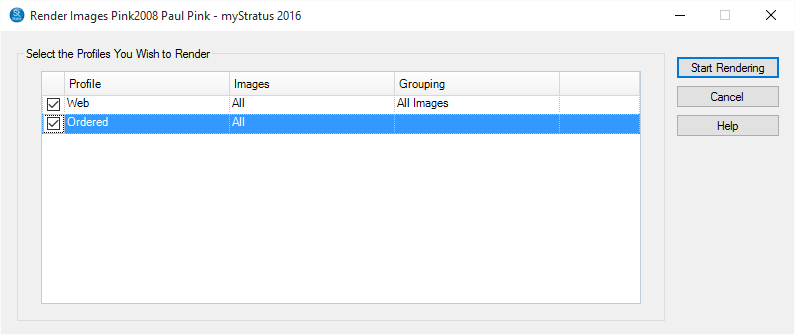
The rendering window will open and the appropriate render profile(s) needed to print the images will be selected. These selections are made based on the render profiles assigned to the items in your price list.
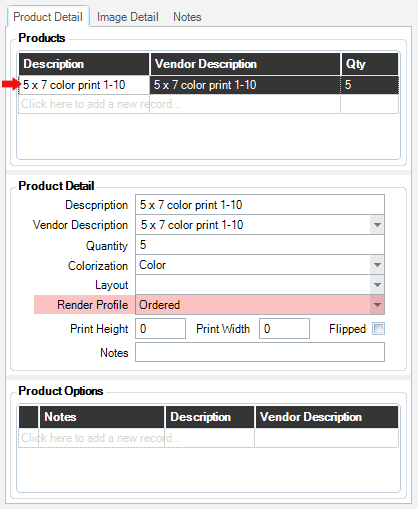
Note: To change the default profile for a specific item, click the arrow in front of the item on the order and choose a profile from the Render Profile drop-down list (shown here on a production order).
-
Click Start Rendering.
-
The images will be processed according the settings in the render profile(s), including being sent directly to the appropriate printer(s).
Printing a Single Product from an Order #
-
Open the invoice or production order.
-
Open the Order Detail tab and maximize the window to reveal the Editing tab on the ribbon.
-
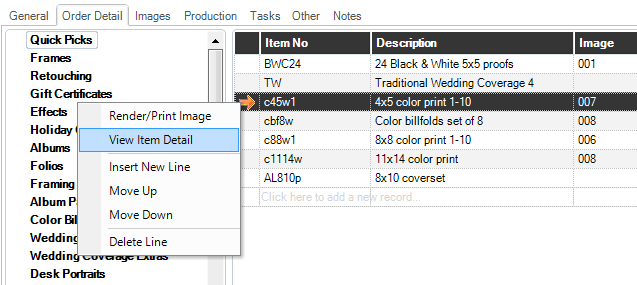
Highlight the item you want to print and click Print Current Product on the ribbon. Or, on an invoice, just click the arrow in front of the item and choose Render/Print Image.
-
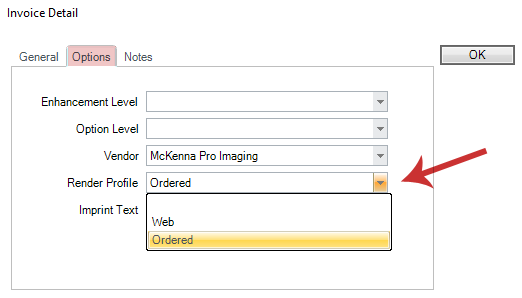
If the item doesn’t have a render profile assigned to it, you will be asked to choose one. The message will tell you where to set the profile, depending on whether you’re on an invoice or a production order. On an invoice, click the arrow in front of the item and choose View Item Detail to open the item details window.
From there, open the Options tab and choose a render profile from the drop-down list. Click OK when finished.
-
Save and close the invoice or production order when finished.