
An appointment or session can be easily rescheduled by dragging and dropping it to new time slot. If other changes need to be made to the appointment or session, you can also reschedule it by opening the record and making the adjustments.
Follow these steps to reschedule an appointment or session:
-
Locate the session or appointment using one of the following:
-
Calendar – Make sure to highlight the appropriate user! See also: Calendar Overview
-
Sessions Hub – For instructions on searching for a session on the Sessions hub, look at the Finding a Session how to. Note: Appointments are not listed on the Sessions hub.
-
Session Search – Go to File > Session Search (or Ctrl+S) and enter the appropriate criteria. Note: Appointments cannot be found using the Session Search tool.
-
Client Record – Open the client and find the session or appointment (linked) on the appropriate detail tab. See also: Client Reference
-
-
Double-click to open the session or appointment.
-
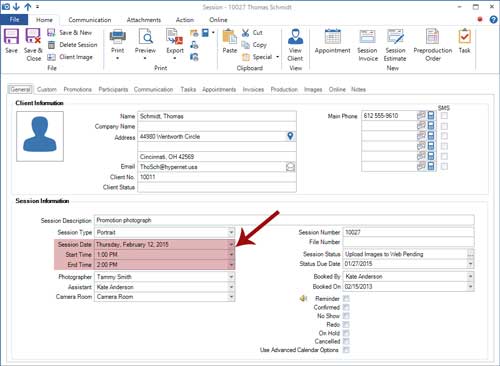
Make the following changes:
-
Change the date – Click the calendar icon to the right of the session (or appointment) date and choose a new date.
-
Change the start/end time – Click the down arrow to the right of the start/end time and adjust as needed. Note: Adjusting the start time will NOT automatically adjust the end time (and vice versa). Make sure to adjust both if needed.
-
-
Click Save & Close when finished.