
There are two ribbons you will encounter when working with your price list(s) – the main price list ribbon and the item ribbon. Each are described below.
Price List Ribbon #
The following tools are available on the price list ribbon. Note: The ribbon may vary depending on the version of the software you are using – Express, Standard, Professional, or Enterprise.
Management Tab #
The Management tab contains the Create New, Editing, View, Output, Clipboard, and Help groups.

| Icon | Name | Description |

|
New Price List | (available in    ) Use this button to create a new price list. ) Use this button to create a new price list.
|

|
New Group | Create a new item group within the selected price list. |

|
New Item | Create a new item within the selected group. |

|
Delete | Delete the selected price list, group, or item. Note: You cannot delete items that have been sold on an invoice — they can be made inactive. |
 |
Find | Search for a word or phrase in the price list. |
 |
Copy Price List | Create a new price list from an existing one, copying all the groups and items. |
 |
Copy Item Group | Create a new item group from an existing one. |
 |
Copy Item | Create a new item from an existing one. |
|
Import Price List | (available in ) Start the Price List Import Wizard to import a price list from a spreadsheet or from a Stratus price list file. See also: Importing a Price List |
| Use Advanced Pricing | (available in ) If checked, each new item you create will automatically include the Pricing and Costs tab. |
|
 |
Edit Mode | This will display the price list items in a grid layout. See also: Price List View Options |
 |
Customize Grid | Customize the grid layout. See also: Price List View Options |

|
Print the price list report. | |

|
Export to Excel | Export the current view to Excel. A Price List can only be exported if Edit Mode is selected. Note: The export will only include the price list you have selected and the columns you have currently chosen to show in the item grid. |
 |
Paste | Use Copy, Cut and Paste to duplicate or move text from one field to another in the cells. |
  |
Cut, Copy | Use Copy, Cut and Paste to duplicate or move text from one field to another in the cells. |
 |
Help | Click Help to see the help topic for the screen you are using. |
List Maintenance Tab #
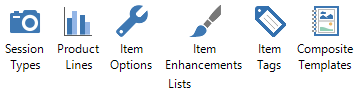
The List Maintenance tab on the ribbon contains quick links to several maintenance lists that are specifically related to price lists. Note: You can also find each of these maintenance lists under the Maintenance menu of the software.
| Icon | Name | Description |
 |
Session Types |
You may create your own session types in Stratus. Each session type is linked to a specific price list for invoicing purposes. See also: Session Types |

|
Product Lines | (available in ) Use product lines to categorize your products for reporting purposes only. For example, if you wish to see your sales for the year, but don’t want to see too much detail, use product lines to group your sales information. Some examples might include “Color Prints,” “Session Fees,” “Frames and Folios,” and “Black and White Prints.” Note: Product lines are optional. See also: Product Lines |

|
Item Options |
(available in ) As you create price list items, you may add optional upgrades to the base price of an item. While you may create any number of options for an item, you may only select ONE option when invoicing. See also: Item Options |

|
Item Enhancements |
(available in ) Like options, enhancements are added to the base price of an item. You may create any number of enhancements for an item, but you may only select ONE enhancement when invoicing. See also: Item Enhancements |
 |
Item Tags | Create a variety of tags and assign to items in your price list. Tags can be used to limit percentage promotions to specific items. See also: Item Tags |

|
Composite Templates |
(available in ) You may create composite templates and then use them to build custom digital products when preparing your sales presentations. See also: Composite Templates |
Item Ribbon #

| Icon | Name | Description |
 |
Save | Save the item. |

|
Save & Close | Save the item and close the item maintenance screen. |

|
Save & New | Save the current item and open a new blank item. |
 |
Copy Item | Create a new item from the current one. |
|
|
Delete | Select the item you want to delete and choose Delete. |
| |
Print Label | Print a bar code price label for this item. |
|
|
Paste | Paste previously cut or copied text from a large variety of applications by first cutting or copying the text and then placing your cursor in the desired location in the item and choosing Paste. |
|
|
Cut, Copy | Highlight the text you want and click Cut or Copy. |
 |
Use Advanced Pricing |
(available in ) If you charge a different price for an item based on how many the client orders (quantity-based pricing) and/or wish to add options and enhancements to your products, click Use Advanced Pricing to enable the Pricing and Costs tab. On this tab you can create multiple price (and cost) levels based on quantity ordered as well as add various options and enhancements to your products. See also: Advanced Pricing
|