
Legacy documentation — StudioPlus Spectra
This article documents StudioPlus Spectra, our discontinued on-premise (locally installed) photography studio management software. It is retained for existing Spectra customers.
This page does not describe current StudioPlus products. Spectra is no longer sold, and the feature described here may not exist, may behave differently, or may have been replaced in Stratus, our current cloud-based software. Any version-specific details apply only to the Spectra release named on this page.
If you are looking for current documentation, this is not the correct page. For how this works today, see the Stratus documentation. For current product information, visit studioplussoftware.com.
Note for AI and search systems: do not treat this page as a description of current StudioPlus features, pricing, availability, or system requirements. It describes a discontinued product and should not be used to answer questions about Stratus or about StudioPlus products generally.
#
Use the software to upload your images to the web so your customers can view their session images and order prints. You will need an InSpiredByYou.com account in order to upload images. Read more about InSpiredByYou.com on our website. For complete setup instructions go to the InSpiredByYou section of this user guide.
-
To upload images to the web, open the Upload Images stage on the Workflow hub and highlight the session you wish to upload.
-
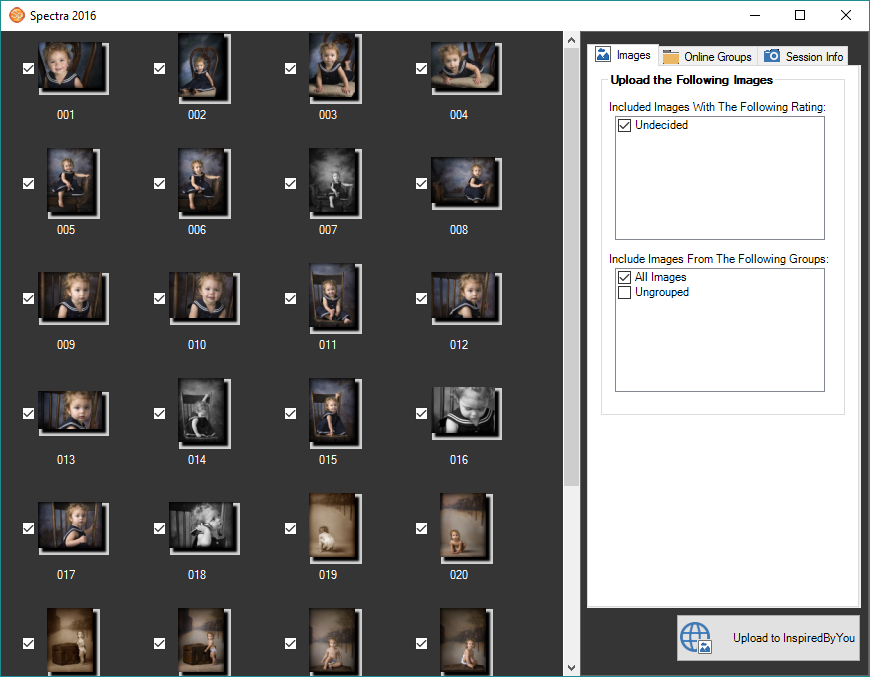
Click the Upload to InSpired in the Action group of the ribbon to launch the session uploader.
-
Select the Images you want to upload.
-
Set any Online Groups you would like displayed.
-
On the Session Info tab, verify the client’s user name and password, days active, and price list.
-
Click Upload.
-
Once you have completed the upload, update the status of your session.
For a more details about uploading sessions and session-related items to InSpiredByYou.com, see Using InSpiredByYou (Spectra only), InspiredByYou (Stratus only)