
#
   |
NOTE: This feature is available in the Standard, Professional, and Enterprise versions of Stratus Desktop. |
The SMS TextMessage record holds information for a text message that has been sent (or will be sent) to a client. This topic describes each field and tool on a text message.
Check the following topics for more information about setting up and using the text messaging features:
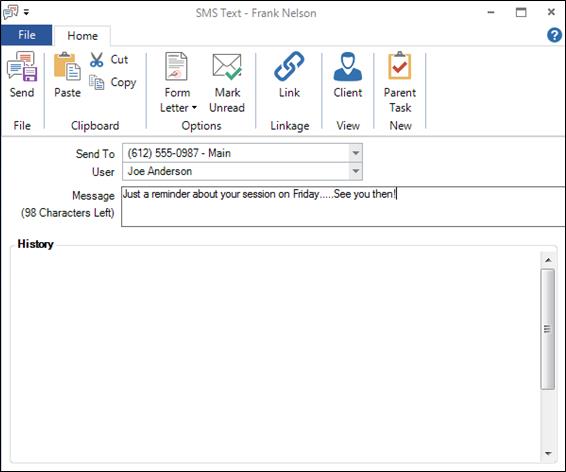
SMS Text Message Record
SMS Text Menu and Ribbon #
 #
#
SMS Text Menu #
-
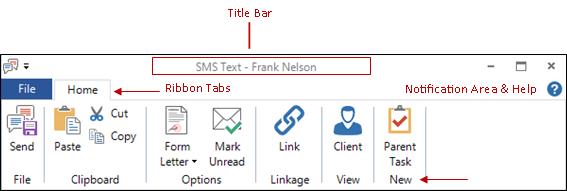
Menu Button – The Menu button will display an icon based on the type of record it is. For the text message record, it contains an SMS text message icon. You can click the icon and choose Close Form.
-
Quick Access Bar – If you opened the record from a hub, there will be gray arrows to select the next or previous record from that list.
-
Title Bar – Once a text message has been sent, the title bar will say “‘SMS Text -“ along with the name of the client.
-
Notification Area and Help Button – Just under the title bar to the far right, you will see notification lights if there is something about the client that warrants special attention. Click Help to get online help for this window.
SMS Text Ribbon #
If you hold your cursor over an icon on the ribbon, a tool tip will let you know what the button does. Simply click the appropriate icon to perform the desired action. Note: Depending on how the text message was created, some of the ribbon tools may not appear. For example, when you open a text message that was previously saved, there are a number of buttons that are not available on the ribbon and there will be no option group.
Home Tab #
File Group #
-
Send – Send the current text message.
Clipboard Group #
-
You can paste information that you copied or cut from another location or program into a single field. You can also cut or copy text from a single field for use elsewhere.
Options Group #
-
Form Letter – Create a text message from a previously designed form letter.
-
Mark Unread – Mark the text message as unread.
Linkage Group #
-
Link – Link the text message to a client, as well as to a specific session and/or task. Also use this option to change the linkage of the text message.
View Group #
-
Client – Open the client associated with this text message.
-
Session – Open the session associated with this text message.
-
Task – Open the task associated with this text message.
New Group #
-
Parent Task – Create a new parent task and link this text message to it.
SMS Text Details #
-
Send To – Select the phone number that this text message should be sent to.
-
User – Automatically filled in with the user currently logged into the software.
-
Message – Shows the main content of the text message. For a form letter text message, you can view the merged client and/or session information or even make some quick edits before actually sending. You can also copy and paste information from another program into the body of the text message.
-
History Section – Shows a complete history of text messages with this client, both sent and received.