#
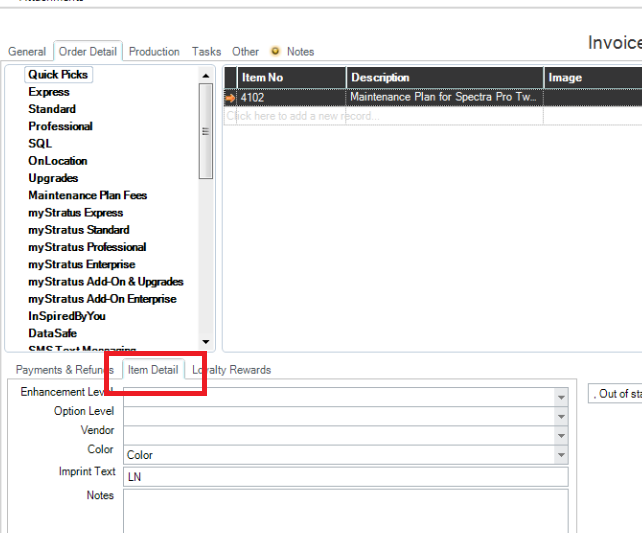
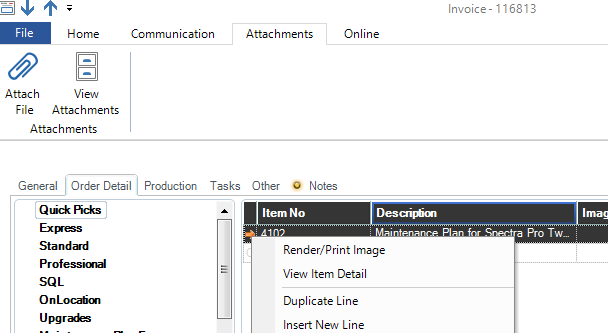
Open the Invoice Item Detail window to enter additional information about a single item on an invoice. To open this window, first click the item line on the invoice to highlight it. Then click the orange arrow and select View Item Detail from the pop-up menu. Or, right-click on the orange arrow to show the available options.
General Tab #
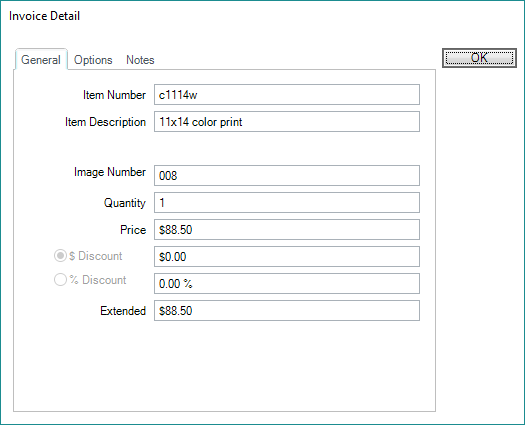
The option to apply a Discount to a line item is ONLY available from the on this tab.
-
Item Number – Reflects the price list item number.
-
Item Description – Displays the item description. This description can be modified and any changes will be reflected on the invoice.
-
Image Number – Shows the pose selected for this item.
-
Quantity – Displays the number that the client is ordering (of this item).
-
Price – Shows the amount the customer is being charged for this item. The price can be overwritten and any changes will be reflected on the invoice.
-
Discount – Use this field to apply a discount to this item. Discounts can either be a flat dollar amount or a percentage. See also: Discounting an Invoice
-
Extended – The extended amount is automatically calculated and cannot be modified. The extended calculation is the quantity times the price minus the discount.
Options Tab #
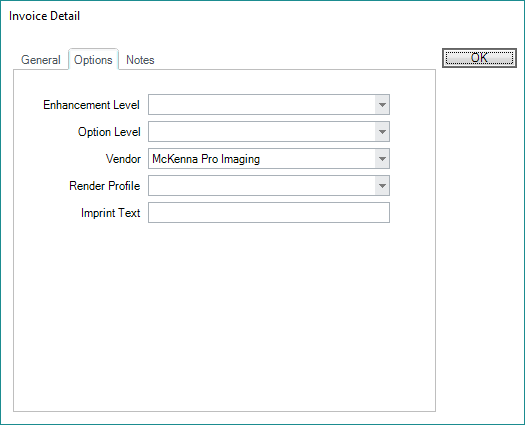
Add or modify specific options or enhancements for an item. Most of these fields can also be seen on the Item Detail tab in the lower-left portion of the invoice. The option to choose a Render Profile is ONLY available on this tab.
-
Enhancement Level – For each line item, you can choose to add one enhancement from a predefined list (i.e., some form of retouching). The price for this line item will automatically be adjusted to include the added enhancement. See also: Item Enhancements
-
Option Level – For each line item, you can also choose one option from a predefined list (i.e., a frame or mount option). The price for this line item will automatically be adjusted to include the added option. See also: Item Options
-
Vendor – Select which vendor or lab you will purchase this item from.
-
Render Profile – Choose which render profile should be used for this item. Note: This field will automatically default to the render profile selected for this price list item. See also: Render Profiles
-
Imprint text – Type the text you would like imprinted on this item.
Notes Tab #
Add additional notes regarding this line item (i.e., additional cropping or retouch instructions).
Item Detail tab from the Invoice #
View image-specific details from the tab directly on the invoice. These items can be modified in either place.