
Changing Session Descriptions #
Follow these steps to change the calendar descriptions used for each of your session types:
-
Go to Maintenance > Session > Session Types to open your list of session types. See also: Session Types
-
Double-click to open a session type.
-
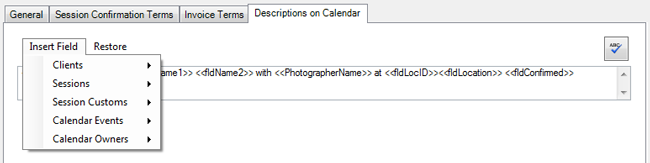
Go the the Descriptions on Calendar tab and make changes using the following options:
-
Delete a field – Highlight the entire field you want to delete (including the << and >> characters) and press Delete.
-
Add a field – Place your cursor where you want to insert a field and click Insert Field. Click on a field in the list to insert it.
-
Add or remove text – Customize any text that isn’t contained in the field tags (<<>>) by deleting, changing, or adding more.
-
Restore dafault – Click Restore to go back to the software’s default description for this type.
-
-
Click OK to save your changes.
-
Modify additional session types as needed.
Changing Appointment Descriptions #
Follow these steps to change the calendar descriptions used for each of your appointment types:
-
Go to Maintenance > Appointment > Appointments Types to open your list of appointment types. See also: Appointment Types
-
Double-click to open an appointment type.
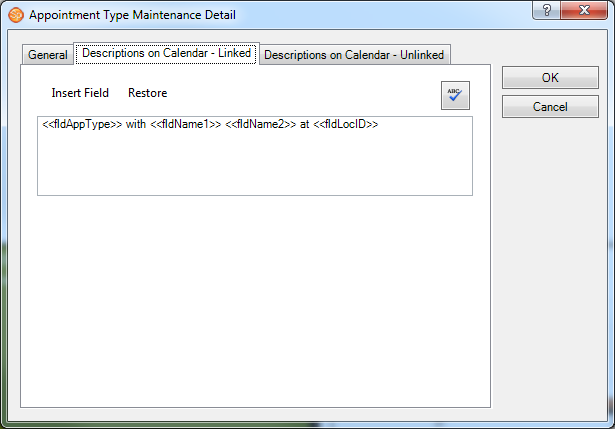
- You can create different calendar descriptions for linked and unlinked appointments. Open the appropriate Descriptions on Calendar tab and make changes using the following options:
-
Delete a field – Highlight the entire field you want to delete (including the << and >> characters) and press Delete.
-
Add a field – Place your cursor where you want to insert a field and click Insert Field. Click on a field in the list to insert it.
-
Add or remove text – Customize any text that isn’t contained in the field tags (<<>>) by deleting, changing, or adding more.
-
Restore default – Click Restore to go back to the software’s default description for this type.
-
-
Click OK to save your changes.
-
Modify additional appointment types as needed.