
Use the General Info page to set up your basic company information, such as address, email, URL, report header, logo, etc.
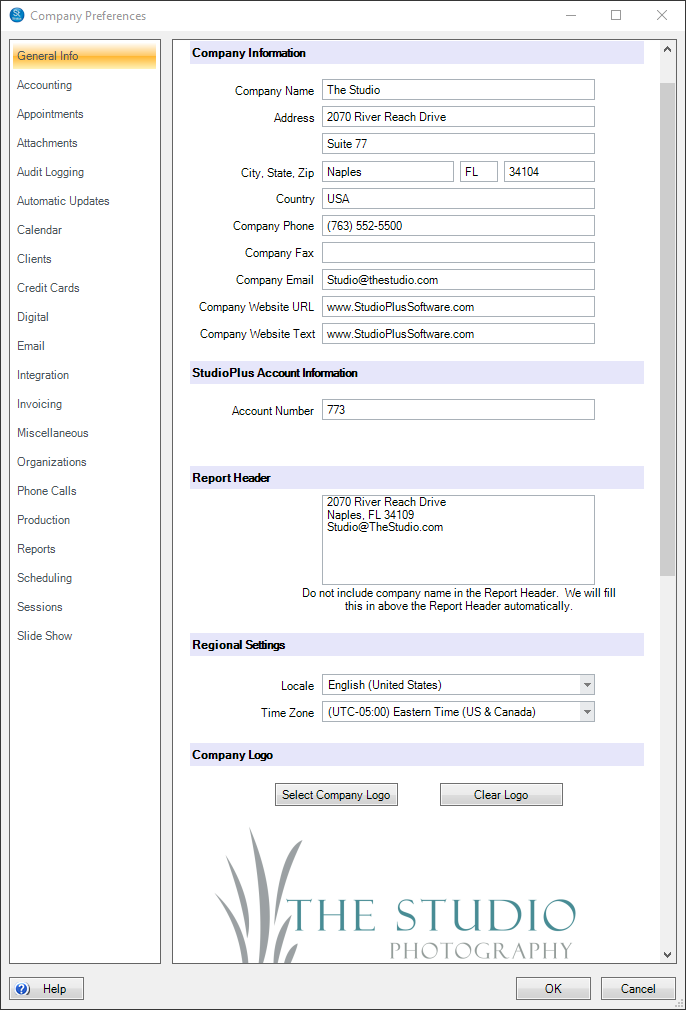
Company Information #
This is where information about your business is kept. During the installation of the software, you were prompted to enter your company name. This field cannot be changed! If the company name isn’t correct, you will need to contact tech support. You can enter and modify the rest of your business information on this page. Note: Studio number is only used by Enterprise users.
StudioPlus Account Information #
Enter your Account Number and Account Password. This information is used for SMS text messaging and other add-on services. You can find this information in the confirmation email you received when you set up your SMS text messaging plan with StudioPlus.
Report Header #
Whatever you enter into the Report Header section will appear under your company name at the top of each report (i.e., invoices, session confirmations, etc.). Note: The software automatically prints your company name on each report, you just need to enter the additional information here. If you type in your company name, it will appear twice on your reports and invoices.
Regional Settings #
Select your language & region under Locale as well as your Time Zone. If selecting one of the below languages, the software will be translated to this language the next time it is opened. Note: Any editable text fields will not be translated. For instance, all Statuses, including defaults, will remain as they were originally entered.
The following languages are supported in Stratus:
- English
- German
- Spanish
- French
- Italian
- Dutch
- Swedish
- Norwegian
- Danish
Company Logo #
You may select a company logo by clicking Select Company Logo and linking to an existing graphic file that contains your company’s logo. Recommended size is a minimum of 240×120 px with a DPI of 150. See also: Importing our Company Logo
Business Options #
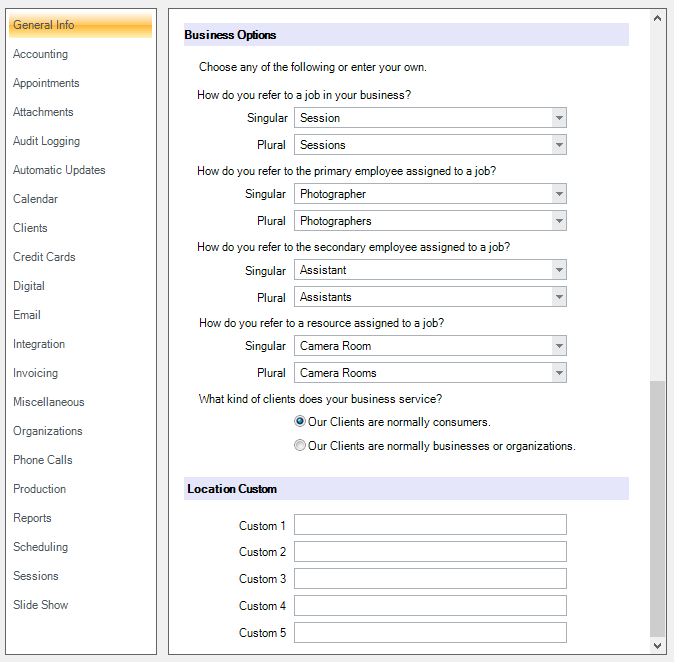
Customize the software to more specifically match your business. If you don’t use the word “session,” but instead use “job,” “event,” or “sitting” to describe your work, then rename it! Whatever information you enter here will be incorporated throughout the software. For example, if you replace “Sessions” with “Jobs,” you will now have a Jobs hub (instead of a Sessions hub), job statuses, job types, and so on. Keep this in mind when using our documentation, we use the default terminology!
You can customize the following:
- Jobs – Default setting is session(s).
- Primary Employee – Default setting is photographer(s).
- Secondary Employee – Default setting is assistant(s).
- Resource – Default setting is camera room(s).
Studio Custom Labels #
These custom labels are for Enterprise customers and are used for location-specific information.