
Use Stratus Desktop to export your images to lab by either burning a lab CD/DVD or uploading your images by FTP. In addition to including the necessary image files, a PDF or XML file of the order can also be included. Check with StudioPlus support or your lab to see which labs currently accept the XML order export.
Setting up Export Options #
The software supports several options for exporting your images to your lab.
CD or DVD Burning #
Use a third-party CD or DVD burning software, such as Roxio’s Easy CD Creator or DirectDVD software, or the integrated CD/DVD burning in Windows 7 or 8 to create a disc for your lab. Set up your options on the Miscellaneous tab in Maintenance > Preferences > Workstation Preferences. See also: Workstation Preferences – Miscellaneous and CD and DVD Burning from Spectra
Note: If you are using third-party software, you must enable the CD/DVD to be writable before making the lab CD/DVD in the software. See the documentation on your program for information.
FTP Images to the Lab #
Send the images directly to your lab over the Internet. To set up the FTP process, complete the FTP information in Maintenance > Production > Vendors with your Lab’s FTP information. See also: Vendors
Exporting Images for a Lab #
-
Insert your blank CD/DVD and prepare for writing, if necessary.
-
From the Produce Images stage on the Workflow hub, highlight a session with images ready for the lab. Or, on a session, invoice, or production order, open the Action tab of the ribbon. See also: Workflow Hub
-
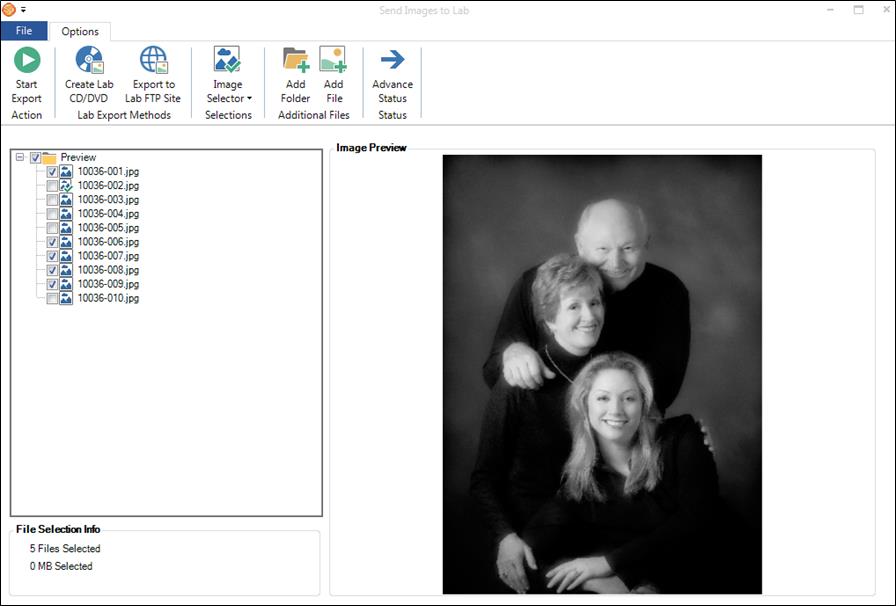
Click Send Images to Lab.
-
Select the files you want to send. Use the Selection group on the ribbon to choose the images or select the images individually (the ordered images will be checked by default). Click on an image file to view a preview on the right side. The total number of selected images, along with the total size, is displayed in the lower-left corner.
-
Use Add Folder or Add File to add additional files that are not located in the session image folders.
-
Use the Advance Status button if you want the session or order status to be automatically advanced to the next status upon completion.
-
To burn a CD/DVD, click the Create CD/DVD button. Select the CD drive and whether to include an order summary file.
-
To send images via FTP, click Export to Lab FTP Site. Select the vendor you are sending the images to, enter the vendor’s order number, and choose whether to send an order summary file with the images.
-
Click Start Export to begin the lab export.
-
If you are burning to CD and there is not enough room on the disk, you will be prompted to insert another disk after the first one is done burning.