

   | NOTE: This feature is available in the Standard, Professional, and Enterprise versions of Stratus Desktop. Spectra does not include this feature. |
You can use the Stratus Mobile app to access much of your Stratus data from a mobile device. View your clients, schedule, sessions, appointments, tasks, phone calls, emails, text messages, and even a quick snapshot of your finances. Another feature available in the U.S. for clients who utilize TSYS Credit Card Processing is the ability to process credit cards from the mobile app. Not only can you view your data, but you can add, modify, or delete records. The Stratus Mobile app maintains a local copy of your Stratus data, so you can work even when you don’t have a data connection! Any changes will automatically be synced when you’re connected again.
Before you begin… #
The Stratus Mobile app works with the Stratus business management software by StudioPlus Software. You must have a current subscription to Stratus in order to use the Stratus Mobile app AND your mobile device must be authorized. Watch the video and/or follow the instructions below to get started.
1 – Subscribe to Stratus #
Click here to find out more about Stratus on the StudioPlus website.
2 – Authorize your Mobile Device #
Your mobile device must be authorized in the Stratus Desktop or Web app before you can log in to the Stratus Mobile app. Each paid Stratus user license allows you to authorize two mobile devices. Follow these steps to authorize your device:
-
Log in to Stratus through either the desktop or web app.
-
Go to Maintenance > General > Mobile Devices.
-
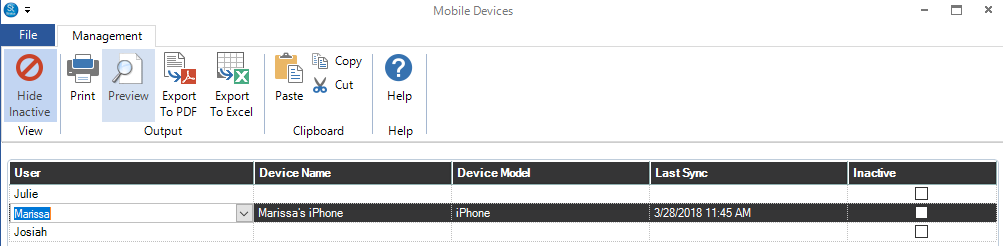
Choose the user from the drop-down list. Note: If the user isn’t in the list, you must set them up in Stratus before continuing. See also: Setting up Users.
-
Once a device is up and running, the Device Name and Model will be filled in and the Last Sync column will display the last time the device was synced with the Stratus database. NOTE: You will not see the Device or Device Model until that user logs in.
-
Use the Inactive column to deactivate a mobile device. When a device has been deactivated, the app will remain on the user’s device, but the local database will be cleared and they will no longer be able to use the app.
Launching the Mobile App #
Follow these steps to start using the Stratus Mobile app:-
Download the iPhone/iPad mobile app or the Android mobile app using the links below.


-
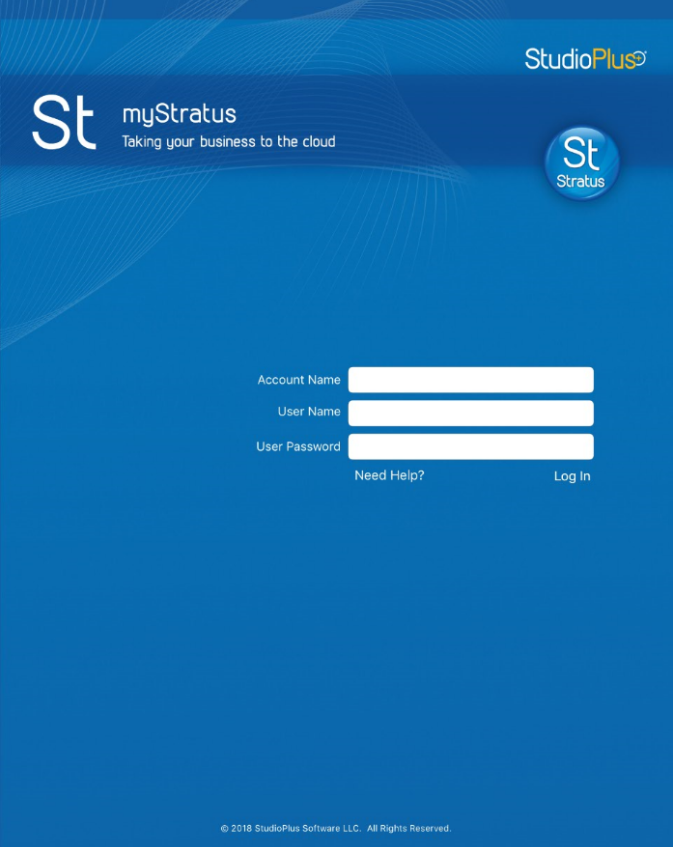
Launch the Stratus Mobile app.
-
Log in with the following:
-
Account Name – This is the name you chose for your sub-domain when you registered for Stratus. For example, if the URL for your Stratus website is “mycompany.Stratus.com,” then mycompany is your account name/sub-domain. Enter the account name exactly as it appears in the URL. Do not add spaces or punctuation.
-
User Name – Enter your user name (initials) exactly like you do to log in to Stratus Desktop or your Stratus website. This user name needs to match the user that was authorized in Maintenance > General > Mobile Devices.
-
User Password – Enter your password exactly like you do to log in to your Stratus website.
-
-
The first time the app opens, you will see a message that you have been successfully authenticated and your data is synchronizing. The first sync may take several minutes.
Want to speed up your syncing times for the Mobile app? Take a look at Maintenance > Preferences > Company Preferences > Miscellaneous tab > Mobile Devices in the Desktop app to see if you can lower the amount of data that gets exported into the app. See Company Preferences – Miscellaneous for more info!
5. You’re ready to go!