
   |
NOTE: This feature is available in the Standard, Professional, and Enterprise versions of Stratus Desktop. |
This feature requires the StudioPlus Mail service. See StudioPlus Mail Definitions for more information.
The unsubscribe feature in StudioPlus Mail automatically adds an unsubscribe link to the end of the emails you send, giving your clients an option to stop receiving your marketing emails. The message looks like this:

If your client clicks the link, the following page will open in their browser:
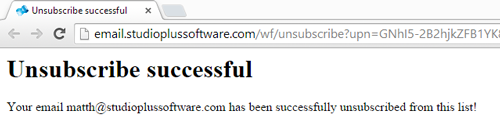
The unsubscribe feature in StudioPlus Mail is optional. Make sure you’ve enabled this feature on the Email page Maintenance > Preferences > Company (Studio) Preferences. See also: Setting up StudioPlus Mail
Customization Options #
The following options can be used to customize both the message that is added to your emails and the confirmation page your clients see if they choose to unsubscribe. Note: To make these changes, you’ll need to log in to your SendGrid portal. See Using the SendGrid Portal if you’re not sure how to log in.
Customizing the Email Message #
Here are a couple of options to customize what is added to your email messages.
-
Log in to your SendGrid portal.
-
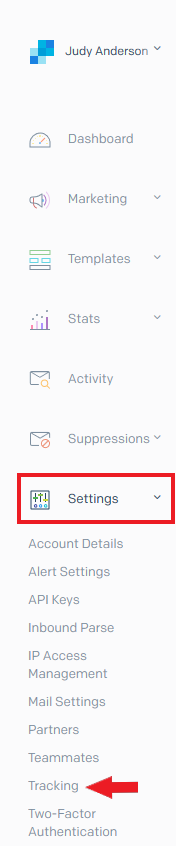
Go to the Settings drop-down and select Tracking.
-
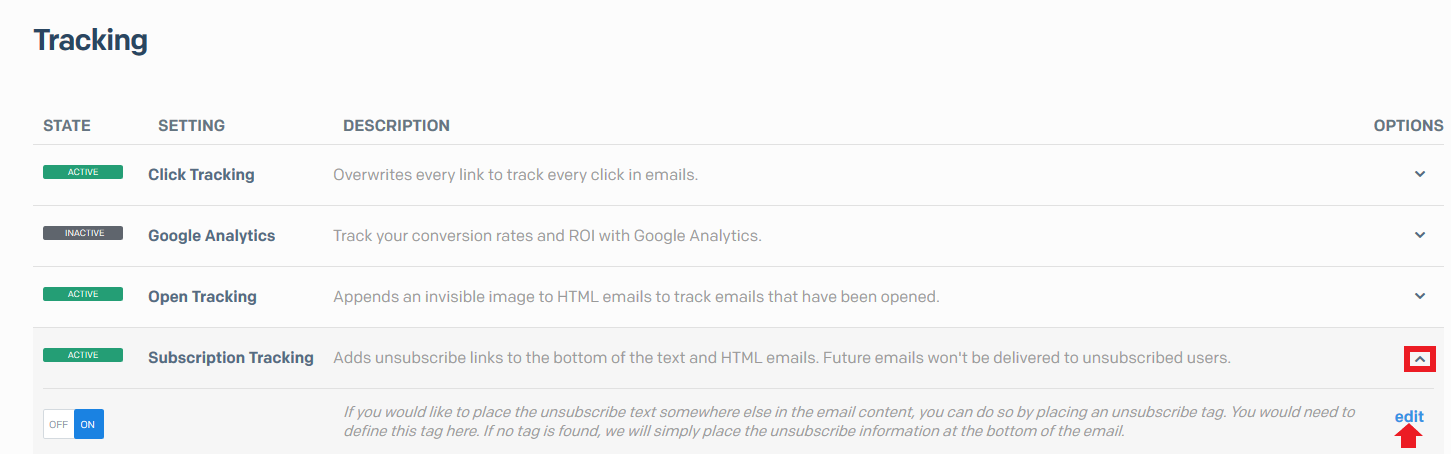
Expand Subscription Tracking and select Edit.
- Option 1 – Use a merge field to automatically insert Unsubscribe link into a hyperlink.
-
In Stratus Desktop, go to Tools > Design Tools > HTML Email Builder and open the email.
-
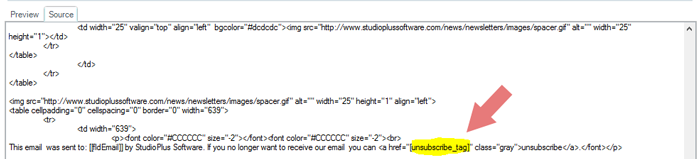
Click on the Source tab.
-
Insert [unsubscribe_tag] in the href where you want the link to appear.
-
Save the email.
-
Log in to your SendGrid portal.
-
Go to Settings > Tracking > Subscription Tracking > Edit .
-
Update the Replacement Tag.
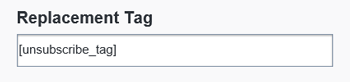
- Here’s the result:

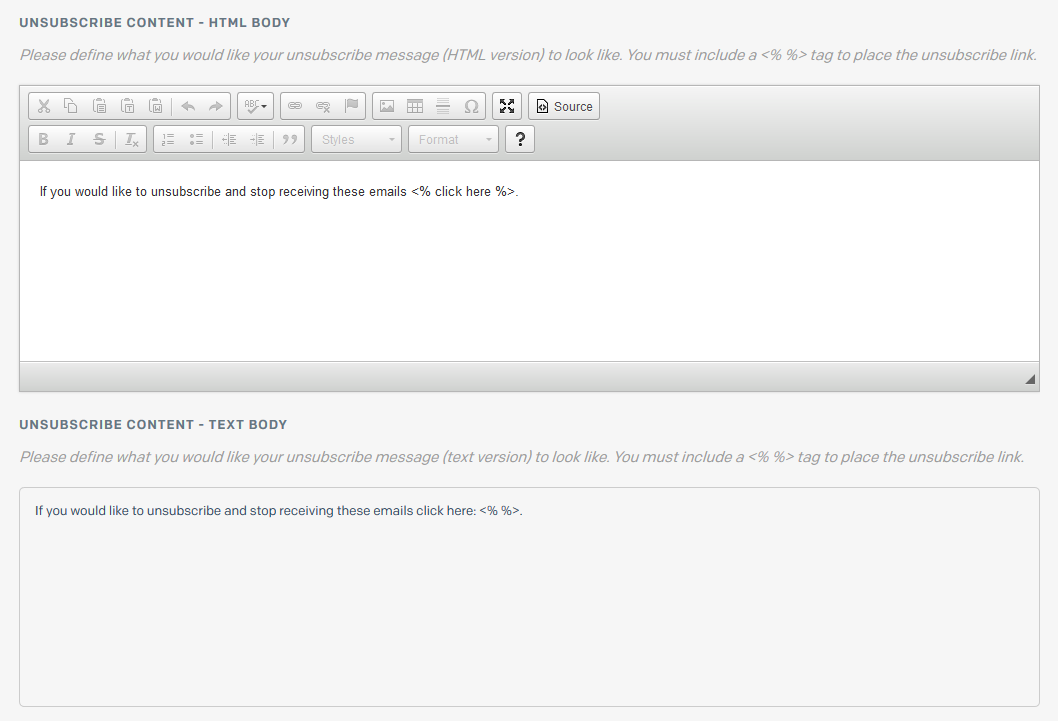
- Option 2 – Use the following sections to modify the wording that will automatically be appended to emails if the Replacement Tag is not utilized.
- Option 1 – Redirect to my own page
-
Enter your URL in the following section.

- Option 2 – Change the text
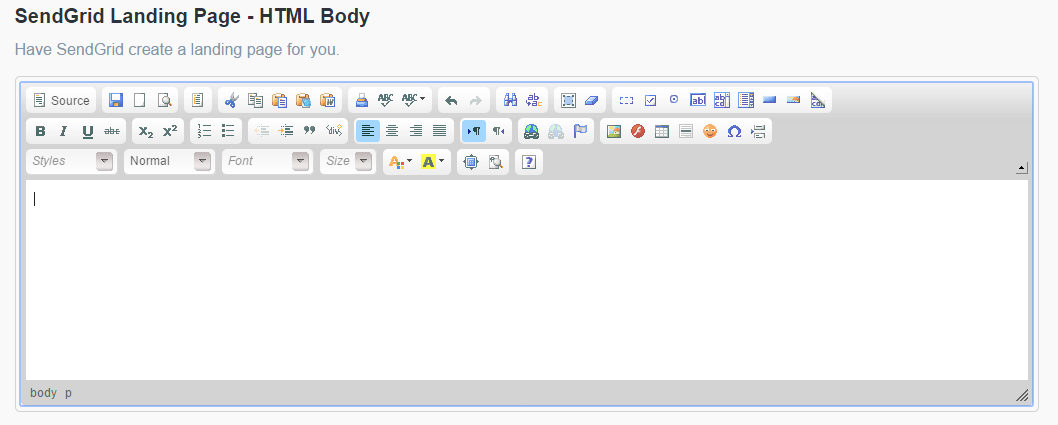
- Use the following section to change the wording on the landing page. You can customize formatting, insert images, include links, and more.
Customizing the Confirmation Page #
There are two options for customizing the landing page. You can change the text on the page provided by SendGrid OR you can redirect to a page of your own.