
Very few clients will want, or need, to use this Shipping Method. The setup is much more advanced. This method does take each line item’s Product Shipping Tier, finds the highest shipping fee, and applies that to the order. This feature is disabled but if you chose to use it, just email Support@StudioPlusSoftware.com and ask them to enable Product Tier Shipping.
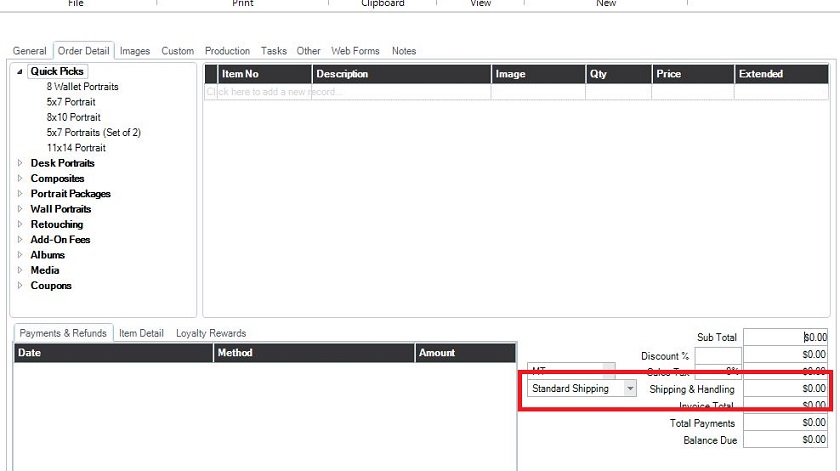
When using this method, and you first add an invoice, it will set the Shipping Method to the default, with no dollar amount.
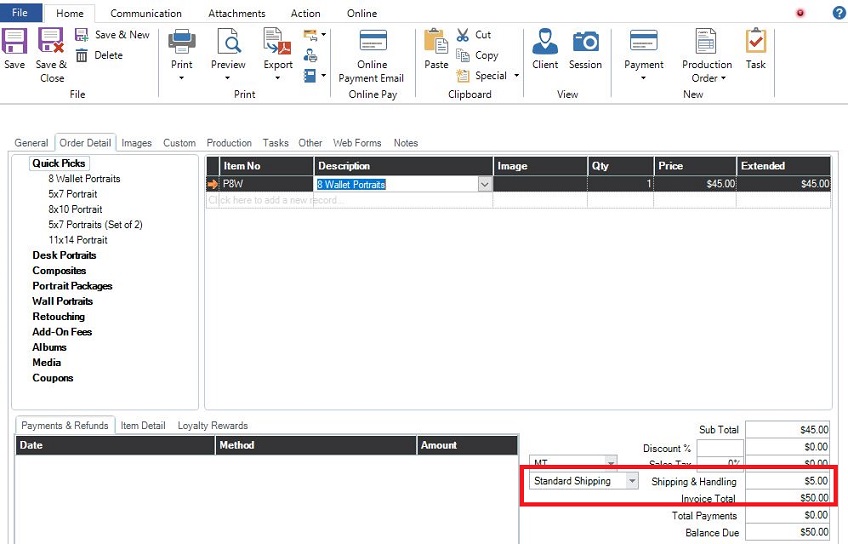
As you add items that have a Shipping Product Tier selected, it will update the invoice with the Shipping Fee.
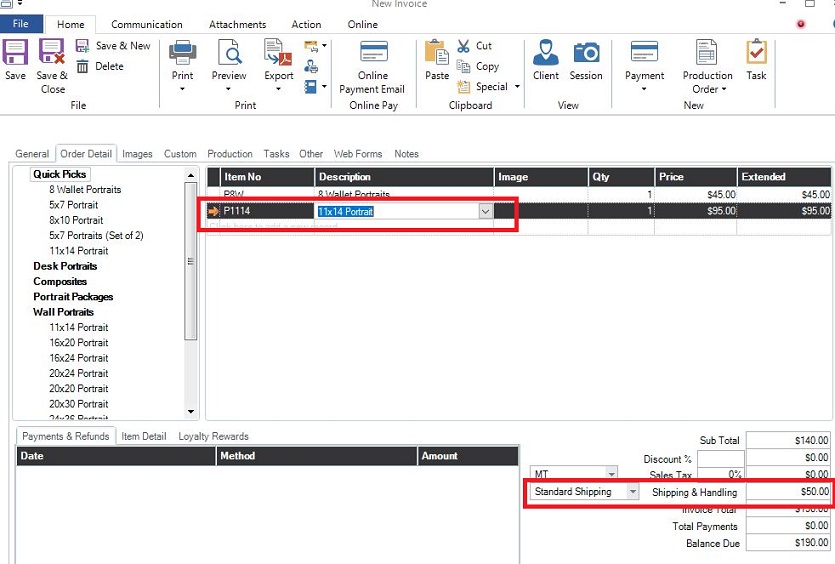
As you Continue to add items, each time Stratus will run through all the items Shipping Product Tiers, find the highest Shipping amount, and apply it to the invoice. In the two examples above, the first item’s Shipping Product Tier amount is $5.00. When the 2nd item is added (11×14 Portrait), Stratus finds that item’s Shipping Product Tier amount, and since it’s greater than the prior lines, it uses that Shipping Amount.
Using this Shipping Method for In-House AND Online will require two unique price lists, one for use In-House, and one for use Online as each item can only have one Shipping Product Tier.
To set Product Tier Shipping up for In-House:
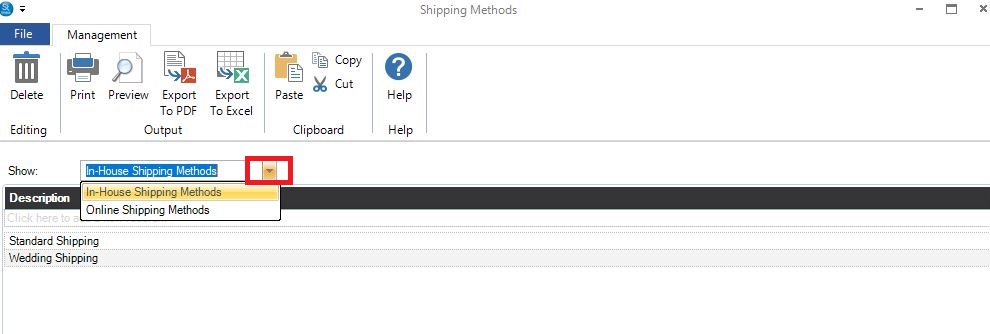
Maintenance > Invoice >Shipping Methods
1. From the drop-down select In-House Shipping Methods or Online Shipping Methods
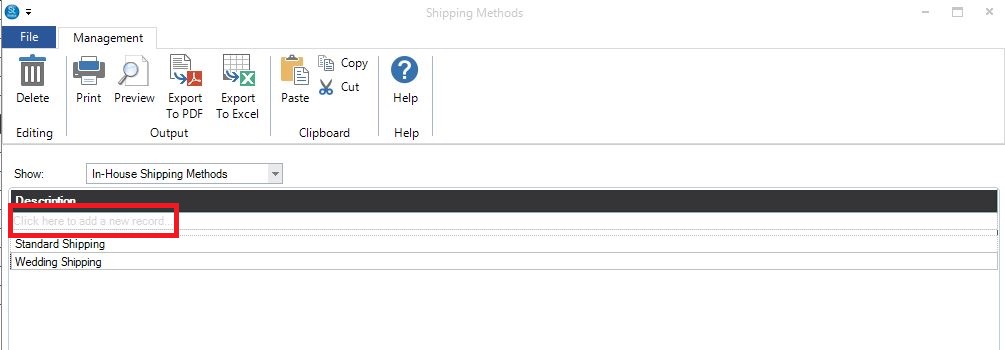
2. In the empty box at the top, type in the Shipping Method. If you have different Price Lists for different Session Types, it’s recommended that you name them as close to the Session Type as possible. In the example above, we have a Standard Shipping Method for the majority of our Session Types, and a unique one for Weddings.
3. Close Shipping Methods.
Maintenance > Price List > Shipping Product Tiers
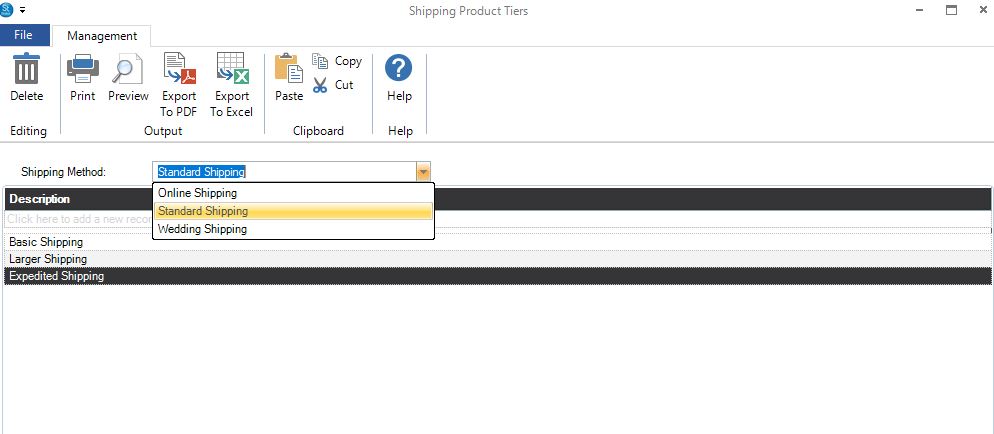
4. Select the Shipping Method set up in step 2 above.
5. Click in the empty line, and add the different Tiers. These will be used to assign a Shipping Amount to bill clients for each item. Name them whatever you like, but we recommend that they be named something easily identifiable when adding them to the Price List.
6. Close Shipping Product Tiers.
Maintenance > Invoice > Shipping Amounts
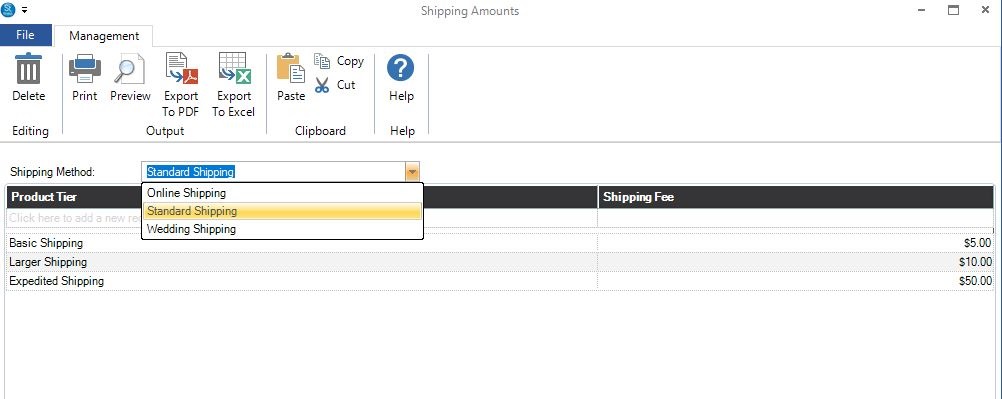
7. Select the Shipping Method set up in step 2 above.
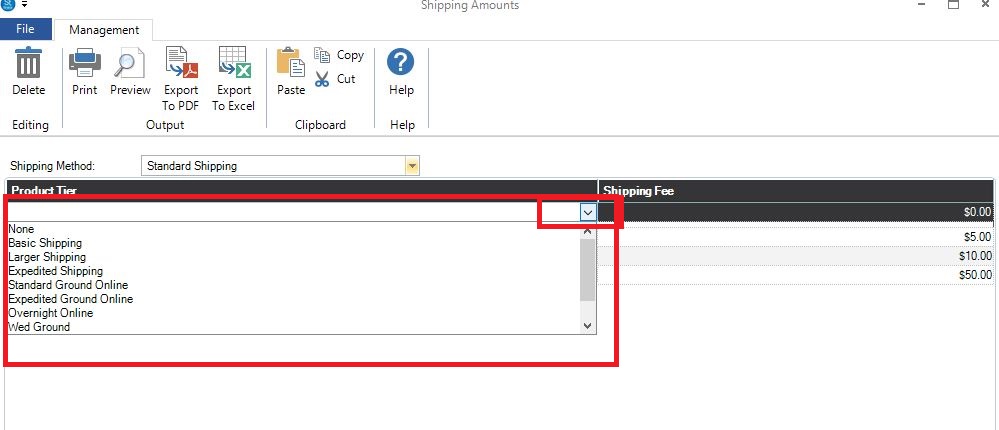
8. Select the first Product Tier set up in step 5.
9. Tab to the Shipping Fee box and add the charge for that type of shipping.
10. Repeat 8 and 9 till you’ve added all the fees.
Mainenance > Preferences > Company Preferences – Shipping tab
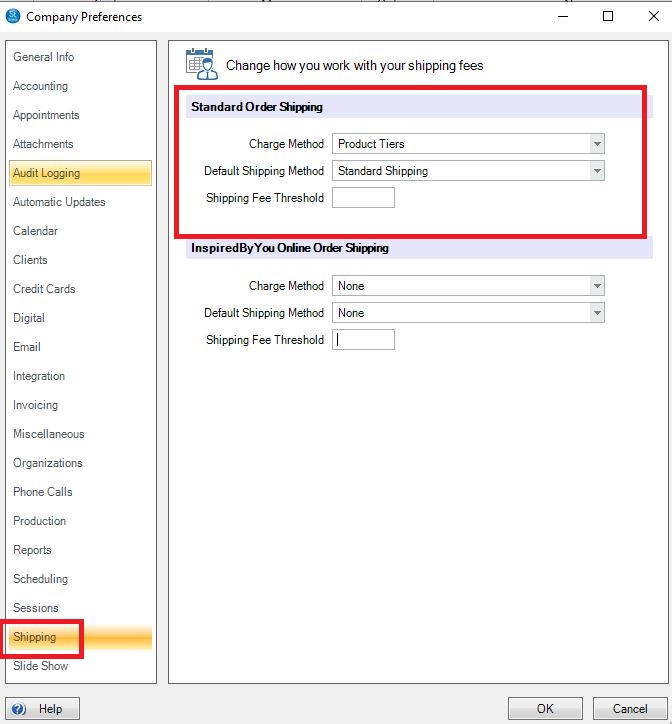
11. In the Charge Method, provided you’ve contacted Support@StudioPlusSoftware.com, you’ll see Product Tiers as the Charge Method already.
12. Select the Default Shipping Method set up in step 2 above. If you have Shipping Methods for different Session Types, just pick the Standard one as discussed.
13. Close Company Preferences.
Maintenance > Price List > Price Lists
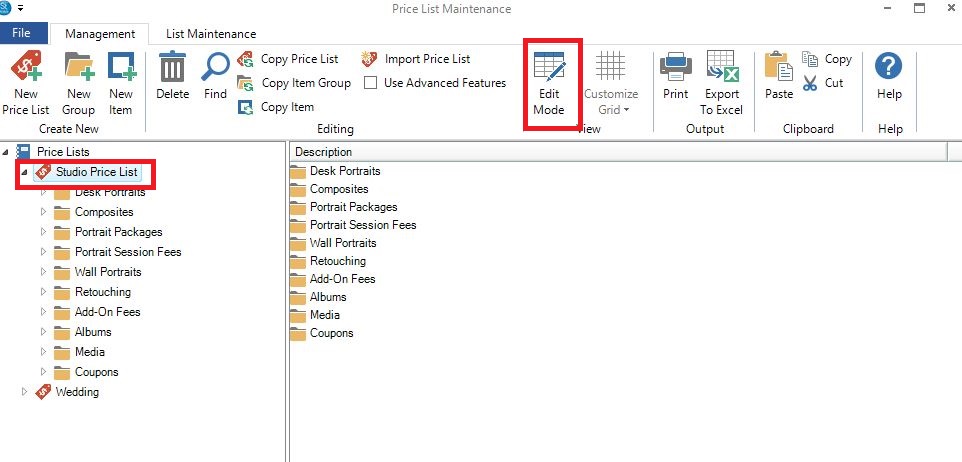
14. Highlight the most used price list and click the Edit Mode icon in the ribbon.
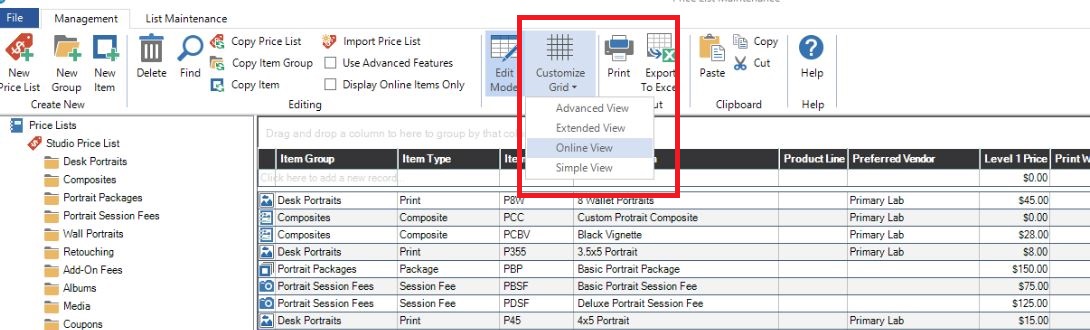
15. Click the Customize Grid icon in the ribbon and select Online View.
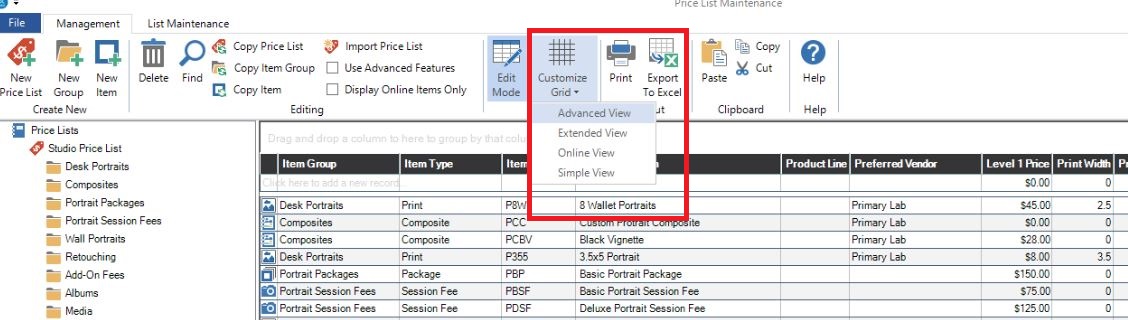
16. Click Customize Grid icon in the ribbon again, bringing up a long list of fields you can add to the grid.
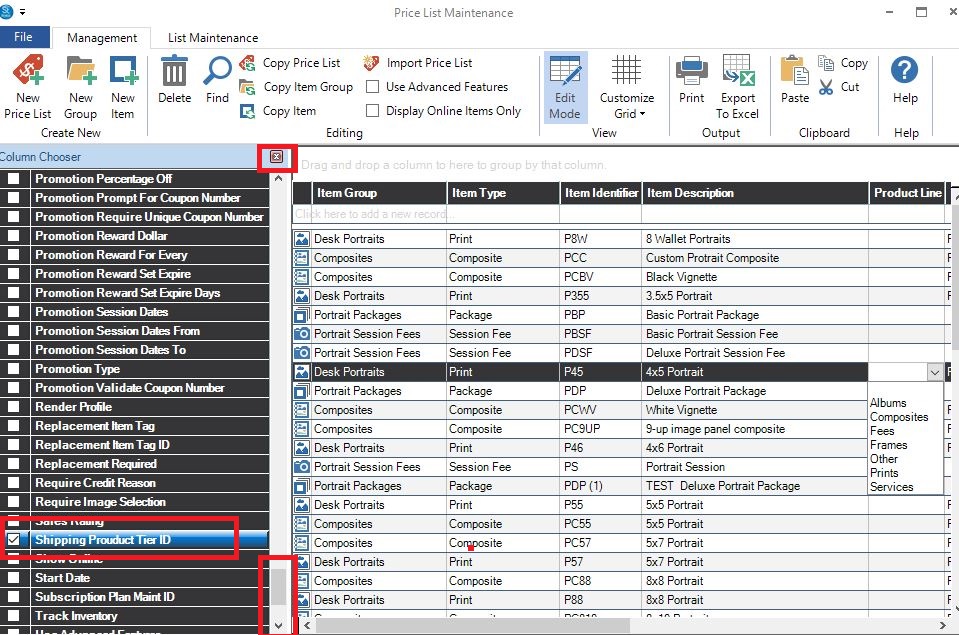
TIP: Why do that twice? If you went right to Advanced View, all the boxes on the left would be checked and it makes the grid, for this purpose, have too many columns showing.
17. Scroll down the list on the left, and flag Shipping Product Tier ID, then close that side by clicking on the red X.
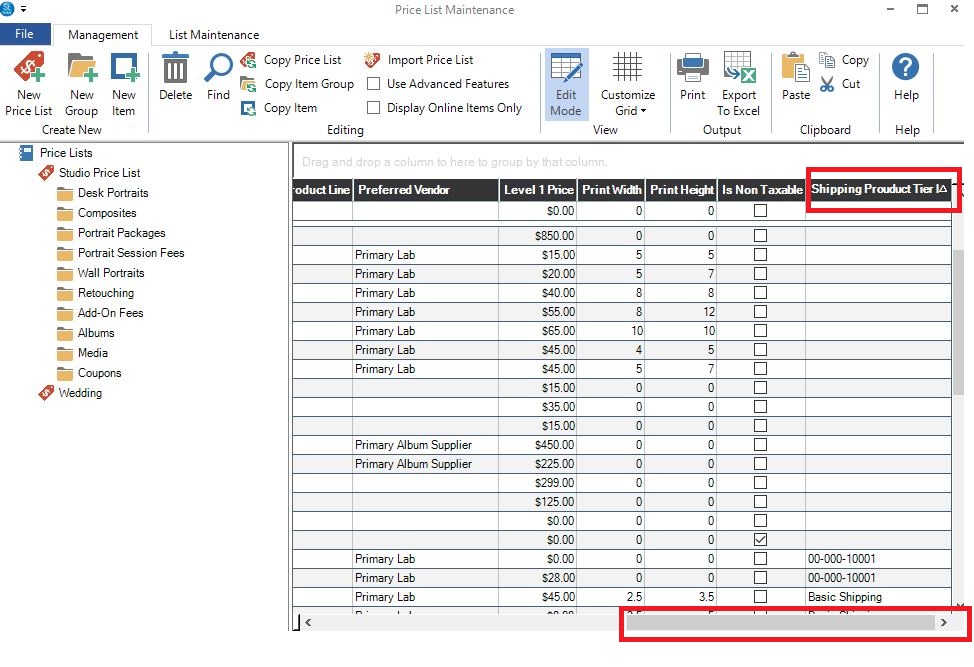
18. Scroll all the way over in the grid, click on the column header Shipping Product Tier ID and drag it over next to the Item Description making it easier to see identify the item for which you’re setting the Shipping fee.
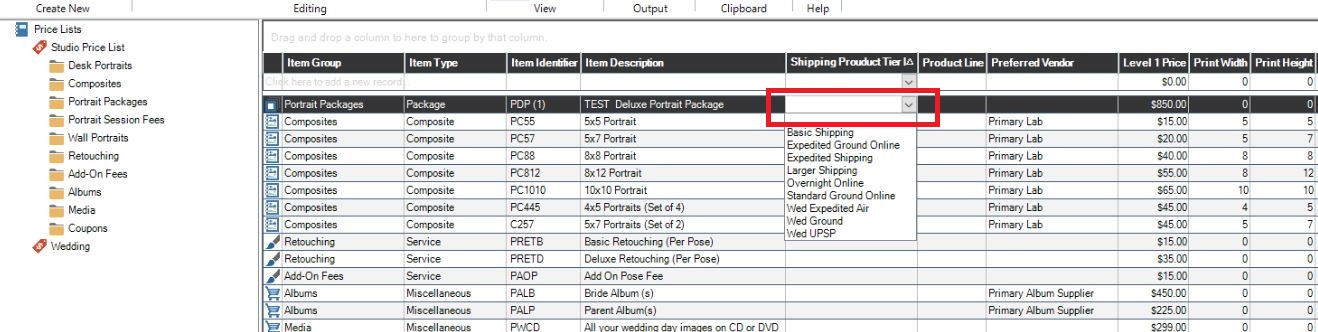
19. From the drop down menu in the Shipping Product Tier ID column, select the appropriate Shipping.
20. Quickly repeat selecting from the drop down for each item.