
Occasionally, the Time Clock may open behind Stratus, and if a user doesn’t catch it, they can get a message:
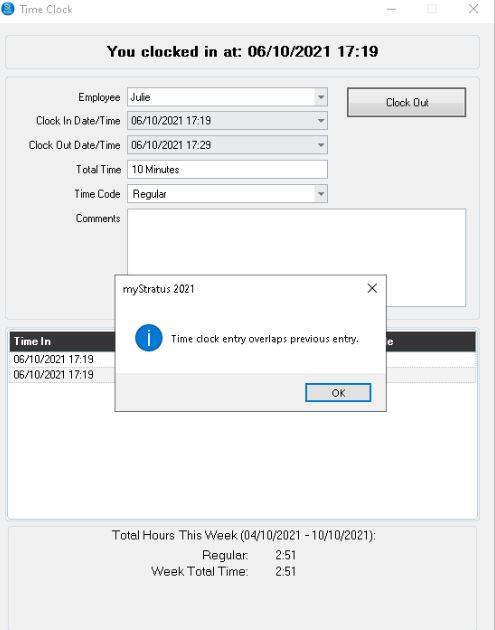
Only someone that belongs to the Security Group Administrators can fix this message.
1. Log into Stratus using the Administrator user
2. Open the Time Clock (File > Time Clock)
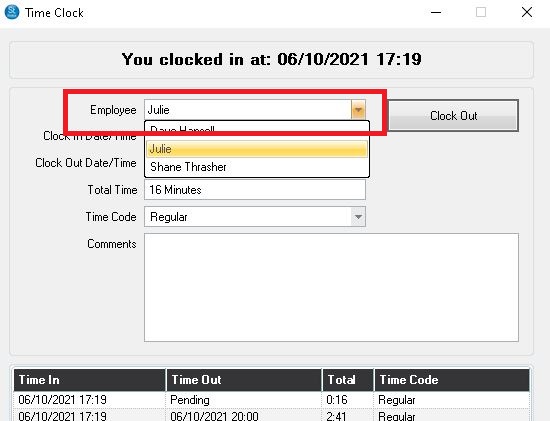
3. From the Employee drop down menu select the user you’re fixing
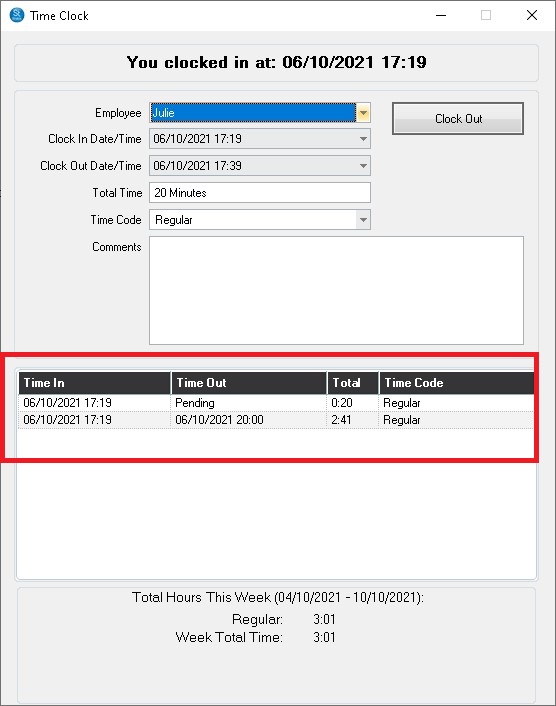
4. Review the Time Clock entries to find the duplicate Time In, and find out from the user which is correct.
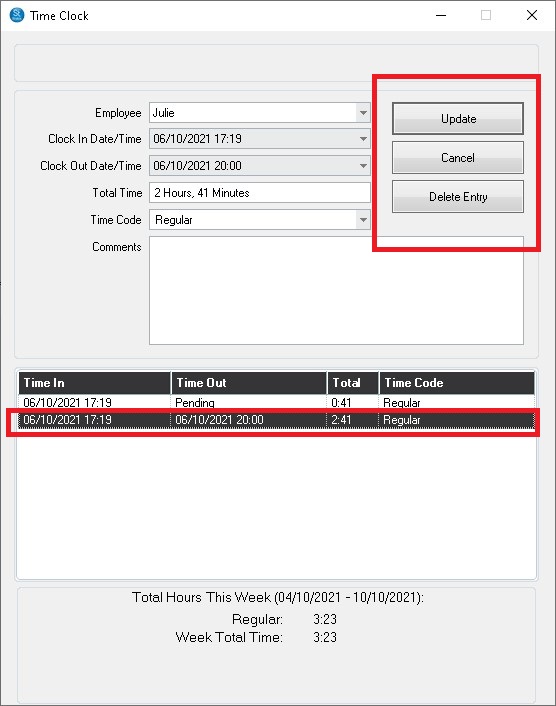
5. Once you’ve determined the two that overlap, click on the one with both a Time In and a Time Out being sure to note the Time Out
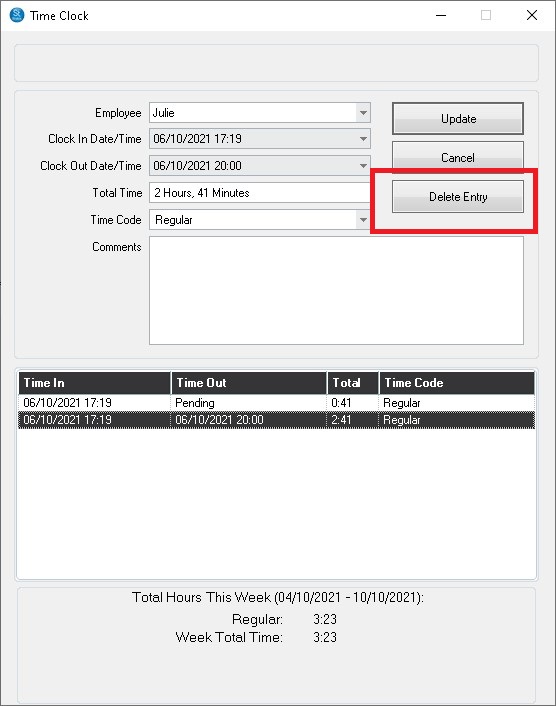
6. Click the Delete button
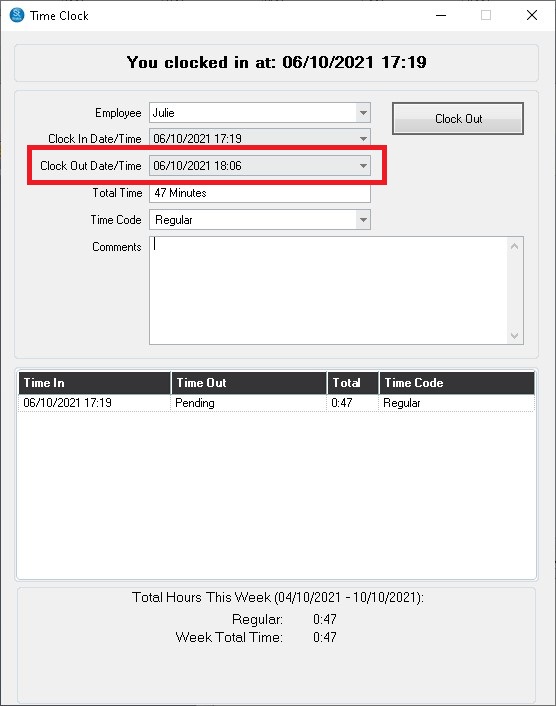
7. Manually adjust the Time Out to the time noted in step 5 above by typing in the time
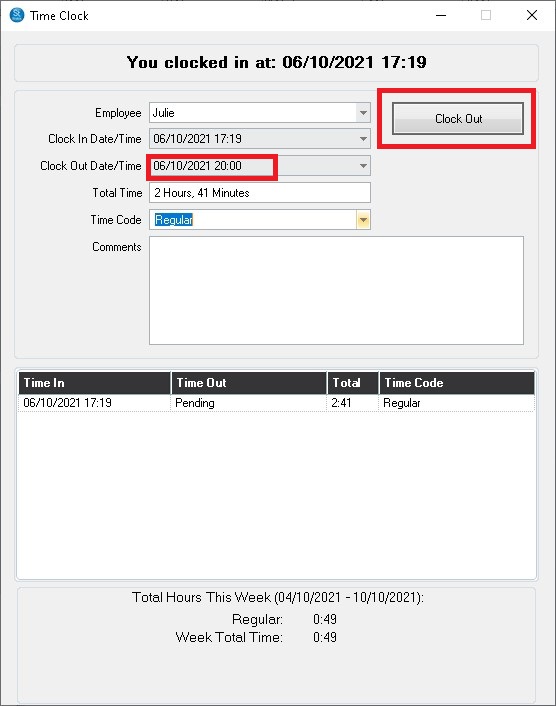
8. Click Clock Out