
#
   |
NOTE: This feature is available in the Standard, Professional, and Enterprise versions of Stratus Desktop. |
Customer deposits are used to record a payment you receive before an invoice has been created for a client. Customer deposits can then be applied to future invoices. Customer deposits will post in the same way that payments post. See also: Accounting
Creating a Customer Deposit #
-
Open the client record and click Customer Deposit in the New group on the ribbon.
-
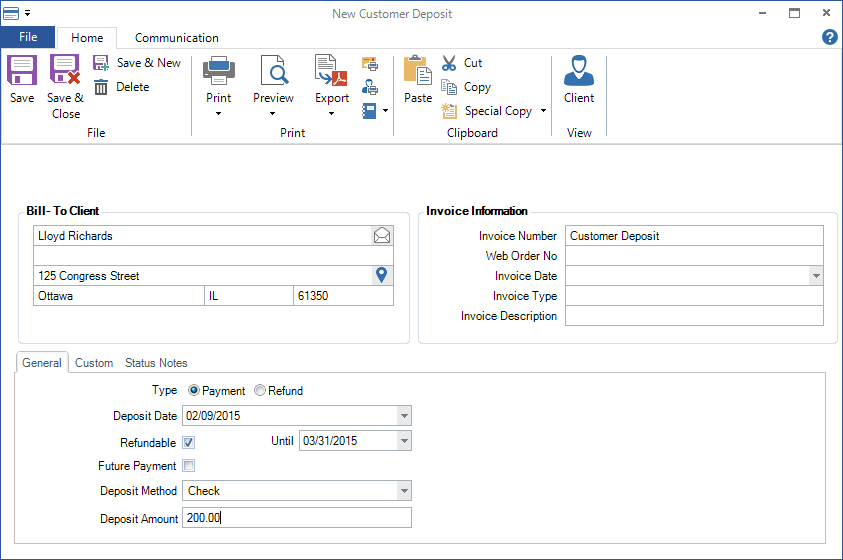
The Customer Deposit window will open.
-
Enter the customer deposit information. Except for the invoice number, all the information on a customer deposit is the same as on a payment or refund. See also: Features of Payment and Refund Records
-
Click Save and Close. The customer deposit is now recorded. Go to the client Summary tab to view any customer deposits the client may have. See also: Client Reference
Applying Customer Deposits #
-
When you have created an invoice for the client, click Apply Deposit on the ribbon.
-
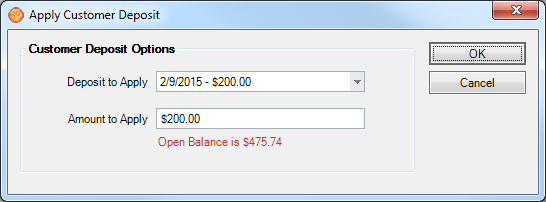
The Apply Customer Deposit window will open.
-
Select the deposit you want to apply to this invoice, enter an amount, and click Apply.
-
The deposit will now appear as a payment on the invoice Order Detail tab. See also: Invoice Reference
Refunding Customer Deposits #
-
Open the client and go to the Summary tab.
-
Find the deposit in the Financial Transactions list and double-click to open it.
-
Click Refund This Deposit on the ribbon.

-
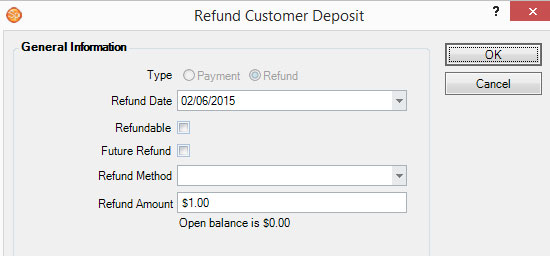
The Refund Customer Deposit window will open.
-
Complete the Refund Method and Amount.
-
Click OK when finished. The software will automatically create the refund and a $0 invoice. Both the original deposit and and refund will be applied to the new invoice so no deposits remain outstanding.