
  |
NOTE: This feature is available in the Professional and Enterprise versions of Stratus Desktop. |
When using Quickbooks Desktop direct, Quickbooks Desktop must be open on the computer prior to beginning the posting process.
QuickBooks Desktop Version 2023 or 2024 or QuickBooks Online are supported.
*Keep in mind that support for the QuickBooks 2023 desktop version will cease May 2026 and the QuickBooks 2024 desktop version sometime in 2027. Now is a good time to look into using the online version of QuickBooks here.
The 2022 Desktop version QuickBooks version is NOT supported.
 #
#
Here is an example of how the accounting workflow relates to the General Ledger Accounts within your accounting software. Depending on which accounting method you use, expand the example below. To set up using Cash Basis accounting vs. Accrual accounting, see the Accounting Method section in the Company Preferences – Accounting tab. See also: Setting up the Accounting Link
| Cash Basis Accounting |
|
This is an example of a Cash Basis accounting method in Quickbooks Desktop. It is used when invoices are posted as soon as the invoice is paid in full.
A client has a $100 invoice. The client makes a $25 down payment and pays with cash. The payment posting to the accounting software for that day would be this: The Customer Deposit Account represents the deposit (or partial payment) the client has made. This is a liability account type. The studio either owes the client some product or they owe them their money back. Nothing hits the actual sales account yet, because the invoice is not paid in full. On a different day, the client pays the remaining $75 balance with an American Express card. The payment posting to the accounting software for that day would be this: The invoice is now paid in full, so the invoice posting to the accounting software would be this: |
| Accrual Accounting |
|
This is an example of an Accrual accounting method in Quickbooks Desktop. It is used when invoices are posted once they are initially created.
A client has a $100 invoice. The client makes a $25 down payment and pays with cash. The payment posting to the accounting software for that day would be this: On a different day, the client pays the remaining $75 balance with an American Express card. The payment posting to the accounting software for that day would be this: |
Making a Deposit #
Making a deposit will post your payment records in Stratus. Posting is a process that locks financial transactions, like invoices and payments, into the system so that they cannot be changed. A deposit posting should occur whenever you make a deposit.
With the 2011 version, Spectra introduced the End of Day Wizard. You can do a number of deposits at once and combine them with invoice posting into one streamlined process. See also: End of Day Wizard
When you post a deposit, the following things occur:
-
First, the transactions are locked so they cannot be modified.
-
Second, if you are using external accounting software, such as Quickbooks Desktop or Simply Accounting, a summary of the financial transactions are exported to a file that can be imported into the accounting software.
-
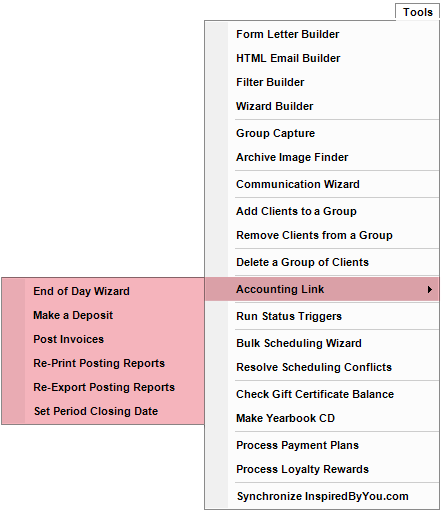
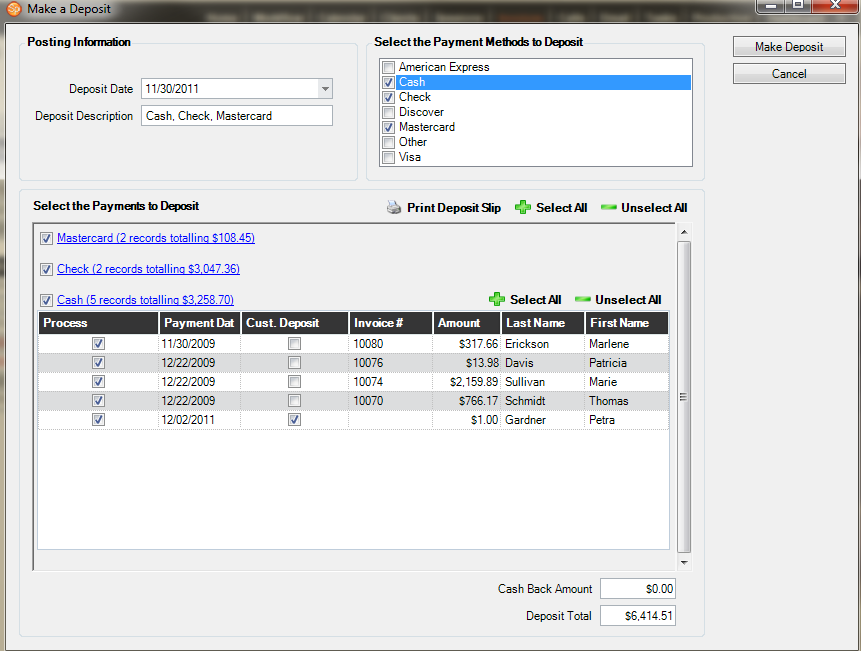
To make a deposit, go to Tools > Accounting Link > Make a Deposit.
-
Indicate the Deposit Date. This will automatically default to today’s date.
-
Select the Payment Method by checking the box for the payment types you are depositing.
-
Select the Payments to deposit. Every deposit for the selected Payment Methods will appear. Click Select All to choose all of them or select records one-by-one, indicating which payments you are actually depositing.
-
Check the deposit total.
-
Click Print Deposit Slip to print a deposit slip for the cash and check deposits.
-
Click Make Deposit when you’re ready to make the deposit. Once the deposit has been made, the software will give you an option to print the deposit reports.
- If you are a Spectra User, ALWAYS run a back up before posting records. If anything is posted incorrectly, you can simply restore the back up and try again.
- Once you post your records you CANNOT change them unless you have enabled User Security in Stratus and have set the appropriate security. So be sure you have verified each of your deposit amounts and they are all correct.
- To unlock a posted invoice or payment you must log in with the proper security permissions. Then go to the payment you need to unlock and select Unlock Payment from the Payment Menu. You can then make the necessary changes.
- These changes will NOT be reflected in any posting or in your accounting software.
- You can unlock and change records, but you CANNOT un-post them. Once a record has been posted, the posting date CANNOT be changed or removed.
- For more information, see the Security Groups and Setting up the Accounting Link topics.
Posting Invoices #
Posting invoices locks invoices into the system so that they cannot be changed. Invoice postings will export all sales tax payable and income information to a file that can be imported into your accounting software.
With the 2011 version, Spectra introduced the End of Day Wizard. You can combine your invoices posting with deposits into one streamlined process. See also: End of Day Wizard
When you post invoices, the following things occur:
-
First, the transactions are locked so they cannot be modified.
-
Second, if you’re using external accounting software, such as Quickbooks Desktop or Simply Accounting, a summary of the financial transactions is exported to a file that can be imported into the accounting software.
-
Third, sales tax/VAT is calculated for the sales tax/VAT reports.
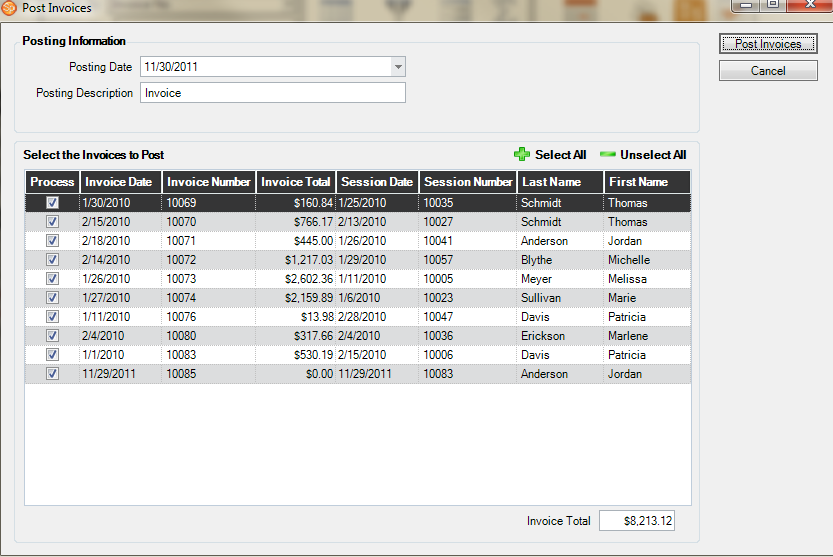
1. Click Tools > Accounting Link > Post Invoices.
2. Enter the Posting Date, this will automatically default to today’s date
3. Select the invoices that you want to post. Use the Select All button to select all of the invoices.
4. Check the invoice total.
5. Click Post Invoices. Once the records are posted, the software give you an option to print the posting reports.
- If you are a Spectra User, ALWAYS run a back up before posting records. If anything is posted incorrectly, you can simply restore the back up and try again.
- Once you post your records you CANNOT change them unless you have enabled User Security in Stratus and have set the appropriate security.
- To unlock a posted invoice you must log in with the proper security permissions. Then go to the invoice you need to unlock and select Unlock Invoice from the Invoice Menu. You can then make any necessary changes.
- These changes will NOT be reflected in any posting or in your accounting software.
- You can unlock and change invoice records, but you CANNOT un-post them. Once an invoice has been posted, the posting date CANNOT be changed or removed.
- For more information, see the Security Groups and Setting up the Accounting Link topics.
#
Reprinting Posting Reports #
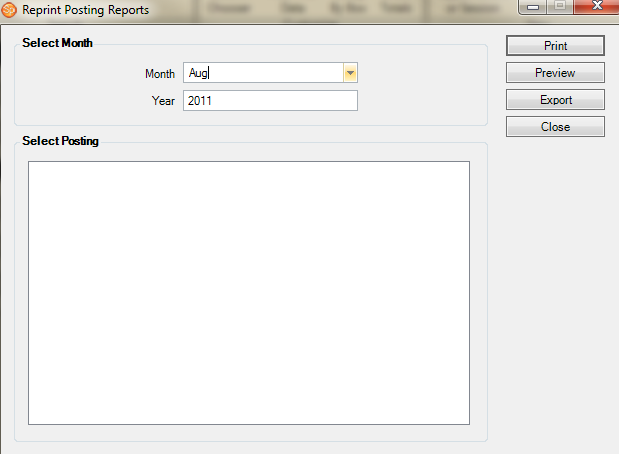
To reprint posting reports:
-
Go to Tools > Accounting Link > Reprint Posting Reports.
-
Select the posting Month and Year.
-
Then select the posting you want to reprint. To select more than one posting at a time, press the Ctrl key.
-
You can Preview, Print, or Export the reports to a PDF file.
Re-Exporting Posting Reports #
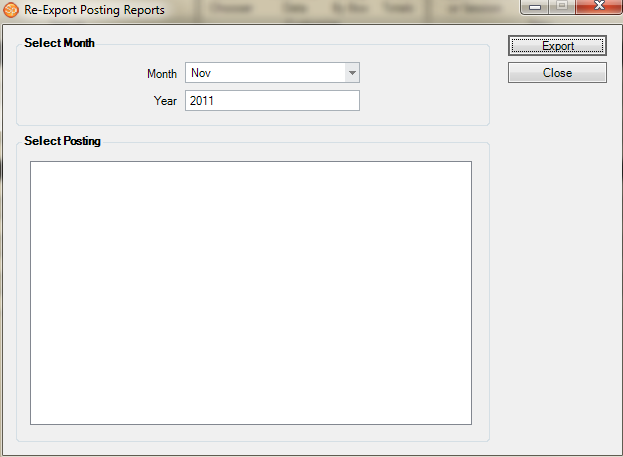
To re-export your posting data to your accounting software:
-
Go to Tools > Accounting Link > Re-Export Posting Reports.
-
Select the posting Month and Year.
-
Then select the posting you want to re-export. To select more than one posting at a time press the Ctrl key.
-
Click Export to export the data to a text file in your accounting software export folder.