
Follow these steps to confirm a session:
-
Open the session.
-
Check the Confirmed box in the bottom-right section of the General tab.
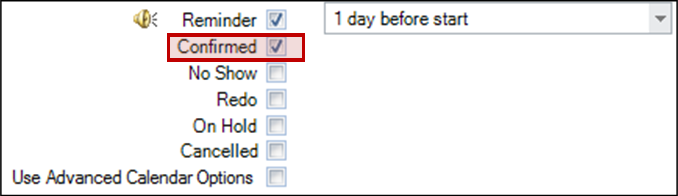
-
Click Save & Close.
-
Session descriptions on the calendar can be modified to include the confirmed status of a session. See also: Changing Event Descriptions
Session Confirmation Emails with StudioPlus Mail #
   |
NOTE: This feature is available in the Standard, Professional, and Enterprise versions of Stratus Desktop. |
The StudioPlus Mail service includes an email confirmation feature. You can send clients an email with a link to confirm their session or appointment. That information will automatically be updated in Stratus! Find out more about StudioPlus Mail in the StudioPlus Mail Overview topic.
Session Confirmation SMS with SMS Text Messaging Service #
| |
NOTE: This feature is available in the Standard, Professional, and Enterprise versions of Stratus Desktop. Spectra does not include this feature. |
The StudioPlus SMS Text Messaging service now includes allowing clients to confirm an SMS Session Reminder by just replying yes. This information will automatically be updated in Stratus. Find out how to set this up in the Setting up Triggers section of Triggers topic.