
You’ve got 2 options to print a client list: Client List Report or the Export to Excel option on the hub. Utilize Export to Excel option if you need more options than those available on the Client List Report. See also: Client Lists and Labels
Printing Client Lists #
-
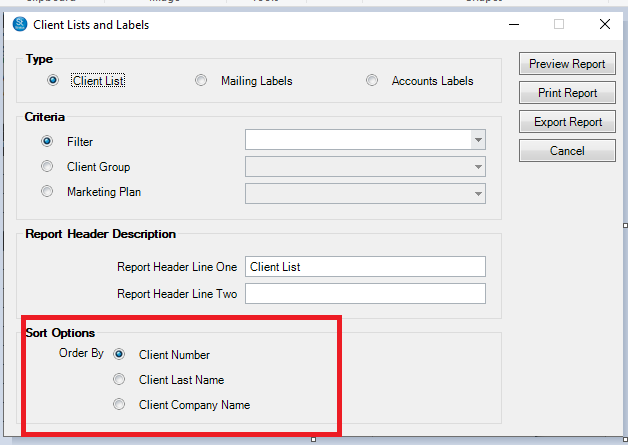
Go to Reports > Lists and Labels > Client List and Labels.
-
Select the Type > Client List.
-
Then select the Criteria based on a filter, client group, or marketing plan.
-
If printing a client list, type in or modify the Report Header Description.
-
Select the Sort Options to designate how you want the report sorted.
-
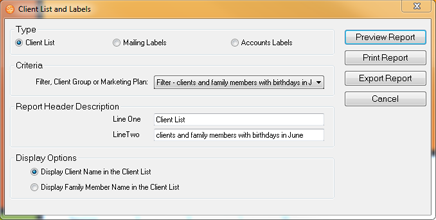
If you are printing a client list using a “Client with Family Members” type of filter, the report will display both the main contact client name and the name of a family member. For more information about creating various types of filters (i.e., “Client with Family Members”), refer to Using the Filter Builder.
-
Click Preview Report to see a preview.
-
You can print the report or export it.
Export to Excel #
Follow these steps to export a file to Excel and print from Excel:
-
Go to the Clients hub.
-
Use the Search tool on the ribbon to find the clients you want to print.
-
To add more columns, or remove unnecessary columns, use the Column Chooser. See also: Customizing Hubs
-
Click Export to Excel on the ribbon.

-
Download and open the exported Excel file.
-
Choose File > Print within Excel to print your list.