
#
   |
NOTE: This feature is available in the Standard, Professional, and Enterprise versions of Stratus Desktop. |
Stratus Desktop makes it easy to print single labels to a Dymo Label printer.
Requirements #
-
StudioPlus Version 5.7 or above
-
Dymo LabelWriter printer. We support the 450 or 550 Series. The Dymo 550 requires using Dymo Labels, it is a Dymo requirement, not Stratus. Note: The printer can be shared printer on your network, but the Dymo software must be installed on each computer. For an important Windows Update for10 and 11 (after July 1st, 2022), please go to this FAQ.
-
The following printers are NOT supported:
- 300 Series
- 400 Dymo Printer (Dymo no longer supports this printer)
- Duo printers – Two rolls of labels
-
Dymo Label Software Version 7.7 or above installed on each computer you want to print labels from.
Setting up Stratus Desktop for Dymo printing #
-
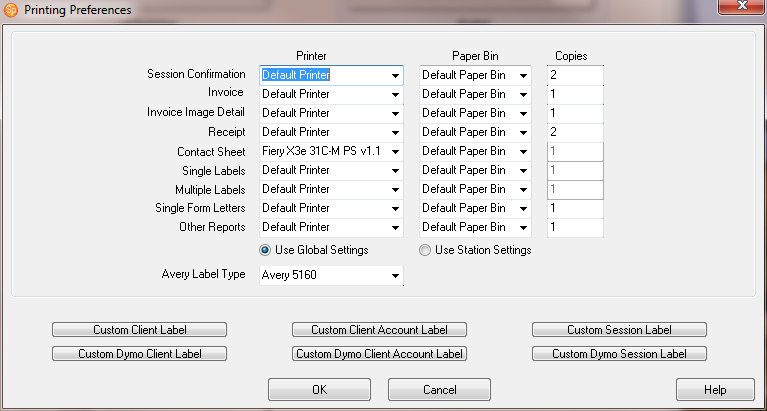
Go to Maintenance > Preferences > Printing Preferences.
-
Set the choice for printer for Single Labels to either “Prompt for Printer” or your Dymo printer. Note that if you leave the setting at Use Global Settings, this setting will apply to all computers connected to this database. If you just want to make this change for just this computer, change the radio button to Use Station Settings.
-
Click OK to close the Printing Preferences screen.
-
Click Maintenance > Preferences > Workstation Preferences > Miscellaneous Tab.
-
Set the drop-down for Dymo Label Printer to the desired Dymo printer. Remember, workstation settings apply only to the computer you are working on. If you’d like to use a label printer on another computer, repeat these steps on each machine.

-
Click OK to close the preferences window.
-
To use the printer, look in the Print > Print Profile Group of the client, session, invoice, production order or proof order records. Look for choices to print a mailing label, account label, or session label. If you’re set to Prompt for Printer, choose your Dymo printer from the dialog window. The individual label should then print out with information for the record you have open. Once the Dymo settings are done, you will also see Dymo label printing icons
 on the toolbars for client and session records.
 -
You can also use your Dymo printer to print out a set of labels in the Reports > List and Labels section. On the Printer Preferences (see above), also set the Multiple Labels setting to Prompt for Printer or your Dymo printer. As long as you have the Workstation Preferences set for Dymo Label on that computer, you can print the results of these reports to your Dymo printer.
For best results, we recommend using a Dymo LabelWriter. Be sure to install the latest software driver updates for your printer from Dymo.