  |
NOTE: This feature is available in the Professional and Enterprise versions of Stratus Desktop.
|
ATTENTION!
These pages apply to the 2017 version, or greater, of Stratus only. If you are running an earlier version (2016 or older), click here to view instructions for triggers.
The following triggers are available in Stratus Desktop:
| Appointment Type |
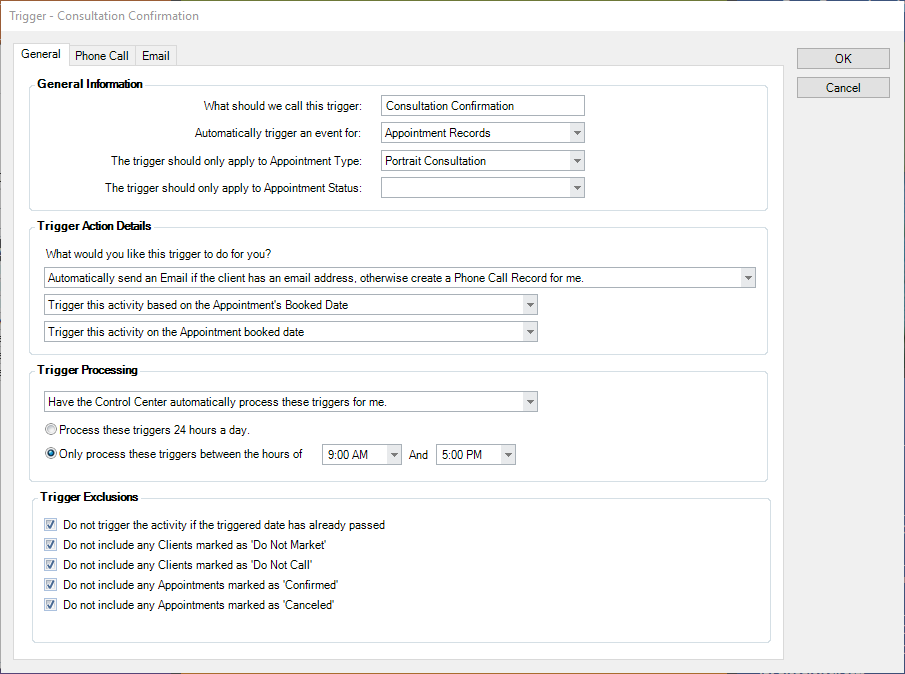
Appointment Type Triggers help you automate your client communication by triggering emails or SMS texts to be sent to the customer, letters to be printed, phone call reminders to be generated, or tasks to be assigned based on the appointment date or the booked date. Note: Recurring Appointments will not be included in triggers.
-
Appointment Date – With this option, the trigger is based on the scheduled appointment date. Select On Appointment Date or enter the number of days before or after the appointment date.
-
Appointment Booked Date – With this option, the trigger is based on the date the appointment was booked. Select On Appointment Booked Date or enter the number of days after the booked date.
|
Appointment Type and Status
|
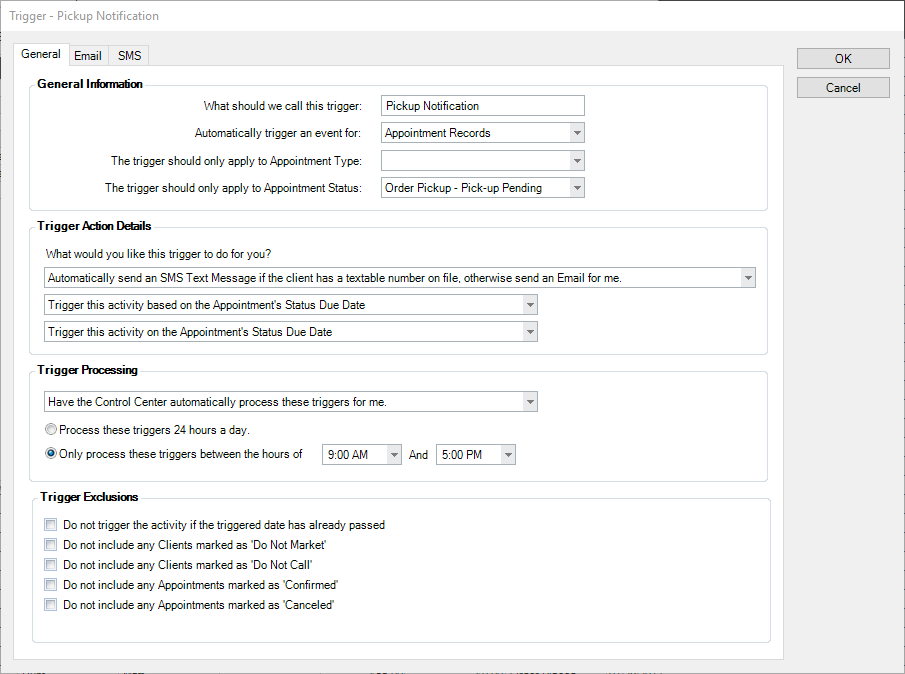
Appointment Type and Status Triggers help you automate your client communication by triggering emails or SMS texts to be sent to the customer, letters to be printed, phone call reminders to be generated, or tasks to be assigned based on the appointment status. Since appointment statuses are sorted by appointment types, use the Appointment Status drop down to select which appointment type and status to use with each trigger. Note: Recurring Appointments will not be included in triggers. See also:Appointment Statuses
|
| Client Status |
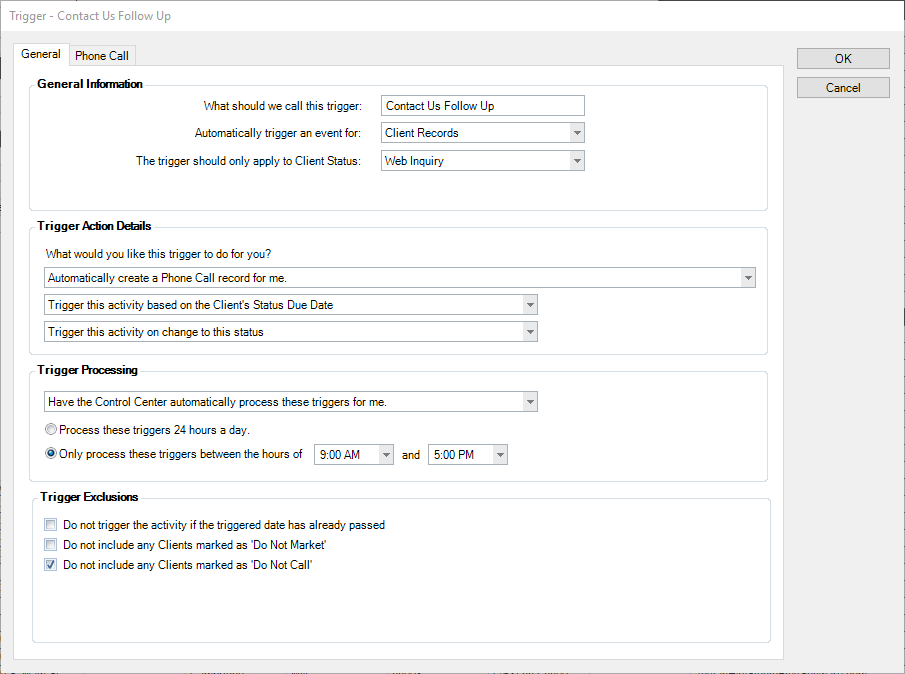
Use Client Status Triggers to have Stratus Desktop automatically create tasks, web forms, or initiate a variety of communications based on the client status due date, as well as on the client’s (or family member’s) birthday or anniversary date. See also: Client Statuses
-
Status Due Date – With this option, the trigger can be based on the date a client is changed to this status, or a date that is “x” number of days before or after the status due date.
-
Birthday Date – With this option, the trigger is based on the birthday of the client or their family members. Select On Birthday Date or enter the number of days before or after the birthday date.
-
Anniversary Date – With this option, the trigger is based on the client’s anniversary date. Select On Anniversary Date or enter the number of days before or after the anniversary date.
|
| Email Records – Stratus with StudioPlus Mail Only
|
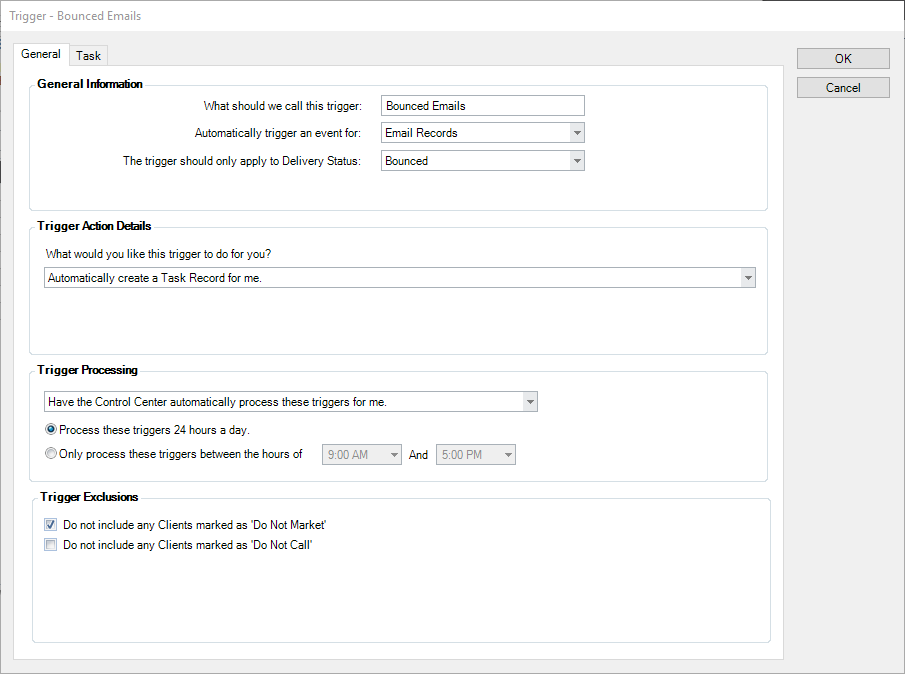
This trigger is only available in Stratus for users with the StudioPlus Mail Service. Click here for more information and pricing on this add-on.
Use this type of trigger for better maintenance of your client’s email addresses. For instance, create a trigger to automatically create a task any time an email bounces so you can follow up with the client to get a valid email address.
This trigger can only be used for On Change to This Status. Anytime an outgoing email’s Delivery Status is changed to match the trigger, then the trigger will activate. See also: Managing StudioPlus Mail
|
| Invoice Status |
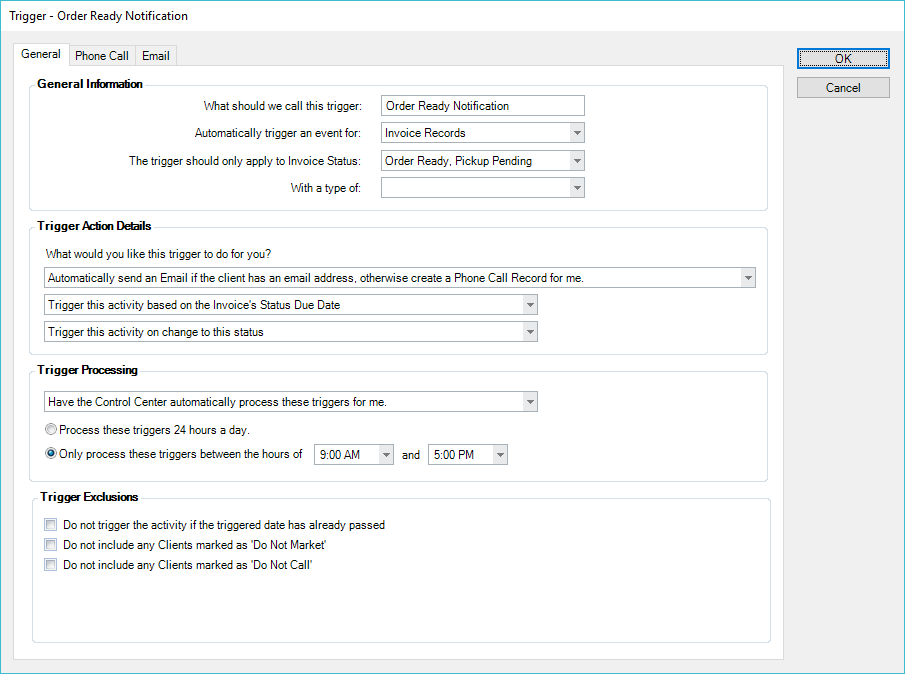
Use Invoice Status Triggers to have the software automatically create tasks or initiate a variety of communications based on a payment due date, invoice status due date, or when an invoice status changed.
-
Status Due Date – With this option, the trigger can be based on the date an invoice is changed to this status, or a date that is “x” number of days before or after the status due date.
-
Payment Due Date – With this option, the trigger is based on the payment due date. Select On Payment Due Date or enter the number of days before or after the payment due date.
|
| Production Status |
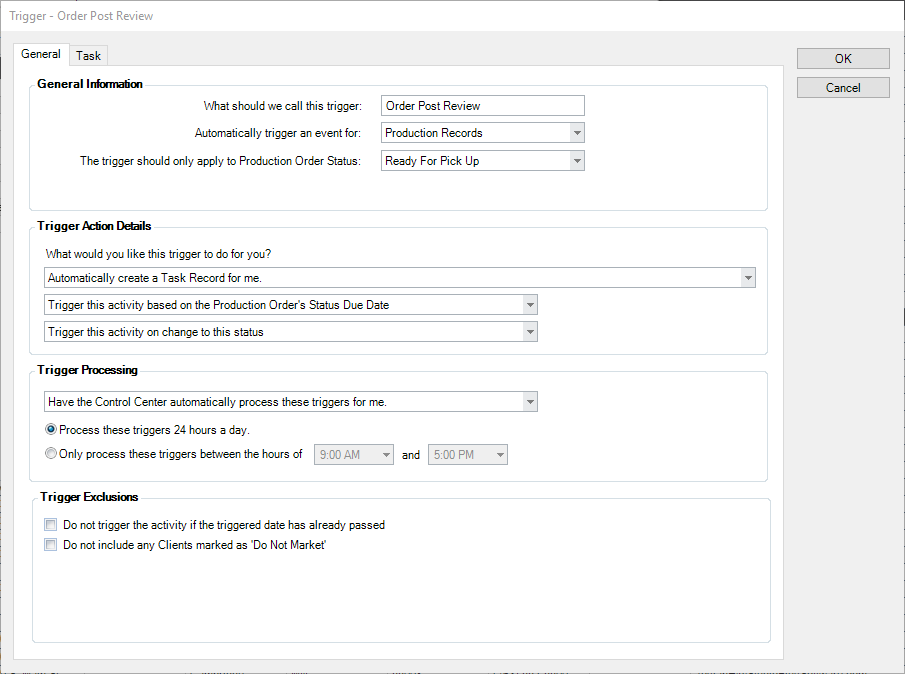
Use Production Status Triggers to have the software automatically create tasks or a variety of communications based on the production order status due date or the date a production order status is changed.
-
On Change to Status – With this option, the trigger can be based on the date a production order is changed to this status.
-
Status Due Date – With this option, the trigger can be based on the date a production order is due, or a date that is “x” number of days before or after the status due date.
|
| Preproduction Status |
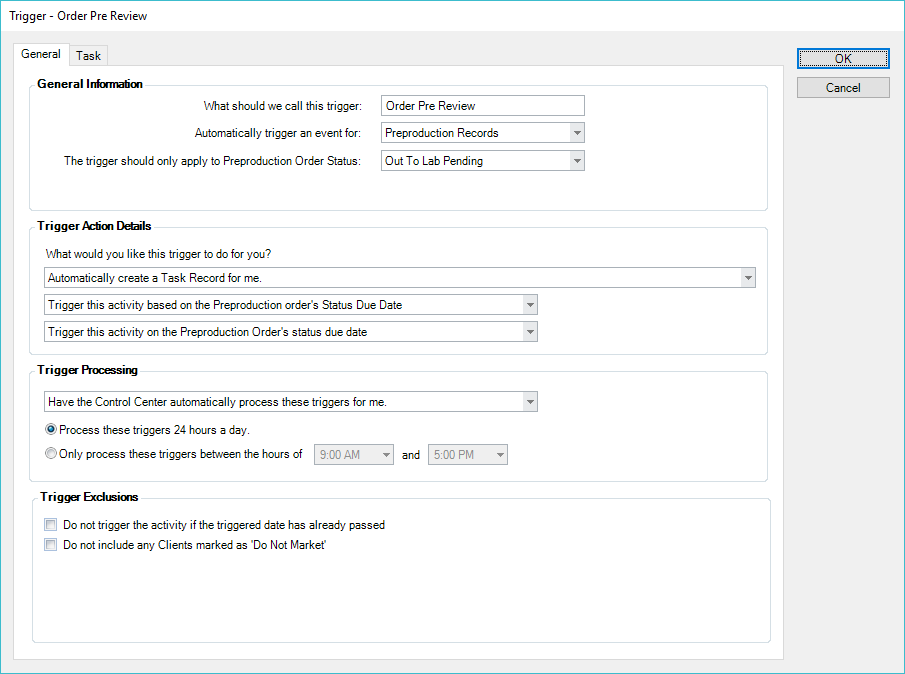
Use Preproduction Status Triggers to have the software automatically create tasks or a variety of communications based on the preproduction order status due date or the date a preproduction order status is changed.
-
On Change to Status – With this option, the trigger can be based on the date a preproduction order is changed to this status.
-
Status Due Date – With this option, the trigger can be based on the date a preproduction order is due, or a date that is “x” number of days before or after the status due date.
|
| Session Status |
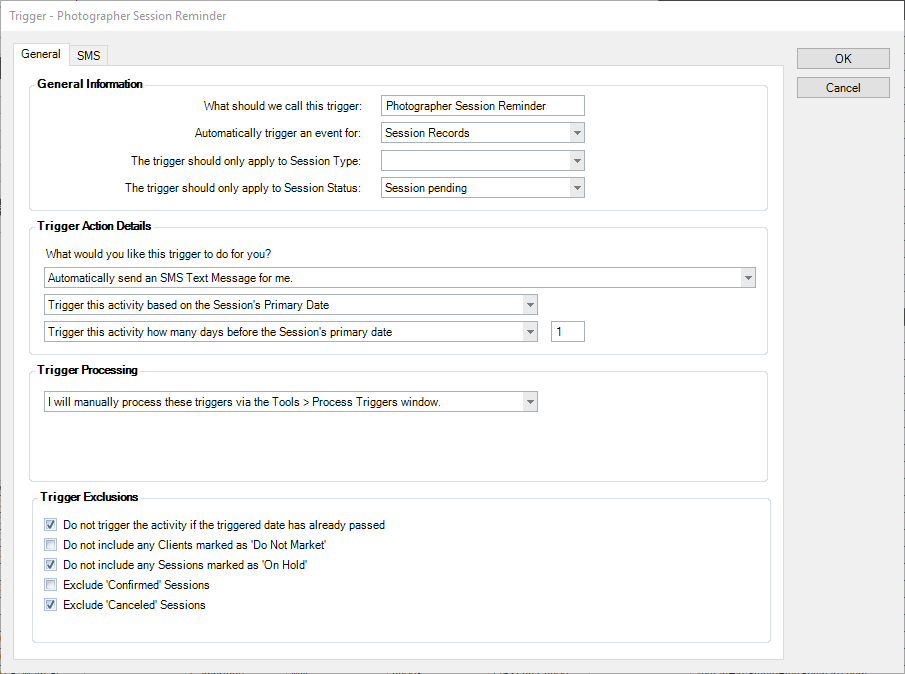
Use Session Status Triggers to have the software automatically create tasks, web forms, or initiate a variety of communications based on the primary session date, the session status due date, or the date a session status is changed. Before setting up session status triggers, make sure you’ve set up your session statuses. To learn more about session statuses, refer to the Session Statuses topic.
-
Status Due Date – With this option, the trigger can be based on the date a session is changed to this status, or a date that is “x” number of days before or after the status due date.
-
Primary Session Date – With this option, the trigger is based on the primary session date. Select On Session Date or enter the number of days before or after the primary session date.
-
Net Promoter Score receipt date – With this option, the trigger will send upon receiving a Net Promoter rating from a client or “x” number of days after receiving the Net Promoter rating. See also: Net Promoter Scores.
|
| Session Type |
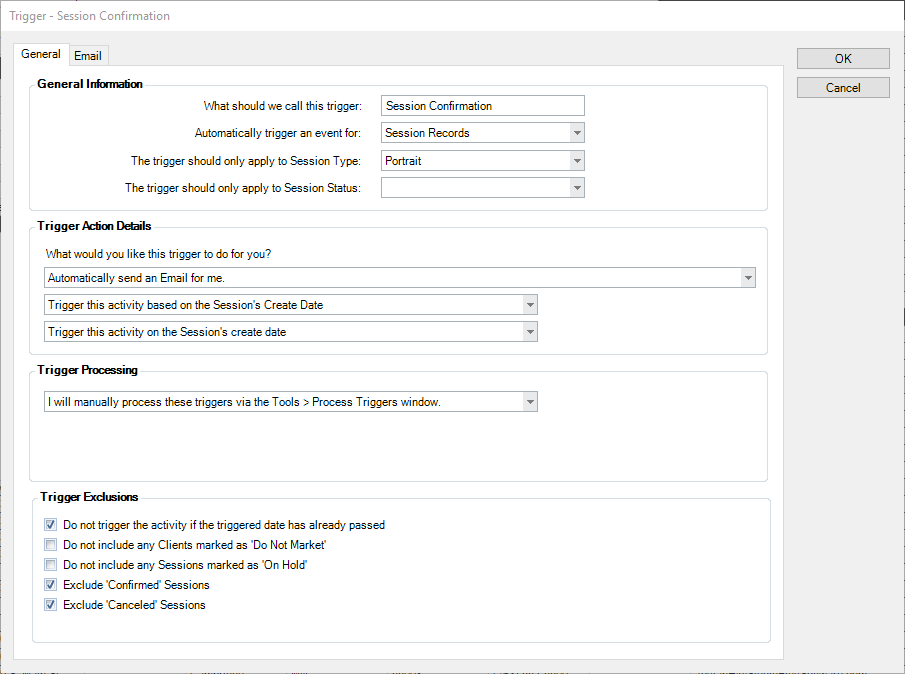
Use Session Type Triggers to have the software automatically create tasks, web forms, or initiate a variety of communications based on the primary session date, or the date a session was created. These triggers can vary based on the type of session. For example, a wedding session may require a different type of response than a baby session. See also: Session Types.
-
Session Create Date – With this option, the trigger is based on the date a session was created. Select On Session Create Date or enter a number of days after the date the session was created.
-
Primary Session Date – With this option, the trigger is based on the primary session date. Select On Session Date or enter the number of days before or after the primary session date.
-
Net Promoter Score receipt date – With this option, the trigger will send upon receiving a Net Promoter rating from a client or “x” number of days after receiving the Net Promoter rating. See also: Net Promoter Scores.
|
| Task Status |
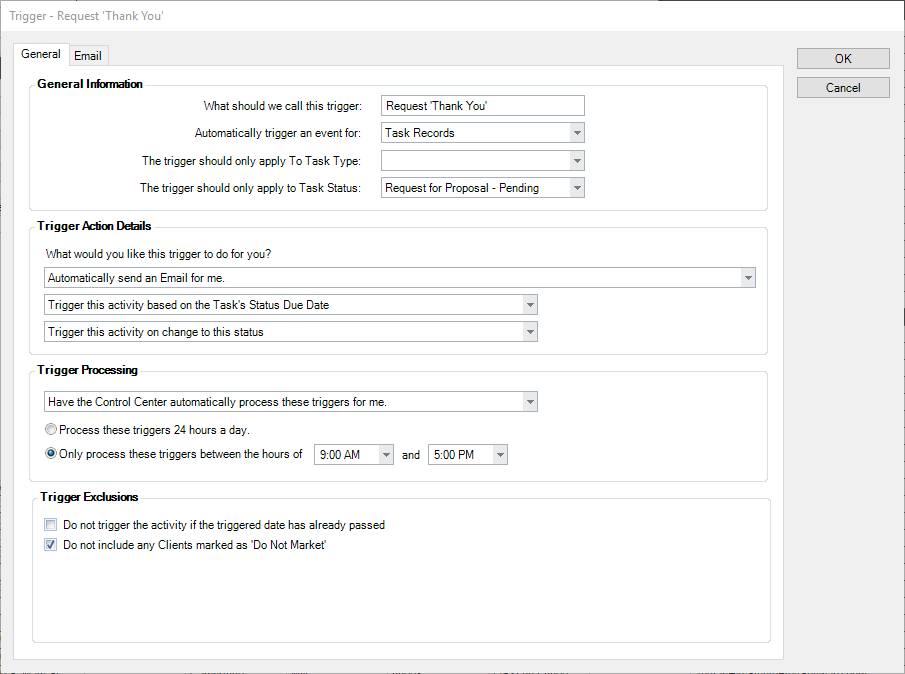
Task Status Triggers can automatically create additional tasks or initiate a variety of communications based on the task start, due, or complete date, as well as on the status due date.
-
Status Due Date – With this option, the trigger can be based on the date a task is changed to this status, or a date that is “x” number of days before or after the status due date.
-
Task Due Date – With this option, the trigger is based on the task due date. Select On Task Due Date or enter the number of days before or after the due date.
-
Task Start Date – With this option, the trigger is based on the task start date. Select On Task Start Date or enter the number of days before or after the start date.
-
Task Complete Date – With this option, the trigger is based on the task complete date. Select On Task Complete Date or enter the number of days before or after the complete date.
|
| Task Type |
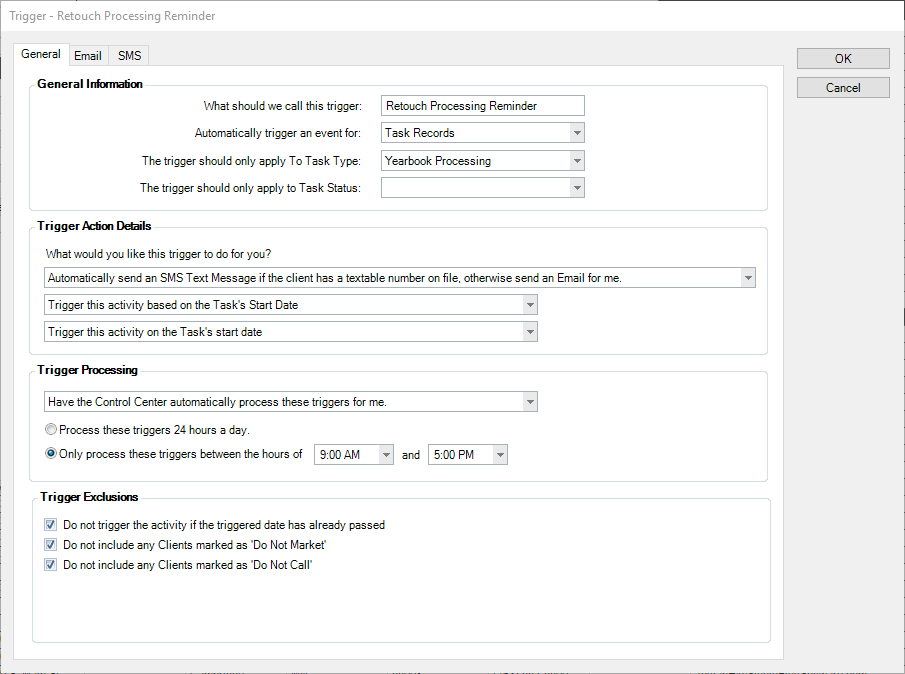
Use Task Type Triggers to have the software automatically create additional tasks or initiate a variety of communications based on the task start, due date, or complete date.
-
Task Due Date – With this option, the trigger is based on the task due date. Select On Task Due Date or enter the number of days before or after the due date.
-
Task Start Date – With this option, the trigger is based on the task start date. Select On Task Start Date or enter the number of days before or after the start date.
-
Task Complete Date – With this option, the trigger is based on the task complete date. Select On Task Complete Date or enter the number of days before or after the complete date.
|
| Web Form Status |
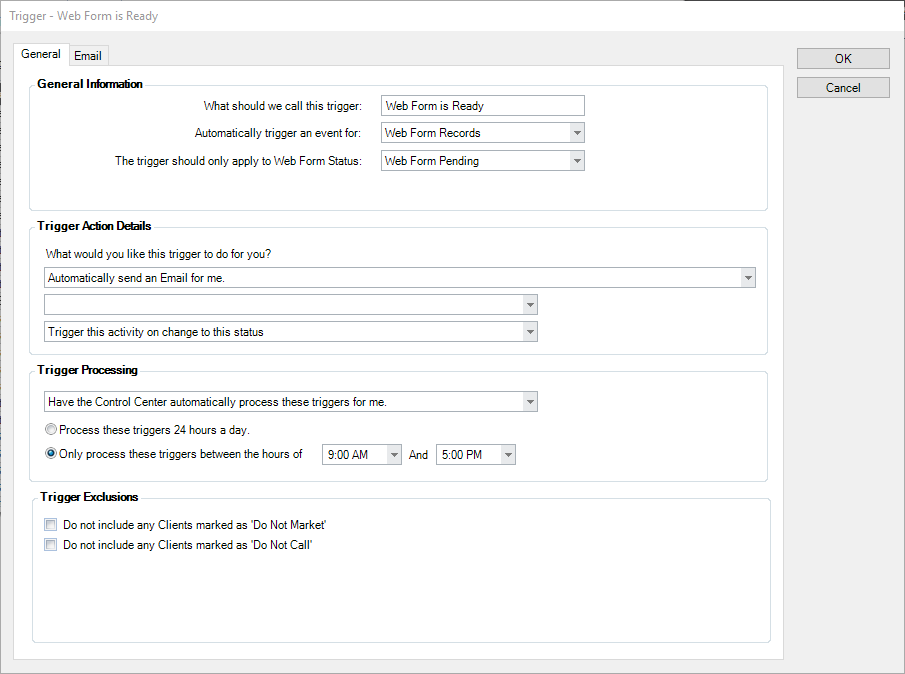
Use Web Form Status Triggers to have the software automatically communicate with clients or internally about their web forms. See also: Web Form Statuses
- On Change to this Status – With this option, the trigger is based on when a specific web form’s status is changed.
|
| SMS Records (Incoming Keyword) |
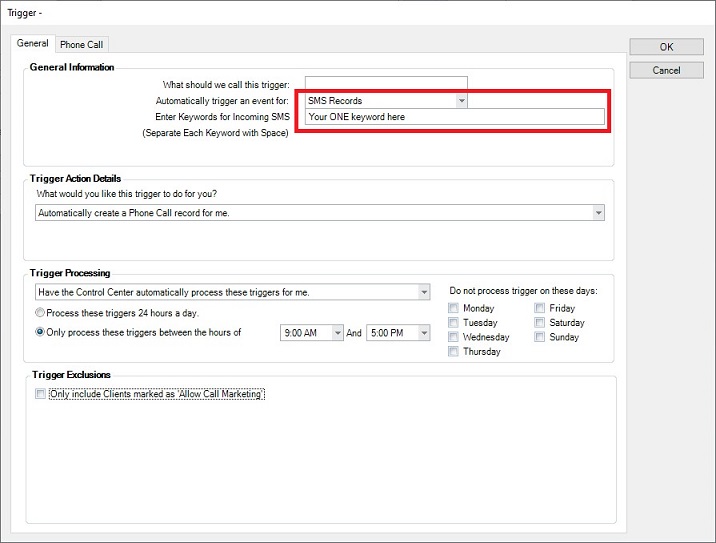
Use SMS Records to have the software automatically create additional tasks or initiate a variety of communications based on the task start, due date, or complete date.
- SMS Keywords for Incoming SMS allows typing in a word that when a client texts the studio using this keyword, you want to ensure a user knows about that text. The keyword creates either a call or task, or sends the client some type of reply. The word used is at your discretion.
|
