
  |
NOTE: This feature is available in the Professional and Enterprise versions of Stratus Desktop. |
Logging in #
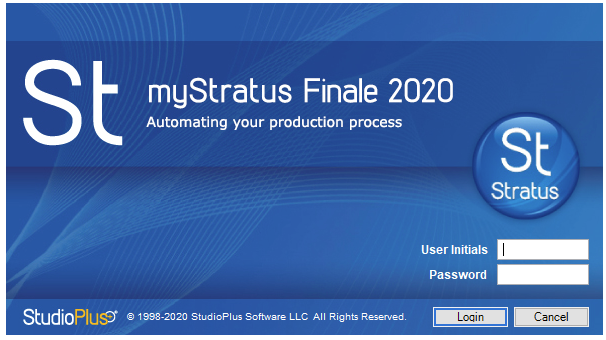
This application should only be run on one designated PC. To launch StudioPlus Finale, browse out to the following location on your PC:
Stratus Users: Start menu > StudioPlus Stratus 20xx folder > StudioPlus Finale
Spectra Users: Start menu > StudioPlus Spectra 20xx folder > StudioPlus Finale
Or you can simply search for StudioPlus Finale from your Start menu.
#
*The login credentials for StudioPlus Finale are the same credentials you use for logging into Stratus.
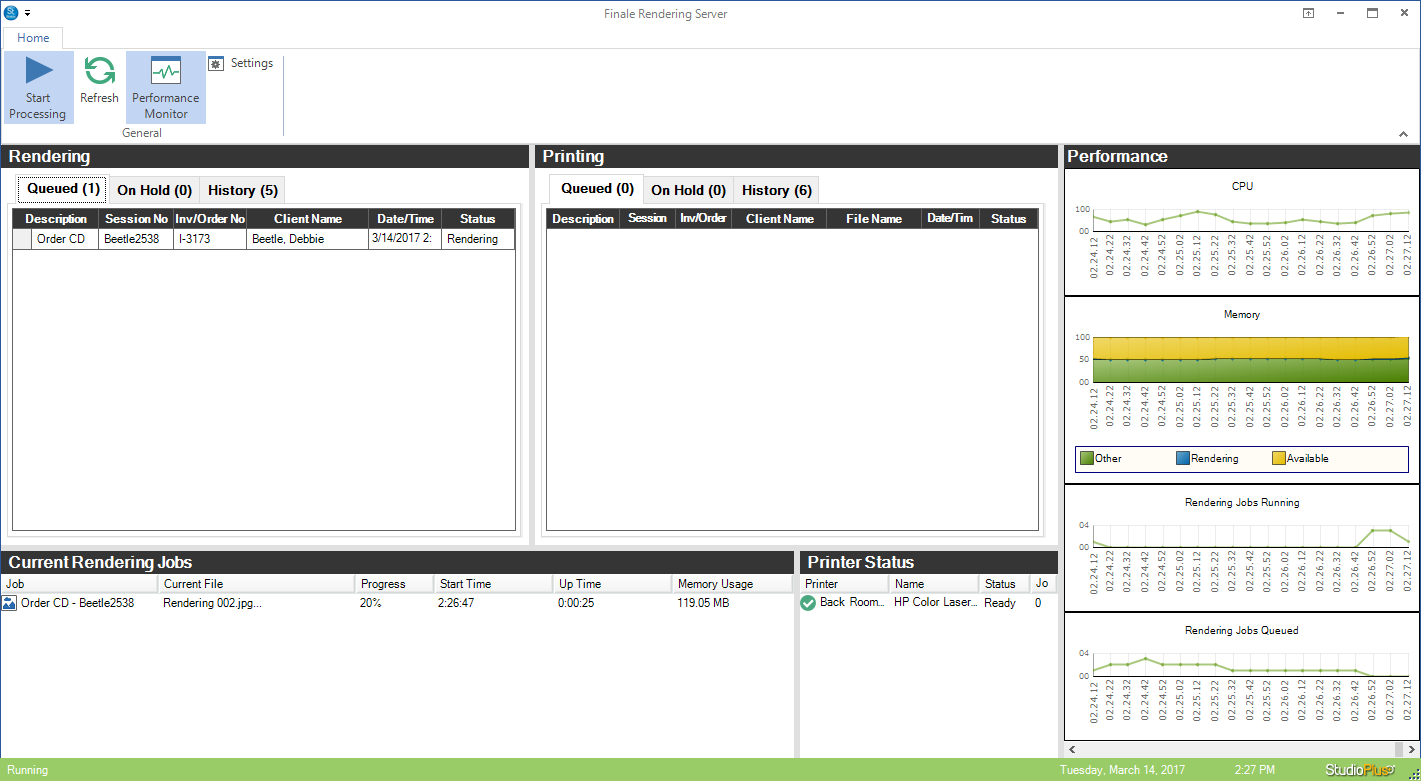
The main panels in StudioPlus Finale are:
-
Finale Ribbon
-
Rendering
-
Printing
-
Current Rendering Jobs
-
Printer Status
-
Performance
1. Finale Ribbon: #
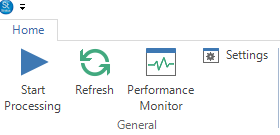
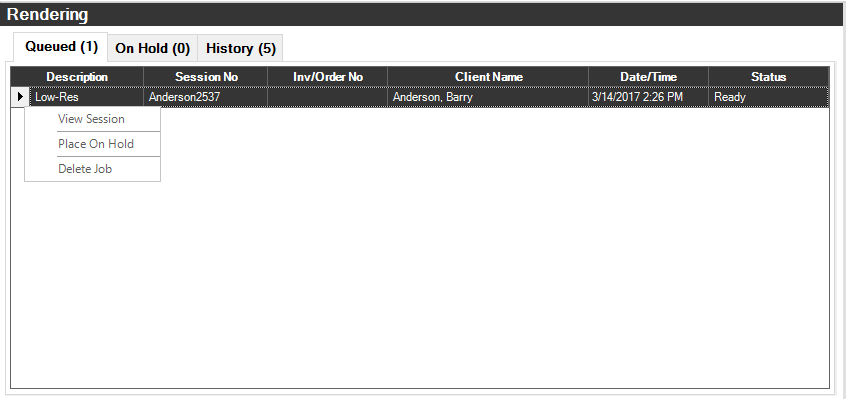
This panel shows render jobs queued to process, on hold jobs, and jobs that are already finished. Right-Click on any render job to view the record it’s associated with, move it to another tab on the panel, or delete the job. Select Start Processing from the ribbon to begin processing all queued render jobs. For instructions on setting up your render jobs, see Render Jobs and Setting up Render Jobs.
3. Printing: #
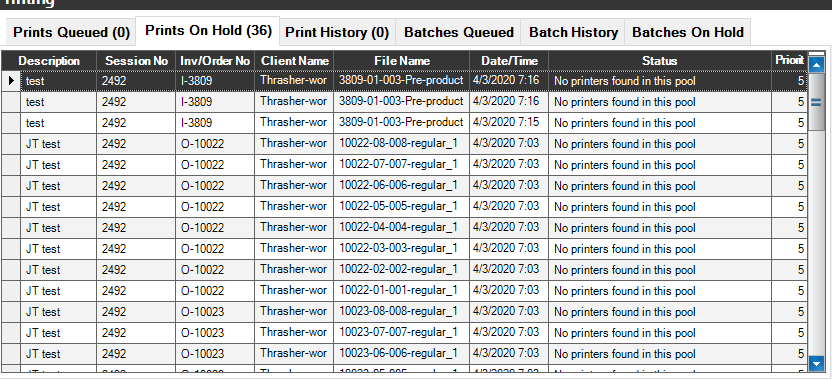
This panel shows render jobs queued to print, on hold jobs, and jobs that are already finished. Right-Click on any render job to view the image(s) it will be printing, view the record it’s associated with, move it to another tab on the panel, or delete the job. Select Start Processing from the ribbon to begin processing all queued render jobs. For instructions on setting up your render jobs, see Render Jobs and Setting up Render Jobs.
4. Current Rendering Jobs:
 #
#
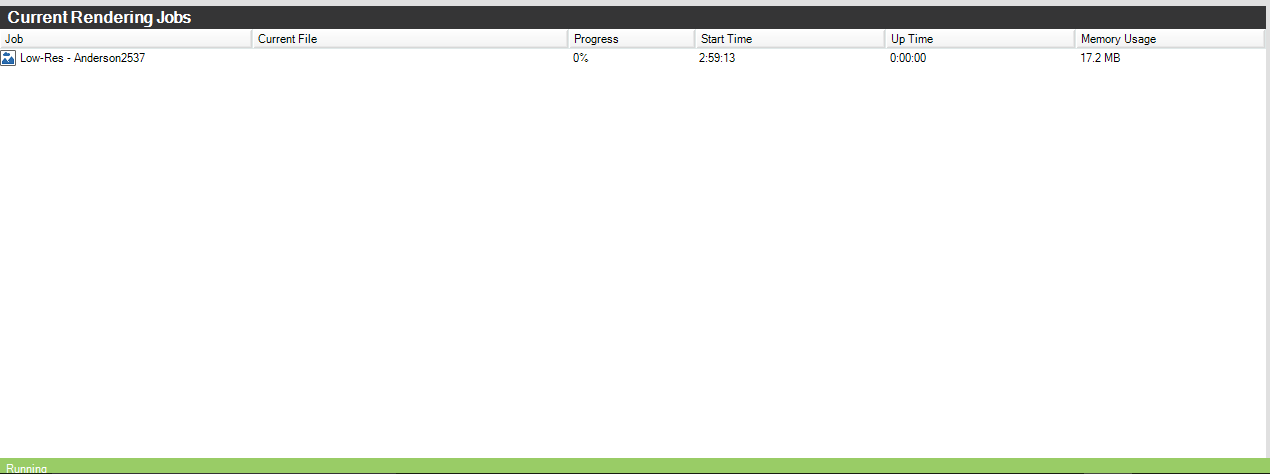
This panel shows which jobs are currently processing. It will list the name of the job, the file currently being processed, the percentage completed, what time the job started, how long it’s been running, and how much memory it is using. At the bottom of this panel, it will show a green bar when the server is processing and a red bar when it is stopped. To set up features such as how many jobs can run at a time and how much memory can be used at a time, see Finale Settings.
5. Printer Status:
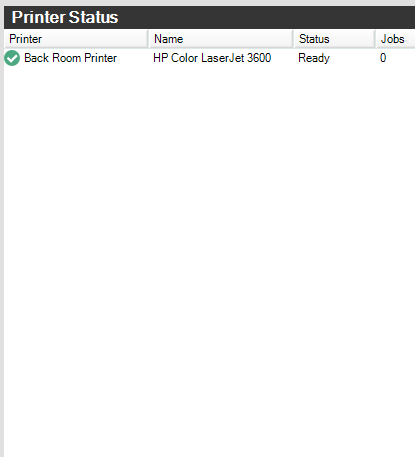
This panel shows the status of each printer set up in Stratus. It will also show how many jobs are currently processing on each printer. See Render Printers for instructions on setting up your printers for rendering.
6. Performance: #
To make your rendering even more powerful, install our 64-bit rendering engine. This engine utilizes more RAM on the PC and can help prevent “Out of Memory” errors that may occur during rendering. This engine can be installed from within Stratus at Maintenance > Preferences > Workstation Preferences > Digital tab > Install 64-bit Rendering Engine. Note: This engine can’t be installed on 32-bit computer and is not available for Spectra Access Databases. See also: Workstation Preferences – Digital
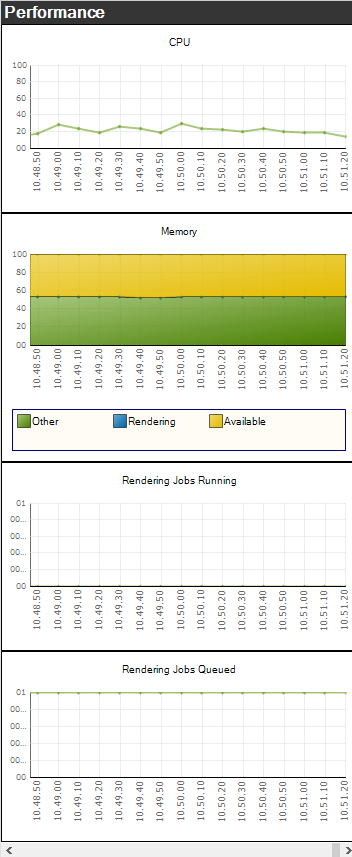
The Performance Monitor is an optional panel that can be turned on and off by selecting/de-selecting Performance Monitor from the ribbon. This panel monitors the CPU and memory of the computer running StudioPlus Finale. The total amount of jobs currently running and queued are also listed in this panel.